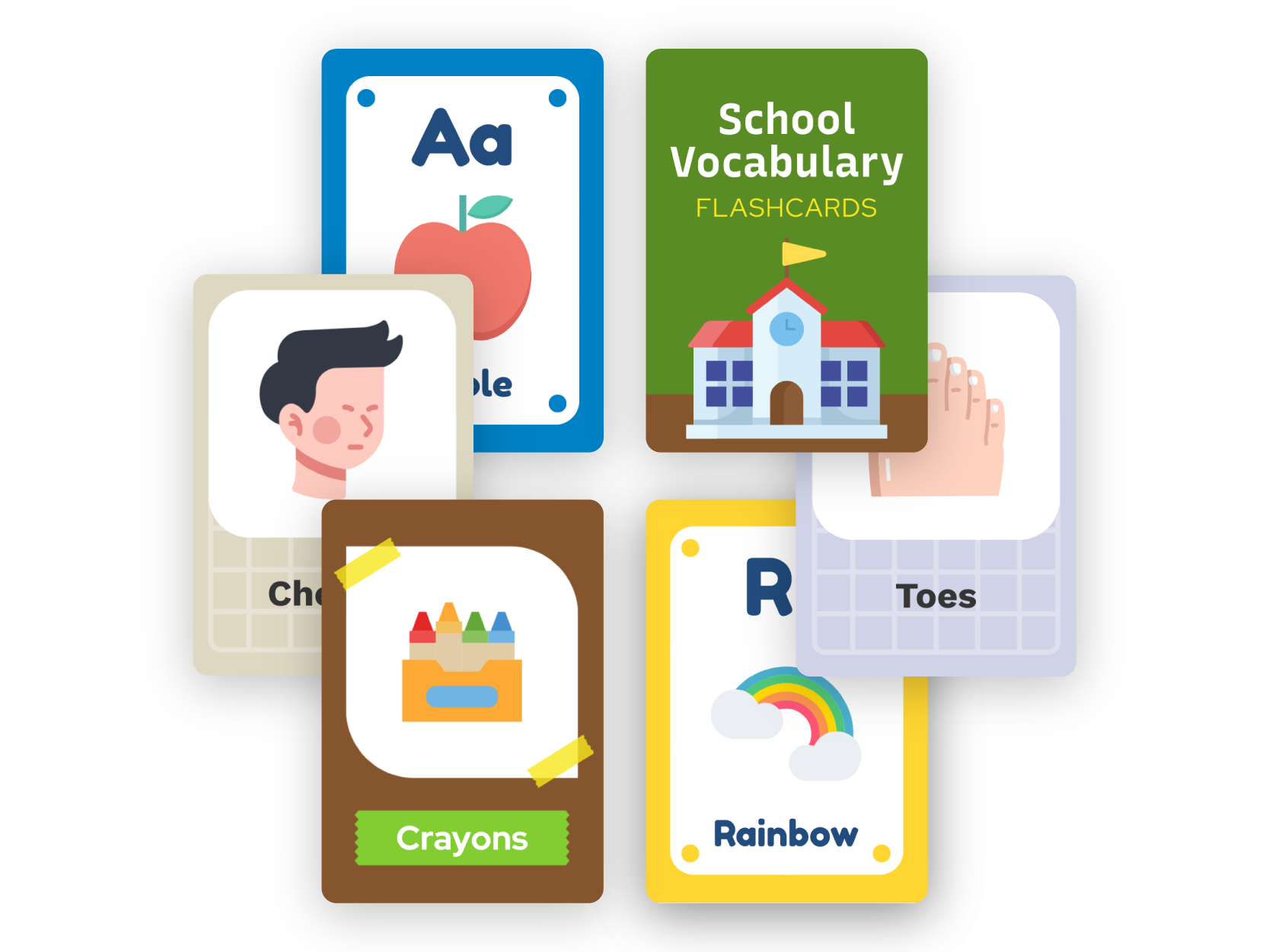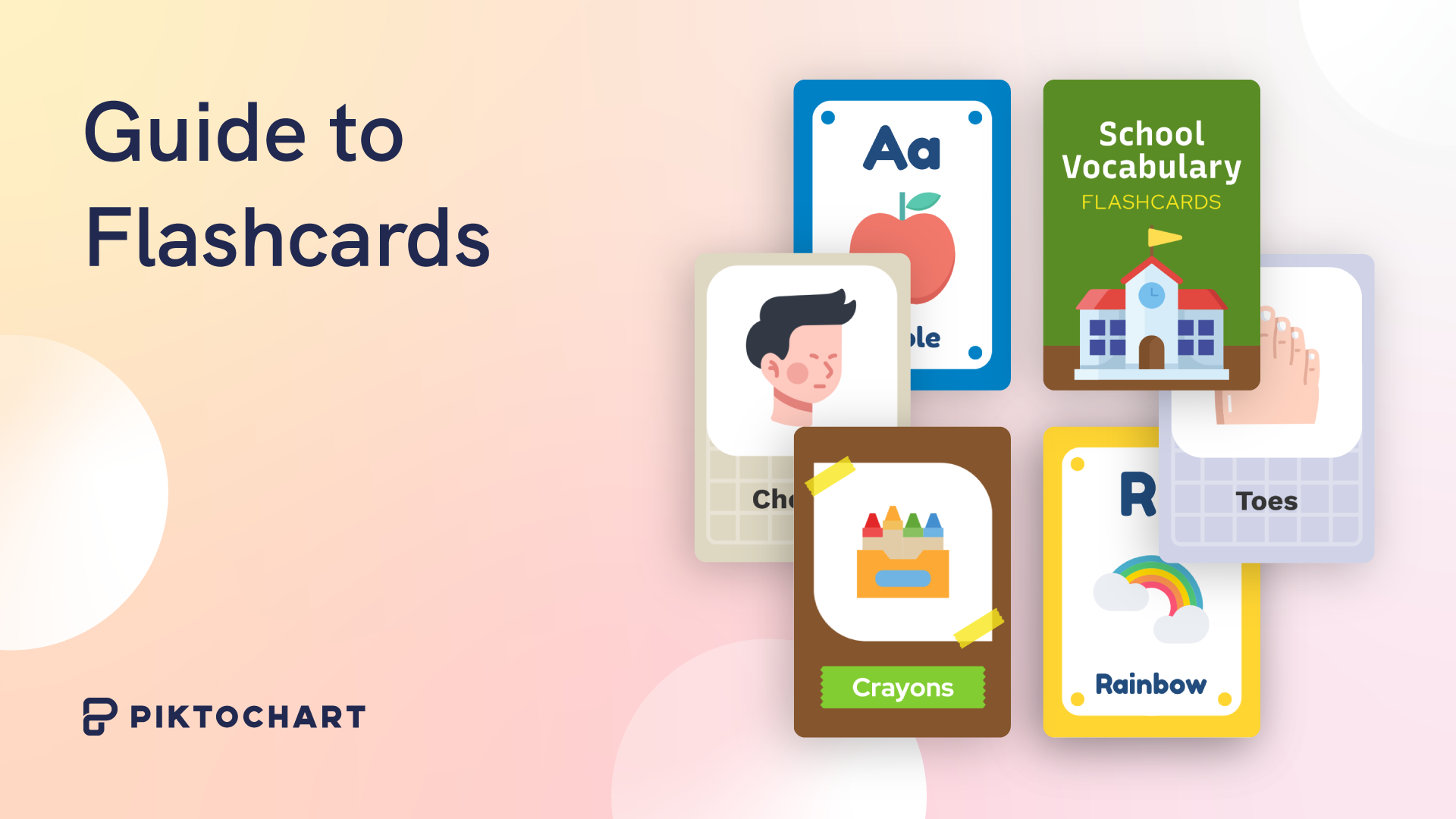
Looking for a flashcard template you can customize, print, and use in minutes? Piktochart offers 20+ free printable flashcard templates for vocabulary, math, science, shapes, sight words, and more.
Every layout is fully editable in your browser; change fonts, colors, images, and text without downloading any software. Open a template, make your edits, and export a print-ready PDF in minutes.
For a related read, see our guide on graphic organizer examples.
Each template is designed with visual learning in mind: bold colors, clean layouts, and space for images help learners connect new information to visual cues. Teachers use them for classroom activities and quiz prep. Students rely on them for exam revision and self-testing. Parents print them to help young children learn letters, numbers, and first words at home.
Sign up for free to access the full template library and start creating your flashcards.
Table Of Contents
20+ Free Printable Flashcard Templates for Every Subject
Whoever said flashcards were only for language learning or basic math probably never met a Piktochart enthusiast! The magic of flashcards, especially in our visually-driven world, lies in their adaptability.
Just as you can design a diverse range of classroom infographics with Piktochart, you can craft flashcards as study aids for nearly any subject under the sun. Let’s dive into the myriad of subjects that can be given a flashy upgrade 😉
Languages & Vocabulary
The classic flashcard! From Spanish verbs to Mandarin tones, flashcards are language learners’ best pals.
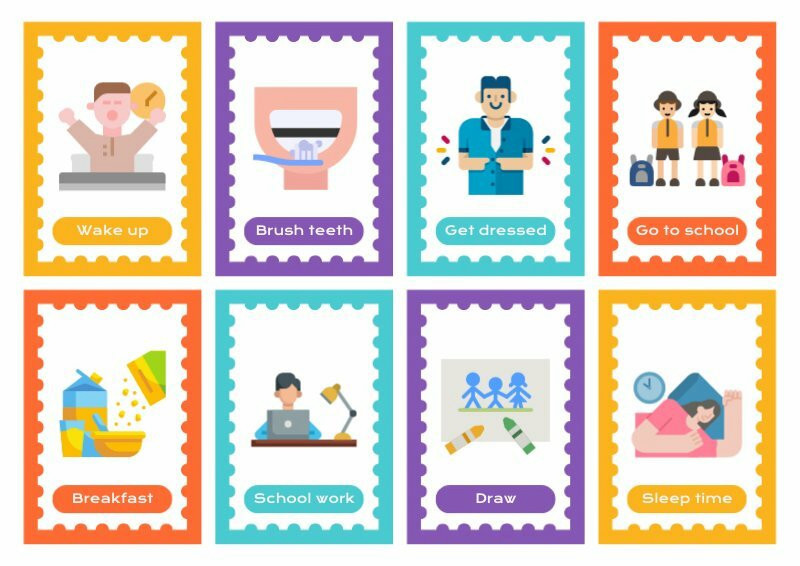
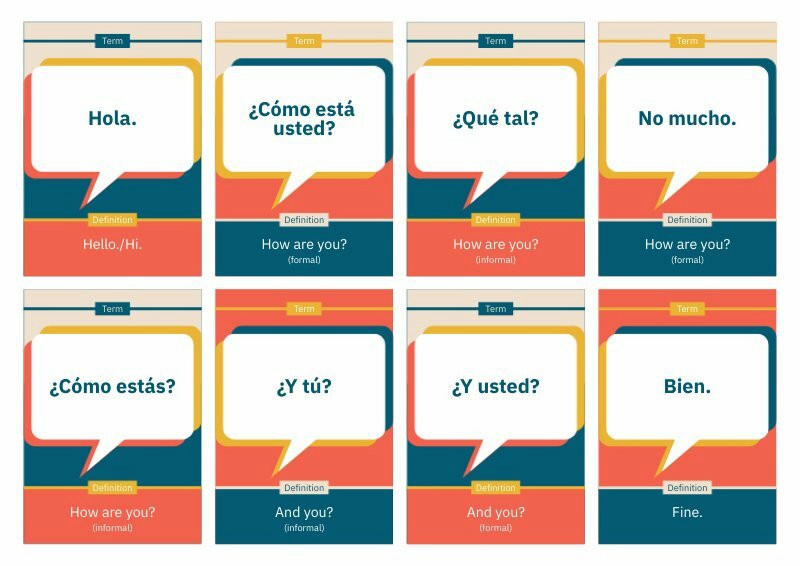
When creating flashcards for a new language, pair each word with an image or contextual sentence rather than a direct translation; this builds stronger associations and reduces reliance on your native language as a crutch. For best results, group cards by theme (e.g., food, travel, greetings) and practice them using spaced repetition so new vocabulary moves into long-term memory.
Each vocabulary template includes a dedicated image area so you can pair every term with a visual cue; research shows picture-word pairing improves recall by up to 65% compared to text-only cards. Drag in a photo, illustration, or icon from the built-in library to create a complete visual vocabulary flashcard.
Math & Equations
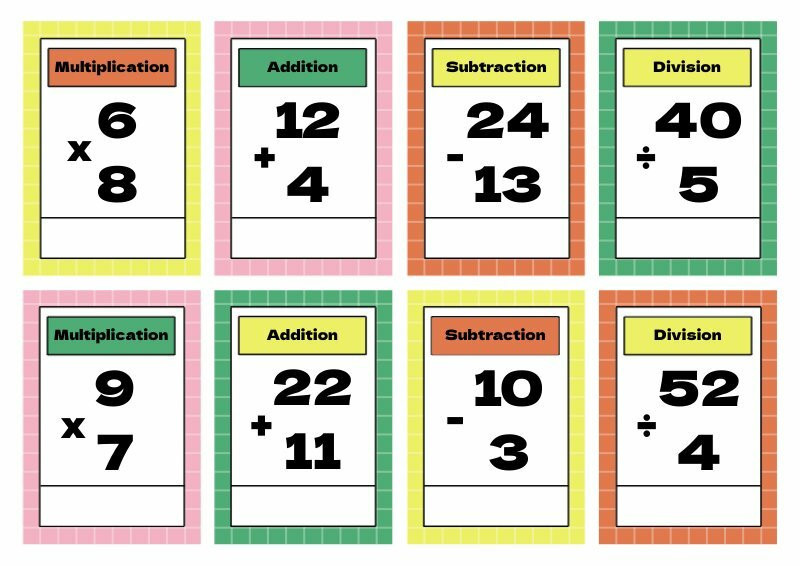
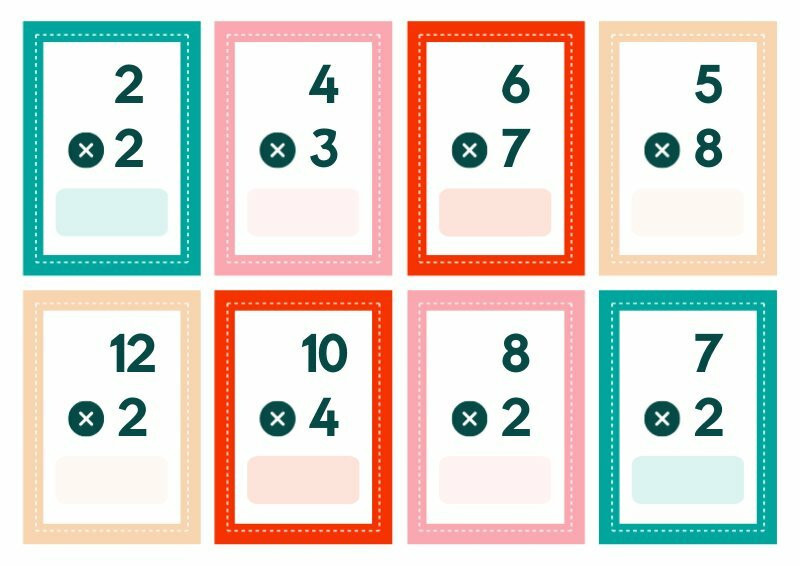
Quadratic formulas, trigonometric ratios, or even basic multiplication – make teaching math a tad bit friendlier for students with colorful cards.
Biology & Anatomy
From cellular structures to muscle groups, dissect information using vivid visuals on your cards.
You might also find our article on lesson plan templates useful.
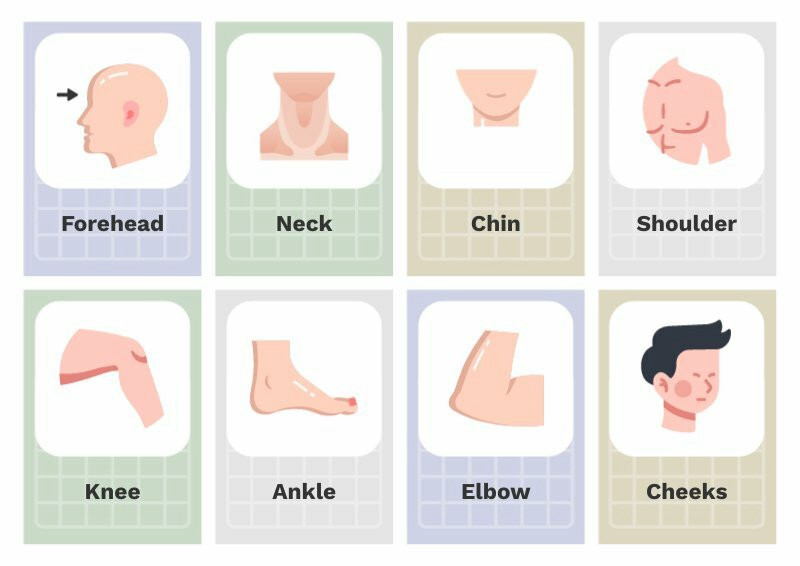
Medical and pre-med students can use the anatomy templates to isolate individual structures; place a labeled diagram on the front and detailed function notes on the back. For dense topics like musculoskeletal or neuroanatomy, keep one concept per card and color-code by body system to speed up review during exam blocks.
Colors & Shapes
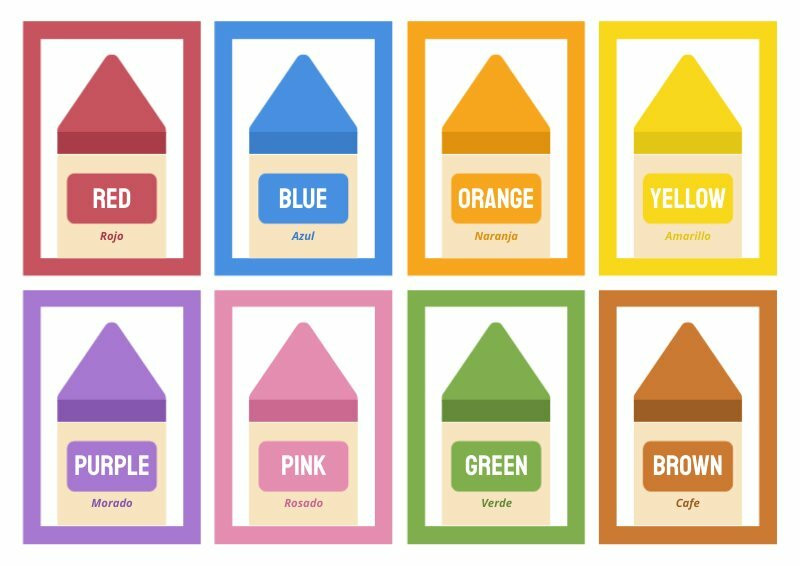
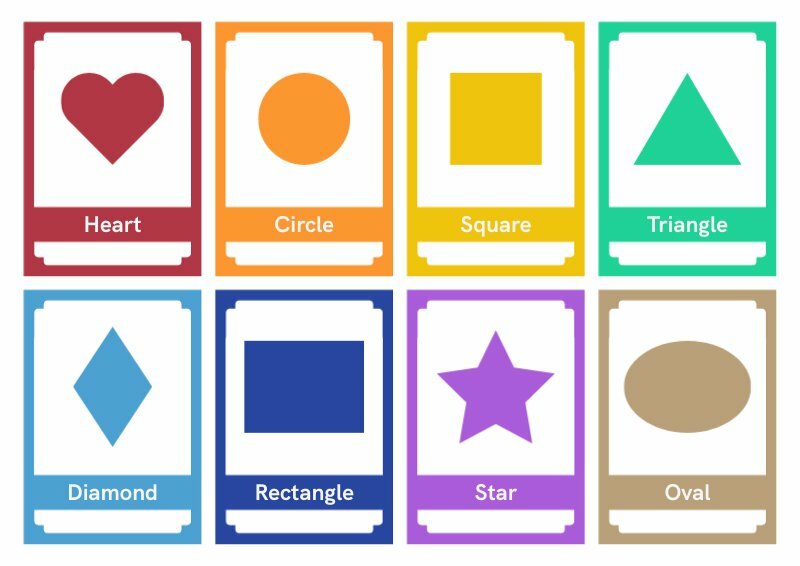
Vibrant flashcards showcasing a delightful array of colors and basic shapes, designed to spark joy and foster early learning.
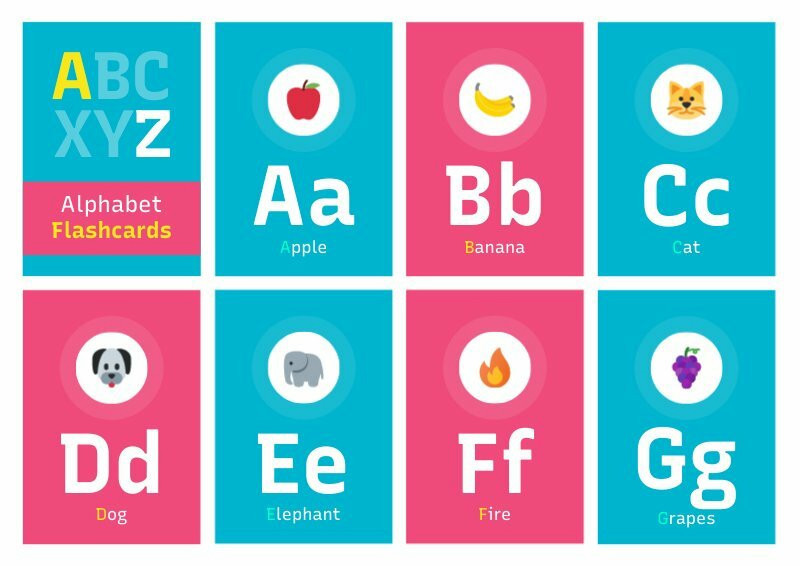
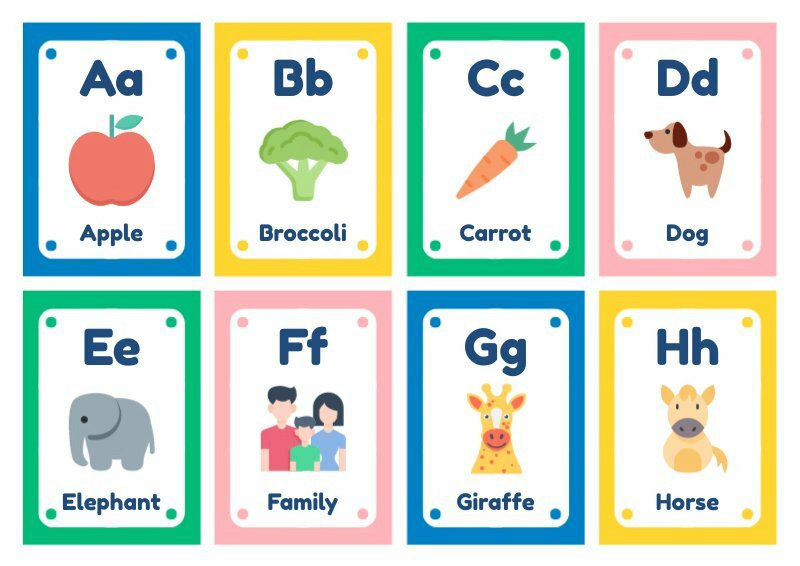
Alphabets & Numbers
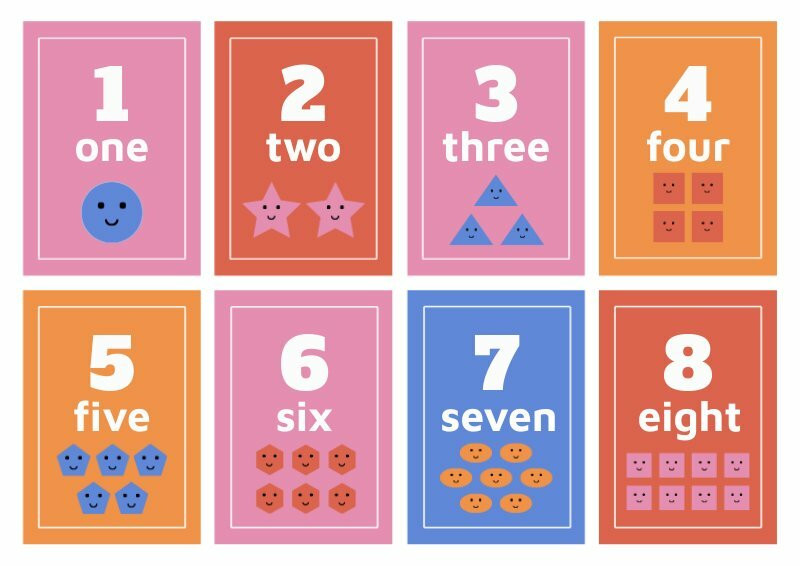
Colorful flashcards featuring friendly alphabets and numbers designed to make learning letters engaging and enjoyable for young minds.
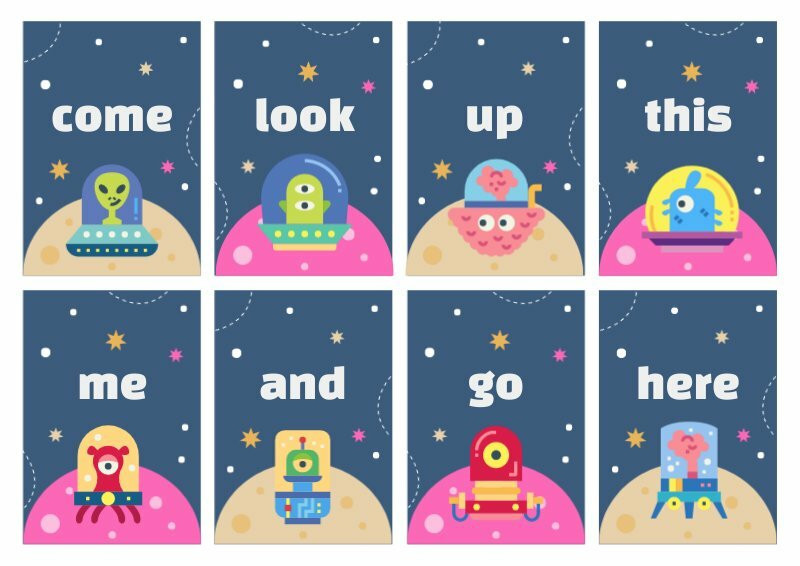
Sight Words
Simple and approachable flashcard templates introducing essential sight words, thoughtfully designed to aid young readers in building a solid foundation for reading.
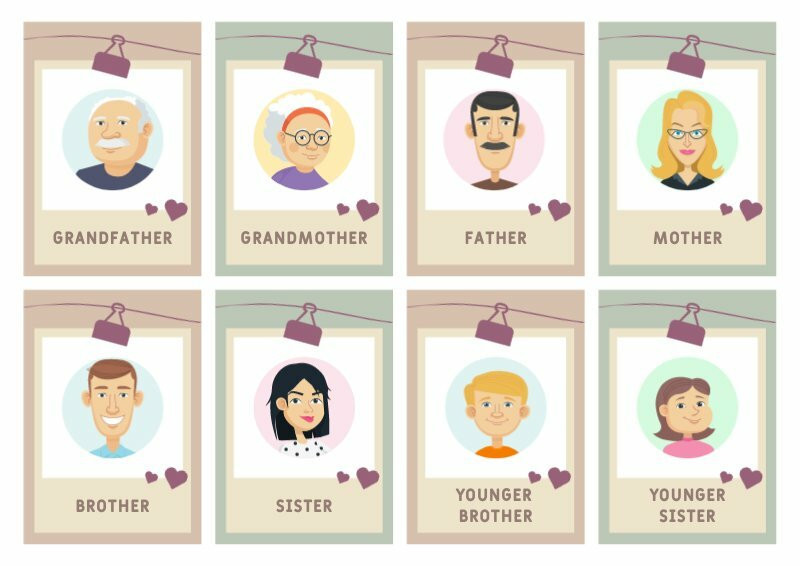
First Words
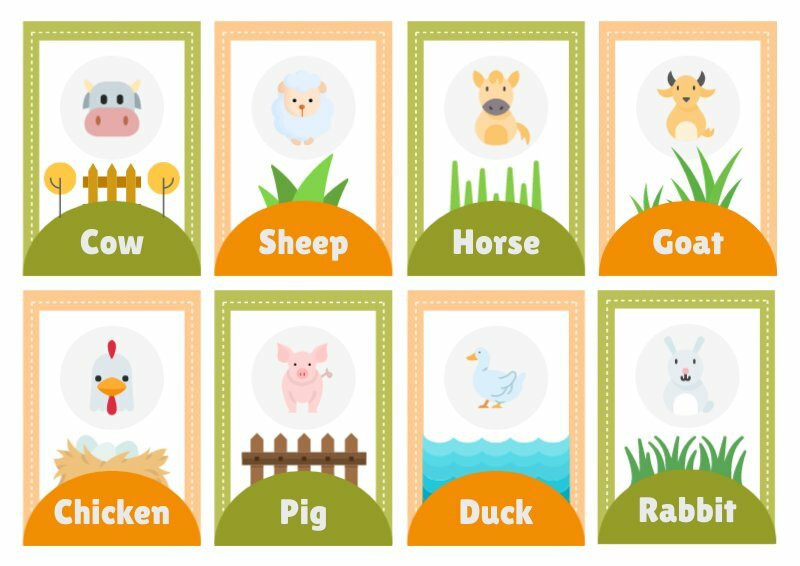
These first-word flashcard templates gently guide children by introducing fundamental vocabulary for the earliest stages of learning.
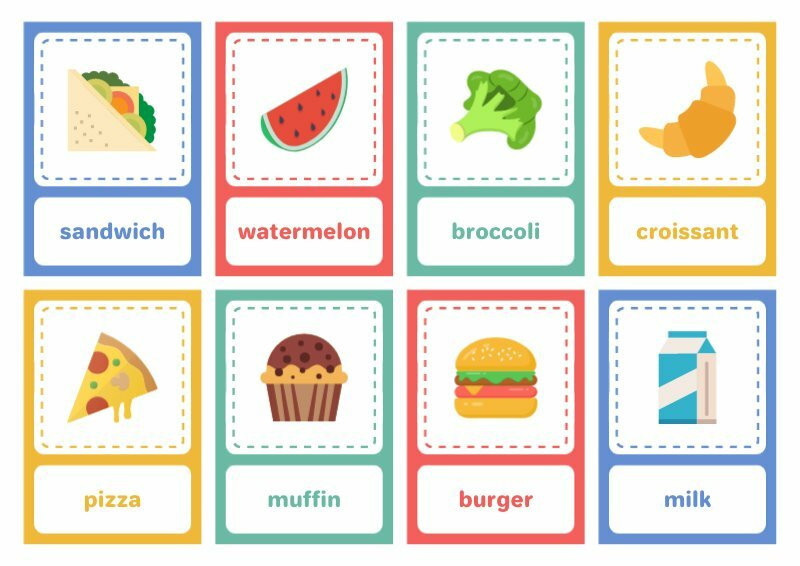
Food
Flashcards featuring vibrant illustrations of various foods make learning about different flavors and nutrition enjoyable.

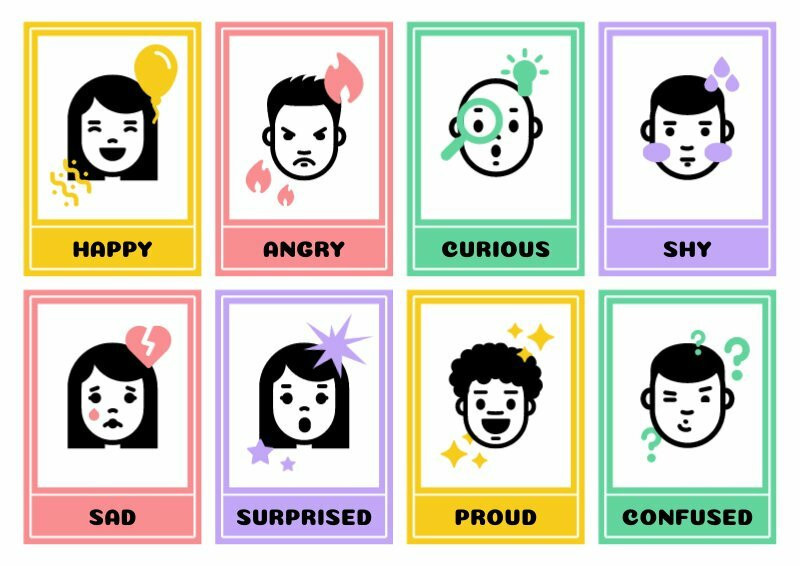
Emotions
Flashcards showing a range of emotions to help children recognize and express their feelings.
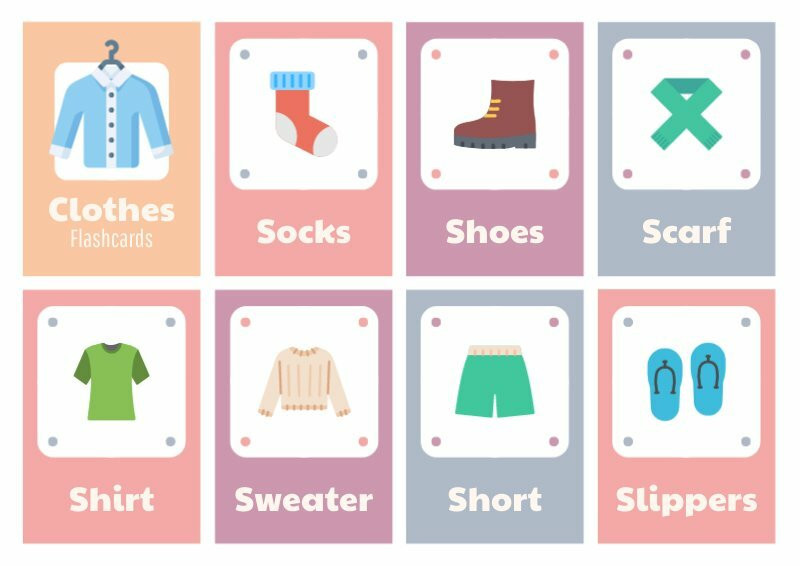
Language Association
These flashcards are designed for children to learn everyday terms and build language associations.
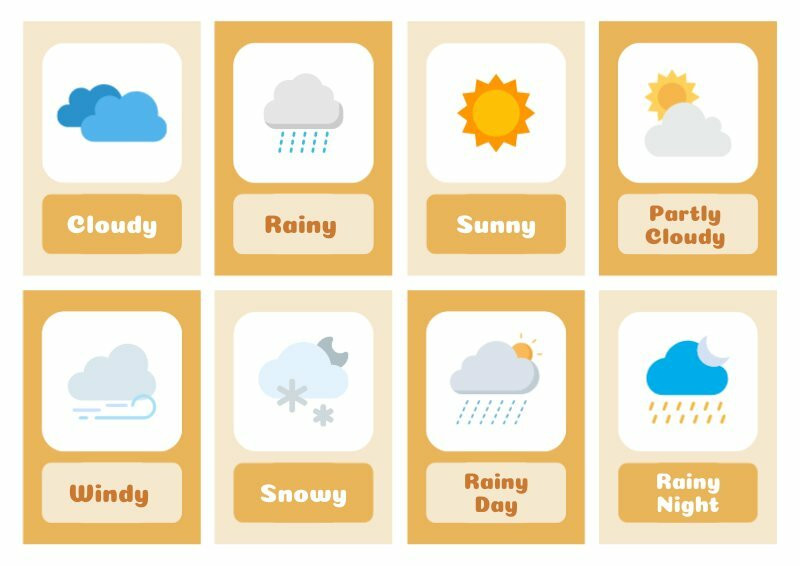
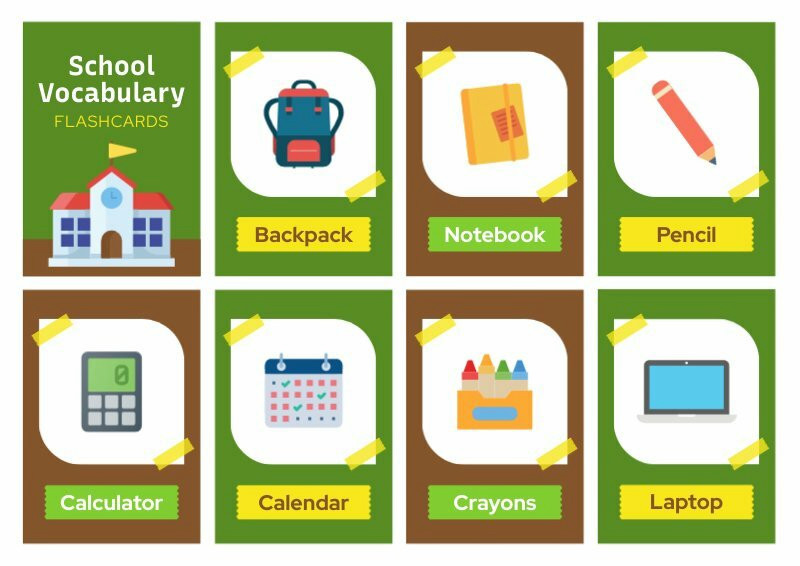
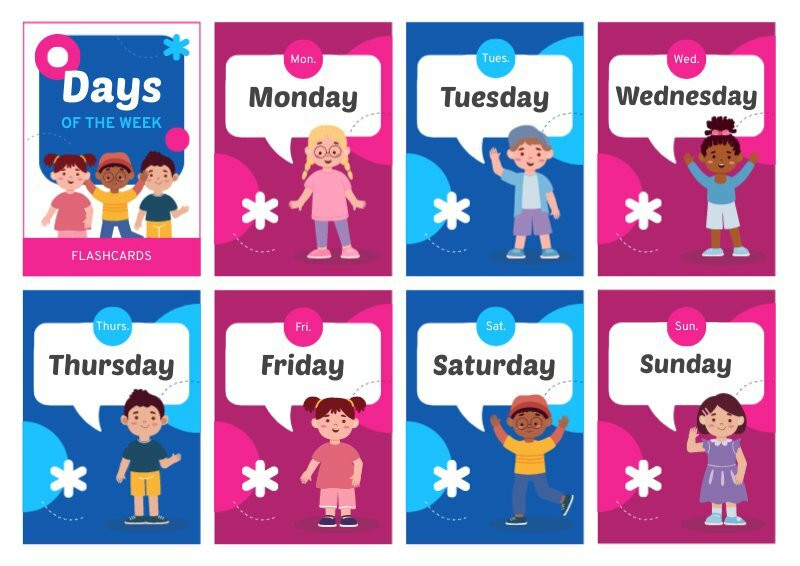
Flashcard Templates: Piktochart vs. Anki vs. Quizlet
Piktochart, Anki, and Quizlet each serve a different stage of the flashcard workflow. Understanding where each tool excels helps you pick the right one for your goals.
Looking for more? Check out one pager templates.
Piktochart is a visual design tool built for creating polished, printable flashcards. Its strengths are custom layouts, brand-consistent styling, image placement, and PDF export. If you need a set of flashcards for a presentation, a classroom handout, or a visually rich study deck, Piktochart gives you full control over every design element. It is not a spaced-repetition app; it is a creation tool.
Anki is a free, open-source flashcard app focused entirely on spaced repetition. Its algorithm schedules reviews based on how well you recall each card, pushing difficult cards to the front of the queue and spacing out cards you answer confidently. Anki is powerful for long-term memorization of large decks (medical students swear by it), but its interface is plain and its learning curve is steep.
Quizlet sits between the two. It offers a web-based flashcard builder with pre-made decks shared by millions of users, plus study modes like matching games and practice tests. Quizlet is fast to set up and great for collaborative studying, but its free tier has become more restricted in recent years, and design customization is limited.
Many students combine tools: design cards in Piktochart for visual subjects (anatomy, geography, art history), study them in Anki for long-term retention, and use Quizlet for quick collaborative review before group exams. Choose based on your priority: design quality (Piktochart), memorization algorithm (Anki), or speed and community decks (Quizlet).
How to Use Flashcards for Exam Preparation
Flashcards are one of the most effective study tools for exam preparation because they force your brain to retrieve information from memory, a process cognitive scientists call active recall. Unlike passive methods such as re-reading notes or highlighting textbooks, active recall strengthens neural pathways each time you successfully answer a card.
Here is how to build an exam-ready flashcard system:
1. Break your material into single concepts. Each flashcard should test one fact, term, or idea. “What is mitosis?” works better than “Explain the stages of cell division and their significance.” Smaller cards mean faster review sessions and clearer feedback on what you do and do not yet memorize.
2. Use spaced repetition. Instead of cramming your full deck the night before an exam, review your flashcards across multiple sessions spread over days or weeks. Spaced repetition takes advantage of the “spacing effect,” a well-documented memory phenomenon showing information sticks longer when study sessions are distributed over time.
3. Separate your cards into three piles. After each review round, sort cards into “confident,” “shaky,” and “no idea.” Focus your next session on the “shaky” and “no idea” piles. Move cards to “confident” only after you answer them correctly in two consecutive sessions.
4. Add visuals to aid memorization. Flashcards with images, diagrams, or color coding are easier to recall than text-only cards. Piktochart’s drag-and-drop editor lets you add icons, photos, and color schemes to any flashcard template so your cards do double duty: testing your knowledge and reinforcing it visually.
5. Set a study schedule. Review your flashcards for 15 to 20 minutes daily rather than a single marathon session. Short, frequent reviews produce better long-term retention. Many students build flashcard review into their morning routine or use them during commute time on a phone or tablet.
Whether you are preparing for a university final, a professional certification, or a language proficiency test, a structured flashcard system gives you a clear view of what you have mastered and what still needs attention.
Physical flashcards work well for tactile learners and distraction-free study; sorting them into piles gives you a clear visual of progress. Digital flashcards, on the other hand, let you study anywhere, enable built-in spaced repetition scheduling, and are easier to update. Many students get the best results by printing cards for initial memorization and switching to a digital deck for long-term review.
How to Make Fully Customizable Printable Flashcards in a Flash!
Step-by-Step to Create Study Aids with Flashcards
Unlike general-purpose design tools such as Canva, Piktochart’s flashcard maker is purpose-built for study materials; every template is pre-sized for standard flashcard dimensions, and the editor includes a one-click front-and-back card toggle so you can create double-sided flashcards without switching between separate files.
1. Start Fresh: Head over to Piktochart and select one of the Flashcard templates. ‘Create New.’ Choose the ‘Card’ and then ‘Flashcard’. You can start with your favorite template or a blank template.
2. Set the Stage: Choose a background color that’s easy on the eyes. Pastels or light neutrals work wonders.
3. Text Time: Using the ‘Text’ tool, add your own words, main point or question on one side. Keep fonts clear and legible – think Serif fonts. Jazz it up with some bold or italics if you want!
4. Visual Vibes: Piktochart’s library is brimming with icons and images. Search and select visuals and symbols that resonate with your topic. Remember, an image can reinforce memory!
5. Flip It!: Time for the reverse side. Add a new page (or block) within the same file. This page is where your detailed answer or explanation goes. Again, simplicity is key. If you’re covering a complex topic, consider your answers in bullet points or lists.
6. Consistency is Cool: If you’re making a series, use the same template to ensure consistency. This template makes for creating a unified and distraction-free learning experience.
7. Download & Distribute: Once you’re satisfied, download your flashcards. You can print them out or even use them digitally.
And voilà! In a few steps, you have transformed raw information into a flashcard template, to be reused over and over again.
How to Bulk-Create Flashcards from a Spreadsheet
If you have dozens or hundreds of terms to turn into flashcards, typing each one manually is slow. A faster approach: organize your data in a CSV or Excel file with columns for “Front” and “Back,” plus an optional “Image URL” column. Anki and Quizlet both accept direct CSV imports, generating a full deck in seconds. For Piktochart, the current workflow is to create a master flashcard template, duplicate it for each card, and paste in your terms; batch-import is not yet supported natively, but the duplication process is quick once your template is set. If your dataset is large, consider generating cards in Anki for study and reserving Piktochart for the subset of cards where visual design matters most (classroom handouts, printed sets, or presentation aids).
Can You Make Two-Sided Flashcards in Google Docs?
Google Docs lacks a native front-and-back card toggle, so creating double-sided flashcards requires workarounds: you can set up a two-column table (front on the left, back on the right) or use alternating pages, but neither approach prints cleanly as foldable cards. For a purpose-built alternative, Piktochart’s flashcard templates include a one-click front/back switch and export directly to a print-ready PDF sized for standard flashcard dimensions.
Flashcard Templates for Microsoft Word and Standard 3×5 Cards
Microsoft Word can produce flashcards, but it requires manual page sizing (3″ x 5″ or 4″ x 6″), margin adjustments, and careful text-box placement to get front-and-back alignment right when printing. Piktochart eliminates this setup work: every flashcard template is already formatted to standard dimensions, and the one-click PDF export produces cut-ready cards without fiddling with print settings or ruler guides.
Using Flashcard Templates on iPad with GoodNotes or Notability
For handwriting-friendly tablet study, export your Piktochart flashcards as a PDF and import the file into GoodNotes or Notability. Both apps let you annotate directly on the card with an Apple Pencil; write answers, highlight key terms, or sketch diagrams on the digital surface. This workflow combines the design polish of a printed template with the flexibility of tablet-based note-taking, and it keeps your entire deck portable in a single app.
In essence, if there’s a subject you want to conquer, there’s a flashcard format ready to back you up. ?✨ With the power of visual learning via Piktochart, any topic becomes flashcard-friendly!
Minimalist Flashcard Templates for Aesthetic Study Setups
Clean, modern flashcard designs are popular among students who share study setups on social media or prefer a distraction-free visual style. Minimalist templates use muted color palettes (soft beige, sage green, dusty blue), a single sans-serif font, and generous white space to keep the focus on the content. In Piktochart, pick a neutral-toned template, limit yourself to two colors and one font family, and keep each card to a single concept. The result is a cohesive deck matching the aesthetic of clean desk setups and organized study spaces.
Piktochart offers professionally-designed templates for all your visual communication needs. It is your one-stop shop for class schedules, posters, logos, email signatures, infographics, and more. Get started for free today.
Elevate your learning experience today
Start supercharging your study sessions with our free flashcard templates
Sign up for Piktochart now