The correct YouTube thumbnail size is 1,280 x 720 pixels, with a 16:9 aspect ratio and a minimum width of 640 pixels. Getting these dimensions wrong means blurry previews, cropped images, or rejected uploads; getting them right gives your video a competitive edge before anyone presses play.
This guide breaks down every specification YouTube requires, explains why proper sizing affects click-through rates and search visibility, and walks you through creating custom thumbnails with Piktochart AI. You will find design tips drawn from top-performing creators, common mistakes to avoid, and answers to the most frequent thumbnail questions. For real-world inspiration, check out these YouTube thumbnail examples from channels pulling millions of views.
For a related read, see our guide on how to post a carousel on linkedin.
What size is a YouTube thumbnail?
Follow these correct tech specs for your YouTube thumbnail to make sure the file is accepted and displays correctly. You can check out YouTube’s official guidance too.
- Exact dimensions: 1,280 x 720 pixels
- Maximum width: limited by file size
- Minimum width: 640 pixels
- Aspect ratio: 16:9
- Maximum file size: 2MB
- Accepted formats: JPG, GIF or PNG
A resolution of 1280×720 pixels at 72 DPI gives YouTube enough data to render a sharp preview across desktop, tablet, and mobile screens. Higher-resolution source files (e.g., 1920×1080) share the same 16:9 aspect ratio but produce larger files that risk hitting the 2 MB upload cap.
If your exported thumbnail exceeds the 2 MB limit, switch from PNG to JPG at 80-85% quality. This typically cuts file size by 60-70% with minimal visible difference at thumbnail scale. Online compressors like TinyPNG or Squoosh can also strip metadata and optimize the file without resizing.

YouTube Shorts dimensions
YouTube Shorts are vertical videos, so they have different dimensions for thumbnails. The standard YouTube Shorts dimensions are 1080×1920 pixels with a 9:16 aspect ratio optimized for vertical mobile viewing.
Recommended resources:
YouTube thumbnail size vs other platforms
A YouTube thumbnail (1280×720, 16:9) is wider and shorter than an Instagram feed post (1080×1080, 1:1) or an Instagram Story (1080×1920, 9:16). If you repurpose thumbnails across platforms, export at 1920×1080 and crop to each platform’s ratio so the source file stays sharp.
Why YouTube thumbnail size matters
The thumbnail is a crucial element of a YouTube video, because no matter how great your video is, without a strong thumbnail, people won’t click through to watch. 90% of the best-performing YouTube videos have custom thumbnails. And getting the right YouTube thumbnail dimensions matters – here’s why.
1. Display quality across devices
With the right dimensions and resolution, your thumbnail will display correctly whatever device someone is viewing it on. Get the resolution wrong, an image that looks good on a phone screen might be blurry on a desktop monitor. With the right spec, you know your image looks great wherever it’s viewed.
2. Search result appearance
Standing out in search results within YouTube and search engines is a key way to attract views. You want your thumbnail to look crisp and professional so that the content grabs attention.
You might also find our article on linkedin carousel examples useful.
3. Suggested video appearance
Another driver of video views is the YouTube suggested video feature. Here thumbnails are crucial – you’re competing for the attention of viewers who might not know your channel, and might not have specifically searched for your content. Your thumbnail must be attention-grabbing so you’re the next thing they click.
4. Impact on click-through rates
To stand out in the ocean of YouTube content requires building engagement and trust. Engagement is generated by attention-grabbing content in your thumbnail. Trust comes from the quality of the image. Your thumbnail should be crisp with clear text and a professional look.
How to create the perfect YouTube thumbnail size using Piktochart AI
Piktochart makes creating YouTube thumbnails quick and easy. You can use our AI Visual Content Generator to create a template that’s automatically the right size, then tweak it to work for you.
Using the AI generator also helps maintain brand consistency, as it’s simple to save and add brand colors. Here’s how to use it.
1. Open the Piktochart AI Visual Generator, select the Thumbnail option, and enter a description of your thumbnail. You can add additional instructions about the feel you want for the thumbnail.

2. The Generator will create a selection of templates to choose from. Pick one you like the layout of. It doesn’t have to be perfect, you can edit the text, elements and colors in the next stage.

3. At this stage, you can also choose to replace any images in the template with a new AI-generated image. Click Change Image and enter a prompt for the image you want to see. The more detail you give about the image content and style, the more accurate your results will be. (You can also replace with your own images in the next step.)
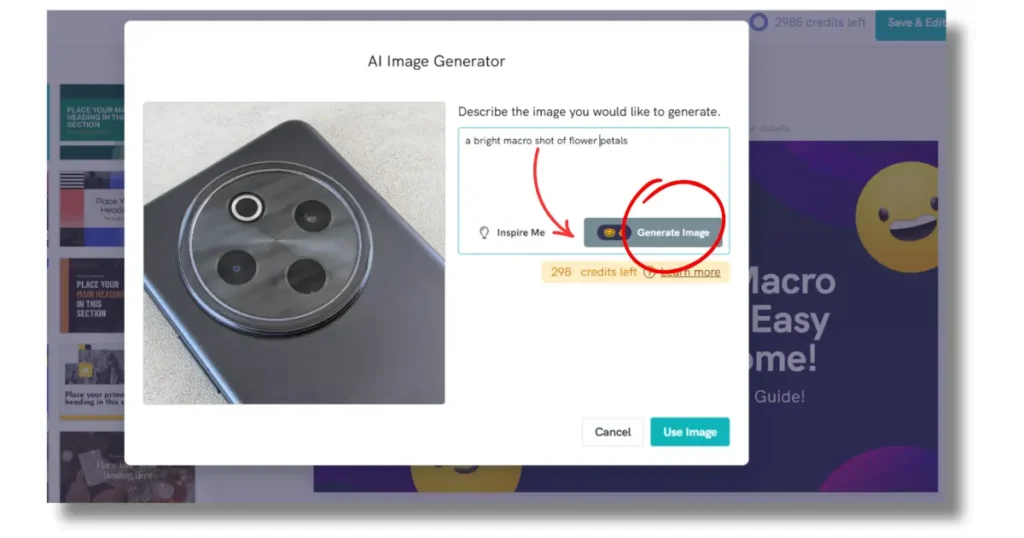
4. Click Save & Edit Thumbnail to go through to the editing screen. Here you can change colors, fonts, text and elements. The graphics library has thousands of icons and shapes to choose from.

5. You can add or change photos here too, either with your own uploads, or from the stock photo library.
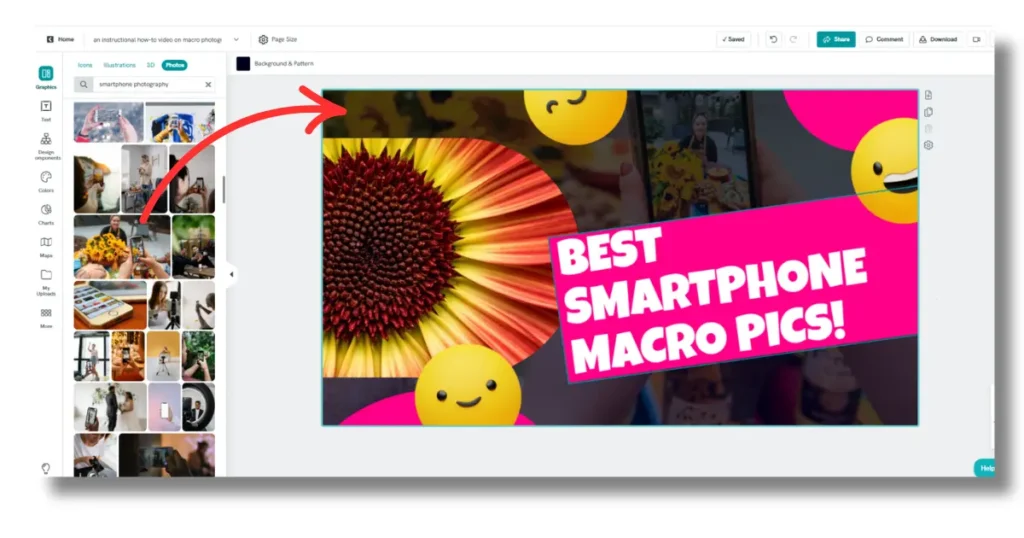
6. When you’re happy, click Download to save your thumbnail. Now you’re ready to upload to YouTube!
How to Upload a Custom Thumbnail to YouTube
Creating a sharp thumbnail is only half the process. You still need to upload it to YouTube through YouTube Studio, the platform’s built-in channel management dashboard.
Step-by-step upload instructions:
- Sign in to YouTube Studio and click Content in the left sidebar.
- Find the video you want to update and click its title or thumbnail preview to open the details page.
- Hover over the existing thumbnail area and click Upload thumbnail.
- Select your image file (1,280 x 720 px, under 2 MB, JPG/PNG/GIF).
- YouTube will display a preview. Confirm the image looks correct at small and large sizes.
- Click Save in the upper-right corner to apply the new thumbnail.
Before you can use custom thumbnails, your YouTube account must be verified. YouTube requires phone number verification, which typically takes less than a minute through the channel settings page. Once verified, the custom thumbnail option appears on every video upload and edit screen.
A quick note on timing: YouTube allows you to change thumbnails on published videos at any point. If a video is underperforming, swapping the thumbnail with a stronger design is one of the fastest ways to test whether the visual was limiting clicks. Many creators run informal A/B tests by changing their thumbnail weekly and comparing click-through rate data inside YouTube Studio analytics.
YouTube’s built-in Test & Compare feature (rolling out through 2025-2026) lets you pit up to three thumbnail variants against each other and see which earns the highest watch-time share. If you do not yet have access, swap your thumbnail manually every 7 days, note the CTR in YouTube Studio Analytics for each period, and compare after at least 1,000 impressions per variant.
YouTube thumbnail tips and best practices
Follow these simple guidelines to get the best performance out of your YouTube thumbnails.
Design for mobile first
Over 70% of YouTube watch time happens on mobile, so design your thumbnail at phone scale first: view it at roughly 160×90 pixels on screen before exporting. If the face, text, and core message are still readable at that size, the thumbnail will perform well everywhere.
1. Pick a USP (unique selling point).
Viewers most often encounter thumbnails in a long list of other videos, and in small sizes on phone screens. That means the message of the thumbnail needs to be simple and clear. Picking out one or two strong visual elements gives you the best chance of stopping the scroll.
Think about the key thing that will attract viewers to click your video – your unique selling point. Is it the title? The presenter? The promise of information?
2. Use human faces
Human faces can increase click-throughs on videos, and many of the top YouTubers use faces in thumbnails. We make an instant connection with a face, and it’s easy to convey emotions through facial expression.

3. Make text eye-catching
Keep the text on your thumbnail short, and make it as large as possible so it’s easily readable on a small screen or in a list of thumbnails. If you’ve got a short, punchy title, you might choose to fill most of your thumbnail space with text. Use a clear font and colors that stand out against the background.

3. Use the rule of thirds
The rule of thirds is a design technique that splits an image into thirds vertically and horizontally, and places key elements at the intersections. This technique draws the eye to the most important parts of the image.
You can use it to create an attractive image, or to draw the viewer’s attention to important information.

4. Use contrasting colors
High contrast colors can help image and text pop in small sizes. You can use bright colors in the images in your thumbnail. If you regularly use similar colors, this can help build your channel brand.

5. Make the most of text
You can also use text overlays to complement your video title. In this example the text in the image raises a question in the viewer’s mind and encourages them to click for the answer. The title gives more information about what they can expect from the video, without answering that key question.

6. Create a consistent style
The most successful YouTube channels use a consistent style for all their thumbnails. It makes videos instantly identifiable in the feed, and helps a channel page look more professional and unified, building trust.

Thumbnail tips for vloggers
Vloggers benefit from a recognizable template: a consistent background color or border, a clear face shot showing the episode’s emotion, and a short text hook that changes per video. This template approach speeds up production for frequent uploaders while keeping every thumbnail instantly identifiable in subscriber feeds.
7. Use a logo
You could choose to add a channel logo to all your thumbnails. Many successful YouTubers do this so that their videos are identifiable in the feed. It’s particularly effective when your video content is visually similar to lots of other content, such as gaming videos. Logos in thumbnails can also visually tie together your videos when the content itself is varied.

8. Use graphics wisely
Graphic elements like arrows, shapes and emojis can be used to direct viewer attention, but use them sparingly and strategically. Overuse can make a thumbnail too busy.

Follow YouTube’s community guidelines
YouTube’s community guidelines prohibit thumbnails containing sexually suggestive imagery, graphic violence, or misleading content designed purely to shock. Violations can result in a community strike, custom-thumbnail privileges being revoked, or channel demonetization. Review YouTube’s thumbnail policies before publishing.
Things to avoid in YouTube thumbnails
There are some thumbnail practices that it’s best to steer clear of:
- clickbait that doesn’t match video content – you might get clicks, but your audience retention metrics will suffer;
- complex designs with lots of elements that are confusing to take in at a glance;
- low resolution images;
- small or elaborate fonts.
For help with sticking to best practices for thumbnails, use our thumbnail generator for starting template ideas.
High-CTR thumbnail examples
Channels like MrBeast and Ali Abdaal consistently achieve 10%+ CTR by pairing a close-up facial expression with two or three bold words on a contrasting background. Study their most-viewed videos: notice how each thumbnail tells a story in a single glance, using one dominant color and minimal text.
Frequently asked questions
Is YouTube thumbnail 1280×720 or 1920×1080?
The recommended size for a YouTube thumbnail is 1,280 x 720. However, you could also use an image with the dimensions 1920 x 1080, because this is the same aspect ratio of 16:9.
Be aware though that a 1920 x 1080 image will be a larger file size. As thumbnail file sizes are limited to 2MB, you’ll have to check your file doesn’t exceed this. It’s also possible that a large thumbnail may be over-compressed when uploaded to YouTube, reducing image quality.
Is YouTube thumbnail size 16:9?
Yes, a YouTube thumbnail has an aspect ratio of 16:9. If you want to use a thumbnail image with a different aspect ratio, you can add black bars at the top or bottom of the frame. Bear in mind that if you do this, you’re not making the most of the available space.
What happens if my thumbnail is the wrong size?
You should still be able to upload a thumbnail of the wrong size to YouTube, but YouTube will automatically crop the image to fit the 16:9 frame, so your image won’t display correctly. How the image displays may also change depending on what device it’s being viewed on.
To make an image of a different aspect ratio display without cropping, you can manually add black bars to the sides or top and bottom of the image to fill the full width and height. But in this case you are not using all the available area.
You can also use an image compressor tool like this one from Adobe to transform images into the correct size for a YouTube thumbnail.
The best approach is to follow the recommended image dimensions of 1280 x 720.
Why does my thumbnail look worse after uploading?
YouTube re-compresses every thumbnail on upload, which can soften fine detail and introduce artifacts around text edges. To minimize quality loss, upload a PNG file at exactly 1280×720 pixels with no transparency. This gives YouTube’s encoder the cleanest possible source and avoids a double-compression penalty from uploading a pre-compressed JPG.