
Apple Keynote is one of the most powerful presentation tools on Mac, yet most presenters barely scratch the surface of what it can do. Whether you are pitching investors, leading a company meeting, or speaking at a conference, the right Keynote tips and tricks can turn a forgettable slide deck into one your audience remembers for months.
This guide covers 10 proven techniques for designing sharper slides and delivering them with confidence in Apple Keynote. From slide layout and data visualization to Magic Move transitions and storytelling structure, each tip is backed by what top presenters and Piktochart designers rely on every day. You can apply these ideas in Keynote on your Mac, iPad, or iPhone; and if you need a head start, try Piktochart’s presentation maker to build a polished deck in minutes.
1. Do your slides last
While most keynote speakers will typically build their presentation around the structure of a template, Weyenberg says that “building your slides should be the tail end of developing your presentation.” Before working on your slides, you should put together your main message, structure, supporting points – then practice and time your presentation.
The reason for this, he says, is that the presentation needs to be strong enough to stand on its own. Approaching a keynote like this requires a shift in thinking.
While a beautiful set of slides is imperative to your presentation, it should not be central to it.
Weyenberg said it best: “The slides are just something you layer over [the presentation] to enhance the listener experience.”
Observe these 2017 Google I/O keynotes, especially CEO Sundar Pichai’s – the role of the slides are to support what the speaker is saying – not the other way around.
2. Get creative with photos
Often times, presenters will be far too literal or cheesy with their image choice. Weyenberg suggests to use images that are simple, yet punchy – and pairs nicely with your spoken words. He says to look for photos that are:
- Related to your keynote’s concept
- Are not complex in terms of composition
Metaphors or even something a bit more literal could work, but it should be clear as day as to why the audience is looking at it – and should only enhance what you’re saying.
Here’s an example that Weyenberg used in his deck for the launch of a new TED.com. The idea here is that the launch should be perceived as the “beginning of something new,” and that TED will learn, adapt, change and grow. 
3. Simplify charts and graphs
While most presenters will simply drop an image of their charts and graphs into their deck, Weyenberg points out that it might be a bit “unsightly.” If you need to use data to back a point that you’re making, you should make the extra effort to make it more attractive – and this can be done by recreating it in your presentation maker.
There are a couple benefits to doing this:
- It will make your presentation seem consistent and well-thought out
- You’ll have control over colors, typography, and more.
Here a Weyenberg example:
4. One theme per slide
According to the designers of Apple presentation slides, less is certainly more. Trying to cram too many ideas on one slide can only work to your detriment. Beyond ideas, the same goes for statistics.
Let’s play a little game:
For the following idea, how many slides would you use?
“The developer program is incredibly vibrant. We have over six million registered developers. Demand for this show has never been greater. We sold out in just over a minute [71 seconds].”
While the average person might think that 6 million and 71 seconds would belong on the same slide and be short and sweet enough, let’s compare it with what Apple’s CEO Tim Cook did.
He only leveraged two slides: The first said “6 million,” and the second: “71 seconds. Sold out.”
The point here is this – if a statistic is important enough and you want people to remember it, give it it’s own slide.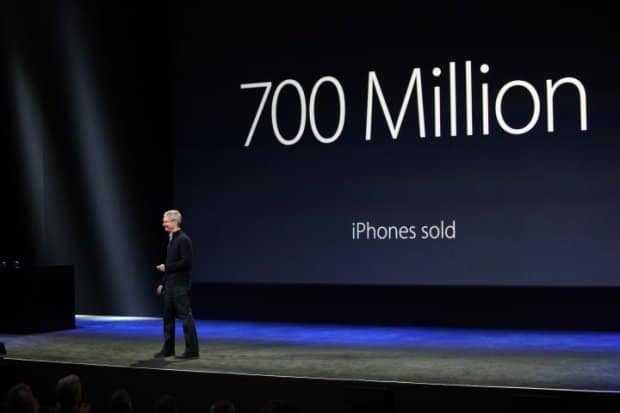
5. Create a visual experience with data
Taking a leaf again from Apple’s presentation book, once you’ve gotten the hang of having just one stat per slide – you should also make it as visual as possible.
In a 2016 keynote, Apple designers included the exciting factoid that the tvOS App store had reached 6,000 apps – but included a screen load of those very apps in the background of the slide.
One data point per slide, combined with it being visually interesting – is sure to be memorable.
For academic presenters, this approach is especially important: replace dense Excel exports with clean, labelled charts that highlight your key finding, and always cite your data source directly on the slide so reviewers can verify methodology at a glance.
6. Practice Really Makes Perfect
Imagine the late Steve Jobs, a legendary keynote presenter, still rehearsed for months before a presentation. According to Brent Schlender, one of the co-authors behind the Steve Jobs biography “Becoming Steve Jobs,” Jobs would rehearse and prepare “exhaustively” for all of his public appearances.
Despite being a natural on the stage, Jobs never would wing it, he came to the show well prepared.
“I once spent an entire day watching him run through multiple rehearsals of a single presentation, tweaking everything from the color and angle of certain spotlights, to editing and rearranging the order of the keynote presentation slides to improve his pacing,” remembers Schlender.
While you may not be a perfectionist like Jobs, you are likely also not nearly as good of a presenter as he is – so practice really makes perfect in this case.
7. Tell A Consistent Story
Circling back to Weyenberg’s tips – he suggests that in a good slide deck, every slide should feel “like part of the same story.” Think of your deck like a story – every slide should feel cohesive to the big picture message you’re trying to communicate – as opposed to random ideas juxtaposed together.
You can do this by:
- Using the same or similar typography, colors, and imagery across all slides
- Using presentation templates can help with maintaining the same look and feel
8. Less is more
We explored the less is more concept earlier in the article by suggesting you keep to one idea per slide. The same can be applied to text.
When it comes to creating slides for your next keynote, the cardinal sin is a slide with ample text that is verbatim of your spoken presentation.
What this does is encourage people to keep their eyes on your slides instead of listening to you.
Weyenberg also points out that a text-heavy slide forces the brain to multitask between focusing on what it’s reading and hearing – which is quite difficult and will compromise your presentation.
Here’s an example of a slide with too much text.
This one from a Google I/O keynote is much better.
9. Consider topic transitions
While you want to make your slides look like a cohesive unit, you want to also keep in mind that making every slide look the same may be boring. Weyenberg suggests to:
- Create one style for the slides that are the “meat” of the message
- Then create another style for the slides that are transitioning between topics
For example, if your overall slides have a dark background with light text, you can use transitional slides that have a light background with dark text. This way, they’ll still feel like they’re from the same presentation family without being completely uniform.
How to Use Magic Move and Slide Transitions in Apple Keynote
If you have never used Keynote animations before, start here: Magic Move is the simplest way to add motion to your slides, and it requires no timeline editing or keyframe knowledge. Duplicate a slide, move your objects, and Keynote handles the rest.
Slide transitions do more than add polish; they guide your audience’s attention from one idea to the next. Apple Keynote includes over 40 transition effects, and the standout is Magic Move, a feature unique to Keynote that automatically animates objects as they shift position, size, or opacity between consecutive slides.
Setting up Magic Move:
- Create your first slide with the objects you want to animate (text boxes, images, shapes).
- Duplicate the slide and reposition, resize, or restyle those same objects on the duplicate.
- Select the first of the two slides, open the Animate tab in the Inspector panel, and choose Magic Move from the transition dropdown.
- Click Preview to watch Keynote interpolate the movement between both slides.
Magic Move works best when you keep both slides simple and limit changes to two or three objects at a time. Presenters like Steve Jobs famously used this technique during Apple product launches to create seamless visual storytelling without a single manual keyframe.
If you have used PowerPoint’s Morph transition, Magic Move is Apple’s equivalent. In many cases it is more intuitive, since Keynote automatically detects matching objects across duplicate slides without requiring you to name or tag them.
For standard transitions, open the Animate tab on any slide and browse categories: Subtle (Dissolve, Fade), Energetic (Push, Swoosh), and Dramatic (Cube, Flip). A good rule of thumb: use Dissolve or Push for content slides and reserve bolder effects for section dividers or reveal moments. Overloading a deck with flashy transitions distracts from your message, so pick one or two styles and stay consistent throughout. If you are building slides from scratch, presentation templates with pre-configured transitions can save significant setup time.
Beyond Magic Move, Keynote offers several advanced techniques worth mastering: Object Animations let you build entrance, action, and exit effects on individual elements; the Instant Alpha tool removes image backgrounds without external software; and Keynote Live lets you broadcast a presentation to remote viewers via a shared link, with no screen-sharing app required.
Keynote Keyboard Shortcuts and Workflow Tips
Mastering a handful of keyboard shortcuts can cut your slide-building time in half and keep you focused on content rather than menus. Here are the Keynote shortcuts worth committing to muscle memory:
- Cmd + D – Duplicate the selected slide instantly (faster than copy-paste and the starting point for every Magic Move transition).
- Cmd + Shift + G – Group selected objects so they move and resize as one unit.
- Cmd + Option + G – Ungroup objects when you need to edit individual elements again.
- Option + Cmd + P – Play the presentation from the current slide, useful for reviewing a single section without starting from slide one.
- Cmd + Shift + N – Toggle the presenter notes field below the slide canvas so you can draft speaking notes inline.
- Cmd + Option + M – Open the Master Slide picker to apply or switch layouts across multiple slides at once.
- Cmd + Shift + L – Align selected objects to the left; swap L for R (right), T (top), or B (bottom) to align in other directions.
- Fn + Arrow keys – Jump to the first or last slide in the deck using Fn + Left or Fn + Right.
Workflow tips beyond shortcuts: Use Master Slides to make bulk edits to fonts, colors, or logos across your entire deck in one step. If you are prototyping an interactive presentation, Action Builds let you trigger animations on click rather than on slide advance, turning a standard deck into a clickable walkthrough. And when reordering slides, switch to the slide navigator (View > Navigator) for a thumbnail overview where you can drag slides into a new sequence without losing your place.
How to Use Magic Move and Slide Transitions in Apple Keynote
Slide transitions do more than add polish; they guide your audience’s attention from one idea to the next. Apple Keynote includes over 40 transition effects, and the standout is Magic Move, a feature unique to Keynote that automatically animates objects as they shift position, size, or opacity between consecutive slides.
Setting up Magic Move:
- Create your first slide with the objects you want to animate (text boxes, images, shapes).
- Duplicate the slide and reposition, resize, or restyle those same objects on the duplicate.
- Select the first of the two slides, open the Animate tab in the Inspector panel, and choose Magic Move from the transition dropdown.
- Click Preview to watch Keynote interpolate the movement between both slides.
Magic Move works best when you keep both slides simple and limit changes to two or three objects at a time. Presenters like Steve Jobs famously used this technique during Apple product launches to create seamless visual storytelling without a single manual keyframe.
For standard transitions, open the Animate tab on any slide and browse categories: Subtle (Dissolve, Fade), Energetic (Push, Swoosh), and Dramatic (Cube, Flip). A good rule of thumb: use Dissolve or Push for content slides and reserve bolder effects for section dividers or reveal moments. Overloading a deck with flashy transitions distracts from your message, so pick one or two styles and stay consistent throughout. If you are building slides from scratch, presentation templates with pre-configured transitions can save significant setup time.
10. Tell a captivating story
It is fitting that our final tip comes from likely the greatest keynote presenter of all time. The late and great Steve Jobs had the ability to captivate and inspire his audience with his talks, and that’s because he was a very good storyteller. And that’s the golden leaf that you can take from Jobs’ book today.
Always aim to tell a captivating story.
One example is perhaps when he introduced the iPod: “In 2001, we introduced the first iPod. It didn’t just change the way we all listen to music. It changed the entire music industry.”
Listen to Steve Jobs weave a story about the digital music revolution when unveiling the iPod.
Keynote vs PowerPoint: Key Differences for Presenters
If you are deciding between Apple Keynote and Microsoft PowerPoint, the right choice depends on your ecosystem, collaboration needs, and design priorities. Here is a concise comparison of the features that matter most to presenters:
- Magic Move vs Morph: Keynote’s Magic Move automatically detects matching objects on duplicate slides and animates the transition. PowerPoint’s Morph offers similar functionality but sometimes requires manually naming objects for accurate matching. For most users, Magic Move is more intuitive out of the box.
- Cloud and collaboration: Keynote saves to iCloud and supports real-time collaboration with other Apple users. PowerPoint integrates with OneDrive and Microsoft Teams, making it the stronger choice for mixed-OS teams or enterprise environments.
- Template quality: Keynote ships with fewer templates, but they tend to have cleaner, more modern designs. PowerPoint has a larger template library, though quality varies widely.
- Apple ecosystem integration: Keynote syncs across Mac, iPad, and iPhone. You can use your iPhone as a remote control during a presentation, and Handoff lets you start on one device and pick up on another. PowerPoint supports cross-platform use but lacks this level of device continuity.
- Export compatibility: Keynote can export to .pptx, PDF, and video formats, though complex animations may not translate perfectly to PowerPoint. If your audience uses Windows, export and test the .pptx file before presenting.
- Pricing: Keynote is free on every Apple device. PowerPoint requires a Microsoft 365 subscription ($6.99/month for personal) or a one-time purchase of the standalone app.
For Apple-only teams who prioritize design polish and seamless device handoff, Keynote is the stronger tool. For cross-platform teams or organizations embedded in the Microsoft 365 ecosystem, PowerPoint remains the safer bet. And if you want a third option that works in any browser, Piktochart’s presentation maker lets you build, share, and export without installing anything.
Bonus Round: Tips From Piktochart Designers
Besides learning from those at TED and Apple, we also wanted to throw in a “bonus round” of tips from our designers. We think these could work well as a checklist to run through when you’re just about ready to finalize your presentation.
- Always remember that your audience is sitting far away. So ensure that your title font size is large enough to be seen from a distance, and that your body text is no smaller than 20px.
- Use only two colors for your entire presentation – a primary and secondary color. If you must use a large color palette, your maximum choice should be up to five colors.
- Make sure that there is enough white space throughout your presentation. This will give your content room to breathe. Less is definitely more in this case.
- Emphasize only one object per slide – whether it’s an image, statistic, quote. This will make sure your audience stays focused.
These guidelines follow core presentation design principles used by professional speakers: the rule of thirds for slide layout, a maximum two-font type system for visual hierarchy, and high-contrast color pairings that remain legible on projectors and screens alike.
Time to Make Your Own!
Updated for 2026, these Keynote-ready presentation templates are designed for common business scenarios, from quarterly reviews to investor pitches, so you can start with a polished layout and focus on your content.
1. Business Keynote 
This sleek, stylish, yet no-nonsense template is perfect for that keynote on the latest business trends that you’re about to deliver. Edit this template in Piktochart now!
2. Social Media Keynote 
This playful, yet professional template works great for that data-heavy keynote that you’re about to give on the future of social media. Edit this template in Piktochart now!
3. Design Inspiration Keynote
This fun and techie template can be used to communicate your vision, processes, and mobile strategy in your next design inspiration keynote. Edit this template in Piktochart now!
Create presentations, reports, and infographics in minutes.
Watch this demo to learn about the benefits of Piktochart.
Watch the demo