LinkedIn carousel examples are everywhere on the platform right now; the format drives 1.6x more engagement than standard image posts. Carousels (sometimes called slide decks) are multi-page documents uploaded as PDFs, and they invite your audience to swipe through each slide rather than scroll past. Buffer reports a 4.2% engagement rate for carousel content, which outperforms single images, text posts, and video on average.
So why do some carousels get hundreds of saves and shares while others flatline? It comes down to design choices, storytelling, and a clear hook on the opening slide.
For a related read, see our guide on how to create an instagram story.
We studied 10 high-performing linkedin carousel examples from brands and creators to unpack what works and why. Below, you will find each example with a breakdown of the design techniques behind it, plus a step-by-step guide to building your own carousel with Piktochart AI carousel maker in under a minute.
Wix Studio
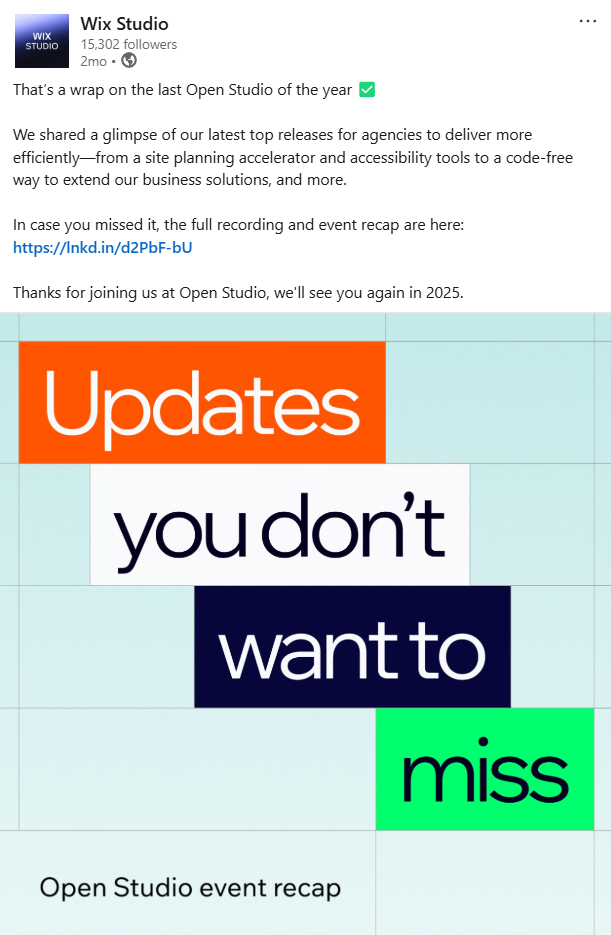
Wix Studio, a platform for agencies and professional designers, provides a workspace for managing client projects. It offers design tools, development flexibility, and multi-site management, surpassing the standard Wix platform. The company shares its 2024 updates in a seven-slide carousel.
Why it works: The carousel’s directness and simple layout for each update makes it effective and easy to share with agency owners. The concise format allows for a quick understanding of the new 2024 features.
Hubspot

Hubspot, known for coining “inbound marketing,” is active across platforms, including LinkedIn. A recent carousel aims to encourage marketers when pitching social media campaigns.
Why it works: The four-slide carousel, with over four hundred likes, uses the concept of “keeping your receipts.” Each of the 3 tips is presented as a receipt with minimal text, enhancing skimmability.
Duolingo
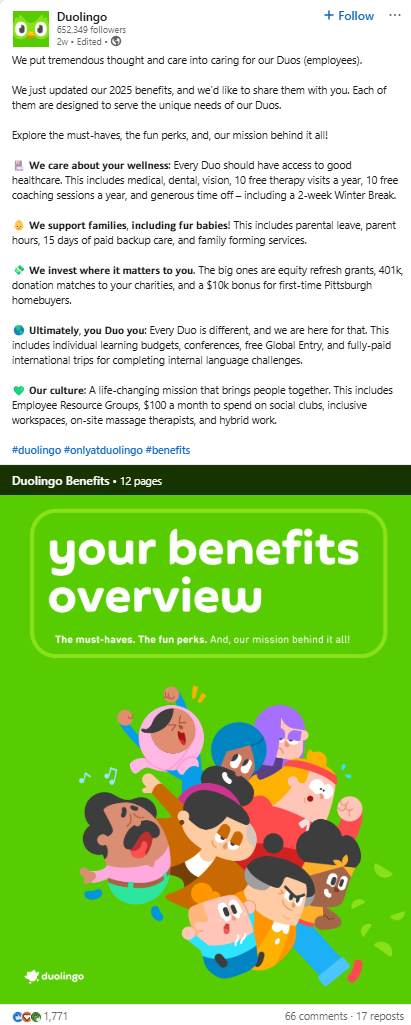
Co-founded by Luis von Ahn and Severin Hacker, the language learning app makes good use of gamification to motivate users to pick up new languages, ranging from Gaelic to fictional languages from series like Game of Thrones.
Their social media content is known for its iconic green mascot and its unhinged persona. This approach permits the team to push boundaries when interacting with users, as their audience recognizes the humor. Duolingo also shares heartfelt updates, including the announcement of 2025 benefits for their employees.
Why it works: It’s full of their signature charm and wit. The carousel is an intriguing read because they openly share their company benefits. Doing so attracts talent by broadcasting what type of company culture they aim to build, and in doing so they also inspire other companies to aim higher.
You might also find our article on instagram captions useful.
Dan Nelken
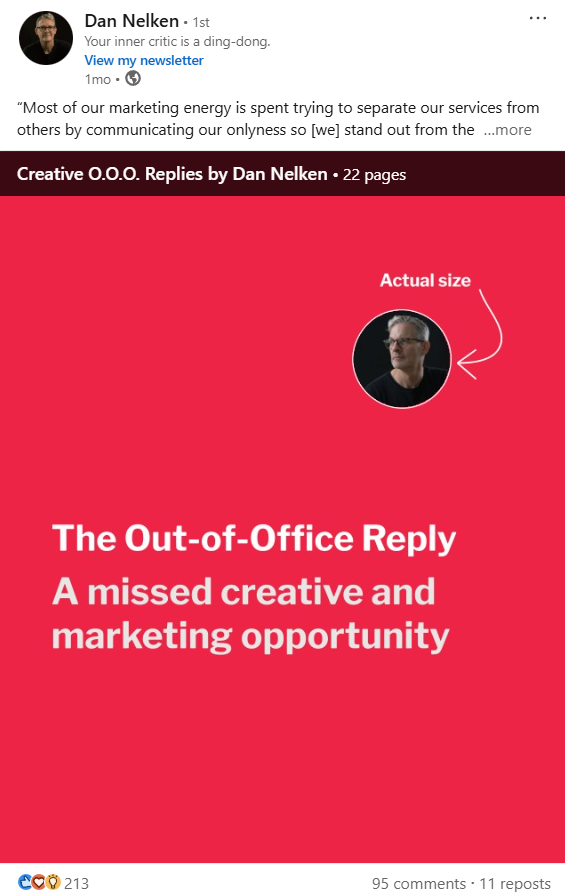
Dan Nelken is a copywriting expert, author of the acclaimed book “A Self-Help Guide for Copywriters”. As with other copywriters on social media, he shares snippets of copywriting found in ads, newspapers, or other unconventional sources.
He shares a humorous collection of out-of-office replies and breaks down why they work from a copywriting perspective.
Why it works: The post is 22 slides long, but he spends five slides setting up the narrative. The additional context creates intrigue and naturally draws people into reading the rest of the OOH replies. Dan ends the slides by sharing some fictional examples of how to be more human in your OOH automated emails, and it’s one of the reasons why he’s been so successful on LinkedIn; he’s generous in sharing his knowledge with his audience.
Generative AI

I follow a page with over five million followers on LinkedIn that shares updates related to generative AI and the latest features or technologies related to LLMs. The news aggregator shares all kinds of updates, and a carousel post about the best Ted talks related to AI caught my eye.
Why it works: The carousel’s simplicity makes it easy to scroll through. While the content is not original, it shares interesting talks by using screenshots of the guest speakers with the TED Talk titles overlayed.
Mike Leber
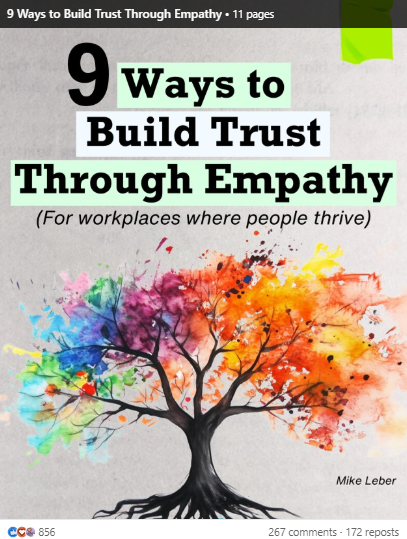
Thought leadership is one of the hardest types of content to build as you need to build your credibility and maintain a consistent post scheduling. Mike Leber shares several good examples of how to post regularly with content that drives engagement, such as this carousel on how to build trust through empathy.
Why it works: While Mike shares the core tips in the post, each slide contains practical applications on how to implement each tip. He uses a consistent slide design that makes the actionable takeaways easy to digest.
Tom Winter

If you’re sharing tips and expert opinions from others, Tom Winter shows a good example of using a carousel format to do so. He shares 10 opinions from AI experts and founders on how AI agents will affect the state of marketing in 2025.
Why it works: The tips are all unique and from people working in different industries. What makes the carousel engaging is in the same image layout, where the plain white background is constant but the quote and headshot is different for each slide.
Mark O’Donnell
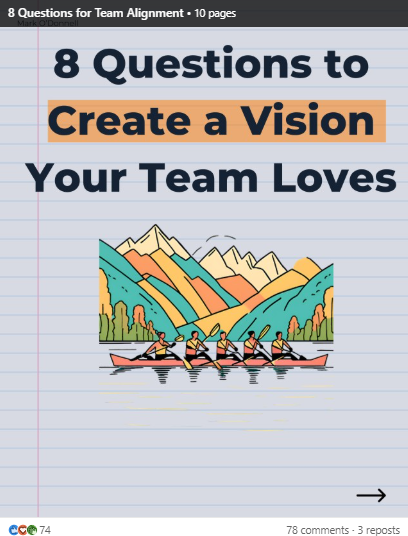
Beginning a new calendar year offers the chance for a fresh start or to try new things. Business coach Mark O’Donnell uses a LinkedIn carousel effectively to speak to business owners and encourage them to reflect on whether their teams are aligned around the same goal.
Looking for more? Check out youtube thumbnail size.
Why it works: Mark’s an experienced coach and understands the different struggles that business owners face, whether that’s expanding the business or managing a diverse team. His carousel has an intriguing premise, and he shares the eight unique tips and steps with a simple layout. Each tip is written against an A4 sheet background, giving the feel of rough notes.
Microsoft

Microsoft’s LinkedIn post history is full of product updates and tips related to their AI model, Copilot. Occasionally, they’ll share other updates, such as the winners of a charity art competition.
Why it works: Microsoft uses the post to share the context behind the competition and who the winners are, but leaves the work of the finalists in the carousel. This way, readers who are interested in the art will be encouraged to scroll through the four slides to see what type of art, physical and digital, won the competition.
Deel

Deel is a remote working platform that acts as a central place for employees to manage their schedules while employers can arrange any administrative updates.
Their LinkedIn post history is full of funny takes from culturally popular references on how remote working is easier with a platform like Deel. We particularly enjoyed this carousel that took the imaginary situations from the Christmas staple romcom Love Actually, and explored the logistics of cross border visa situations.
Why it works: Deel takes a fairly well-known film and explores the situation from a unique perspective. Spoiler alert: Love Actually is filled with unexpected romances, so anyone who has seen the film and is familiar with the premise will immediately understand the curiosity factor. The layout of each slide is simple as well; it’s just a screenshot of each romantic interest’s face, followed a sample picture of their passport and some bullet point text explaining what their visa situation may be like if their situation was in real life.
LinkedIn Carousel Best Practices for 2026
Posting a carousel without a strategy is like publishing a blank PDF: nobody swipes past the first page. These six practices separate scroll-stoppers from scroll-pasts.
Design Your First Slide as a Billboard
Your opening slide competes with every other post in the feed. Treat it as a billboard on a highway: one headline, one visual hook, zero clutter. Use a bold question, a surprising number, or a short provocative statement. If someone cannot tell within two seconds what they will gain by swiping, they will keep scrolling.
Write for Mobile Screens First
Over 60 million LinkedIn users access the platform on a phone each month. A carousel designed on a desktop monitor often shrinks to unreadable text on a 6-inch screen. Stick to fonts above 24px, limit each slide to 25-50 words, and leave generous white space. Test your final PDF on a phone before posting.
Keep a Consistent Visual Brand Across Every Slide
Colors, fonts, and layout style should match your brand kit from the first slide to the last. Consistent visuals build instant recognition in the feed: when your audience sees your signature color palette, they pause because they already associate it with useful content. Piktochart templates lock in your brand colors automatically, so every slide stays on-brand without manual adjustments.
Aim for 8 to 12 Slides
Shorter carousels (under 5 slides) rarely provide enough depth to earn saves or shares. Longer ones (above 15) risk losing attention. The sweet spot is 8-12 slides: enough room to tell a complete story without padding. Each slide should advance the narrative; if you can remove a slide and nothing is lost, cut it.
Place a Clear Call to Action on the Final Slide
Every high-performing carousel ends with a specific next step. “Follow for more” is weak. “Download the full checklist at [link in comments]” or “Tag a colleague who needs this” gives readers something concrete to do. The CTA slide should stand on its own visually; make the action impossible to miss.
Match the Format to the Goal
Not every carousel needs custom illustrations. Text-heavy slide decks with bold typography perform well for thought leadership and educational content. Photo-based carousels work for employer branding and event recaps. Infographic-style layouts with data visualization techniques shine when presenting research or statistics. Pick the format before opening any design tool.
LinkedIn Carousel Best Practices for 2026
Posting a carousel without a strategy is like publishing a blank PDF: nobody swipes past the first page. These six practices separate scroll-stoppers from scroll-pasts.
Design Your First Slide as a Billboard
Your opening slide competes with every other post in the feed. Treat it as a billboard on a highway: one headline, one visual hook, zero clutter. Use a bold question, a surprising number, or a short provocative statement. If someone cannot tell within two seconds what they will gain by swiping, they will keep scrolling.
Write for Mobile Screens First
Over 60 million LinkedIn users access the platform on a phone each month. A carousel designed on a desktop monitor often shrinks to unreadable text on a 6-inch screen. Stick to fonts above 24px, limit each slide to 25-50 words, and leave generous white space. Test your final PDF on a phone before posting.
Keep a Consistent Visual Brand Across Every Slide
Colors, fonts, and layout style should match your brand kit from the first slide to the last. Consistent visuals build instant recognition in the feed: when your audience sees your signature color palette, they pause because they already associate it with useful content. Piktochart templates lock in your brand colors automatically, so every slide stays on-brand without manual adjustments.
Aim for 8 to 12 Slides
Shorter carousels (under 5 slides) rarely provide enough depth to earn saves or shares. Longer ones (above 15) risk losing attention. The sweet spot is 8-12 slides: enough room to tell a complete story without padding. Each slide should advance the narrative; if you can remove a slide and nothing is lost, cut it.
Place a Clear Call to Action on the Final Slide
Every high-performing carousel ends with a specific next step. “Follow for more” is weak. “Download the full checklist at [link in comments]” or “Tag a colleague who needs this” gives readers something concrete to do. The CTA slide should stand on its own visually; make the action impossible to miss.
Match the Format to the Goal
Not every carousel needs custom illustrations. Text-heavy slide decks with bold typography perform well for thought leadership and educational content. Photo-based carousels work for employer branding and event recaps. Infographic-style layouts with data visualization techniques shine when presenting research or statistics. Pick the format before opening any design tool.
How to Create Your Own LinkedIn Carousel With Piktochart
The beauty of social media is the range of expression you have through your content. What’s most important is you’re authentic and provide value through your carousels.
With Piktochart, we turn your ideas into professionally-designed layouts at the click of a button. Using our AI carousel maker, you can create your own posts from either a prompt or simply pasting your own content.

Within seconds, you’ll be able to choose from dozens of templates and layouts that best fit your content.

If you’d like to amend the order of your carousel, add or remove any slides, you can tweak the outline in the Content tab.

You can even change the color palette of the carousel from the Colors tab with a single click.

Once you’re happy with the foundation, you can make any final changes to the text or slides in our editor.
This LinkedIn carousel example was made on a free account, but to speed up your content creation process, you can create carousels using your brand assets, such as the font and brand color scheme by signing up to our Business plan.