YouTube Shorts dimensions are 1080 x 1920 pixels in a 9:16 vertical aspect ratio. Upload as MP4 with H.264 video and AAC audio, and keep your Short under three minutes.
Those are the numbers. But getting them wrong means black bars, awkward cropping, or a video the algorithm never classifies as a Short at all. Below, you will find every spec you need: resolution, file format, safe zone measurements, thumbnail sizes, and practical ways to resize existing footage using Piktochart’s video cropper.
For a related read, see our guide on how to make a reaction thumbnail.
How to Repurpose Long-Form Videos into YouTube Shorts
Most creators already have a library of landscape (16:9) footage sitting on a hard drive or a YouTube channel. Converting those clips into vertical Shorts lets you reach an entirely different audience without picking up a camera again.
Cropping from 16:9 to 9:16
The simplest conversion path is to crop horizontal footage into the 9:16 frame. When you crop, keep the primary subject, whether a face, a product, or on-screen text, centered inside the vertical safe zone (the inner 4:5 area of the 9:16 frame). Anything placed near the edges risks being hidden by the Shorts player UI: like, subscribe, and comment buttons overlay the bottom; the channel name sits near the top.
Trimming for length
Shorts can run up to three minutes, yet data from multiple creator studies points to 20 to 40 seconds as the sweet spot for watch-through rates. Cut a single, self-contained idea from a longer tutorial, interview, or product demo rather than compressing an entire video.
Preserving quality during export
Export your cropped Short at 1080 x 1920 pixels, 30 fps or 60 fps, using the H.264 codec wrapped in an MP4 container. Aim for a bitrate of at least 8 Mbps to keep text and fine detail sharp on high-resolution phone screens.
One-click cropping with Piktochart
If manual timeline editing sounds tedious, Piktochart’s video cropper accepts footage in any aspect ratio and converts it to 9:16 automatically. Upload the file, let the cropper reframe the shot, and download a Shorts-ready MP4 in seconds. No timeline, no render queue, no codec settings to configure. The same clip works on TikTok and Instagram Reels too; they share the identical 1080 x 1920 format.
Optimal YouTube Shorts dimensions and aspect ratio
If you’re in a hurry, here’s everything you need to know about the appropriate YouTube Shorts size and resolution:
- Aspect ratio: 9:16 (vertical format)
- Resolution: 1080 × 1920 pixels (width × height)

This vertical format has become the standard across short-form video platforms like TikTok, Instagram Reels, and Snapchat. The good news is once you master these dimensions, you can easily repurpose your content across platforms.

Think of 9:16 as the opposite of traditional YouTube videos. While regular YouTube content uses a 16:9 landscape format, Shorts reverses this ratio for smartphone viewing in portrait mode.
Now that you understand the required dimensions, you’ll need a simple way to format your Shorts correctly.
Piktochart’s video cropper instantly crops your existing videos to the exact 9:16 aspect ratio (1080×1920 pixels) needed for Shorts —no complex editing software or technical skills required.

Piktochart accepts videos in any format and size, preserving their original quality during export. With unlimited upload capacity and storage, you can manage as many video projects as you need!
Other YouTube Shorts specs to know
Beyond dimensions, several other specifications affect how your YouTube Shorts perform.
Let’s take a closer look below.
YouTube has extended the maximum Shorts duration from the original 60 seconds to 3 minutes. While this gives you more creative flexibility, many creators find that 30-60 seconds tends to perform best for engagement. Be sure to check YouTube’s latest guidelines, as these specifications can change.
What’s the maximum file size?
Keep your YouTube Shorts file sizes under 60MB for optimal upload and processing speed. Though YouTube doesn’t specify an official limit exclusively for Shorts, smaller files (under 10MB when possible) are uploaded faster and processed more efficiently.
Pro tip: Check out our guide on ideal video length for different platforms to optimize your content across channels.
Vertical is king: What aspect ratio is YouTube Shorts?
The 9:16 aspect ratio isn’t just a suggestion, but it’s practically a requirement. This vertical format allows viewers to watch without rotating their phones and accommodates natural one-handed scrolling.
Can square (1:1) videos be Shorts?
Some sources indicate that square (1:1) videos can technically be classified as Shorts, but they’ll appear with black bars at the top and bottom of the screen. This creates a less immersive experience and doesn’t use the full-screen real estate.
Meanwhile, other sources state that YouTube Shorts strictly require a vertical format with a 9:16 aspect ratio, and square videos don’t meet this requirement.
What everyone agrees on is this: if you have a square video you want to use as a Short, adding padding at the top and bottom to achieve a 9:16 ratio is the safest approach. In a test conducted by vidIQ, videos that were even slightly wider than they were tall (anything beyond 1:1) weren’t classified as Shorts at all.
For these reasons, stick with true 9:16 vertical videos for the best results and user experience.
Remember the YouTube Shorts safe zone
Even with the correct overall dimensions, be mindful of where you place important elements in your video. The “safe zone” is the central area of your frame that’s guaranteed to be visible across all devices.
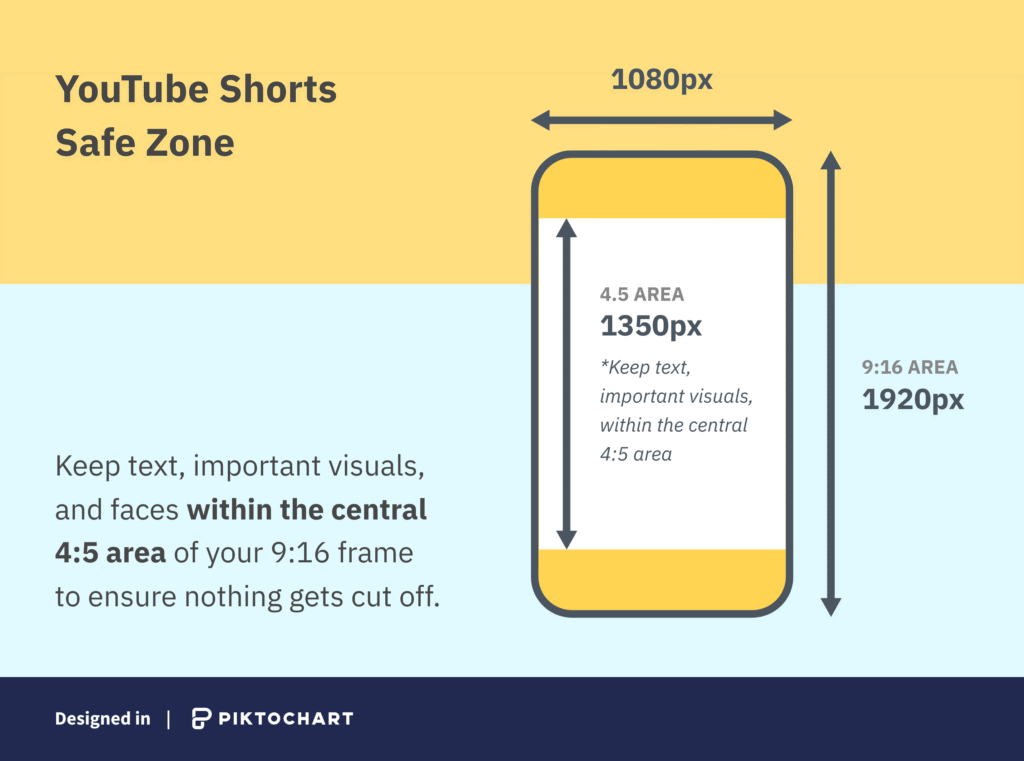
UI elements like buttons, time displays, and channel information can overlap the edges of your video. Keep text, important visuals, and faces within the central 4:5 area of your 9:16 frame to ensure nothing gets cut off.
Think of it like leaving margins in a document. A little breathing room around the edges keeps everything looking neat and professional.
YouTube Shorts thumbnail size guide
Thumbnails are crucial for attracting viewers to your YouTube Shorts. Unlike regular YouTube videos, Shorts have two distinct thumbnail types that require different approaches:
- Shorts feed preview (cover)
- Channel page/search thumbnail
Design YouTube thumbnails that gets views
Create your YouTube thumbnail in secondsShorts feed preview (cover)
This type of thumbnail is the frame from your video that appears as viewers scroll through the Shorts feed. It uses the same 9:16 vertical format (1080 × 1920 pixels) as your video.

To change this thumbnail on mobile:
- Open the YouTube app (not YouTube Studio)
- Go to ‘Your videos’ screen
- Find your Short and tap the three dots beside it
- Select Edit (pencil icon)
- Tap the pencil icon overlaid on the current thumbnail
- Use the slider at the bottom to select your preferred frame
- Choose an eye-catching moment that represents your content well.
Channel page/search thumbnail
If you upload a custom thumbnail via Desktop Studio, it follows standard YouTube specs (16:9, 1280 × 720 pixels). This thumbnail appears when your Short is viewed outside the dedicated Shorts feed.

Note that you’ll need a verified account to upload custom thumbnails:
- Go to YouTube Studio > Settings > Channel Tab
- Enable ‘Intermediate Features’ (requires phone verification)
For best results with your YouTube Shorts thumbnail size:
- Make your thumbnails clear and engaging
- Keep vital information in the safe zone
- Use contrasting colors for better visibility
- Ensure text is large enough to read on mobile screens
How to create perfect YouTube Shorts thumbnails with Piktochart
Working on your thumbnails doesn’t have to be time-consuming. Piktochart makes it a breeze with templates specifically designed for YouTube Shorts dimensions. Here’s how.
1. Share your thumbnail idea.
Write a brief description of what you’re looking for, and we’ll suggest professional YouTube thumbnail templates that are already sized to the perfect dimensions.

2. Pick a template that catches your eye.
Browse our YouTube thumbnail templates made specifically for vertical or horizontal content, all optimized with elements in the safe zone.

3. Make it yours in minutes.
Change text, swap colors to match your brand, and add your images. No need to worry about dimensions—everything stays in the right aspect ratio.

4. Download and start getting noticed on YouTube!
Download your thumbnail in high-quality PNG format and upload it to YouTube. Now, you’ve got professional thumbnails for both viewing contexts.
YouTube Shorts dimensions FAQs
What aspect ratio is YouTube Shorts?
The best aspect ratio for YouTube Shorts is 9:16 (vertical). This ratio perfectly fills smartphone screens when viewed in portrait mode, creating an immersive viewing experience without black bars or cropping. While YouTube may accept other ratios, 9:16 will give your content the best chance of success in the Shorts ecosystem.
Why is the 9:16 aspect ratio important?
The 9:16 aspect ratio is important because it:
- Matches how people naturally hold their phones
- Provides an immersive, full-screen viewing experience
- Helps YouTube’s algorithm identify your content as a Short
- Creates consistency with other short-form video platforms
- Prevents awkward cropping or black bars
Using the correct aspect ratio shows viewers and the platform that you understand the format and care about providing a quality viewing experience.
Do vertical or horizontal videos perform better on YouTube?
For standard YouTube content, horizontal videos (16:9) still perform better. However, for YouTube Shorts specifically, vertical videos (9:16) significantly outperform horizontal content.
This difference exists because Shorts are designed primarily for mobile viewing, whereas vertical videos provide a more natural and immersive experience.
Can YouTube Shorts be in 4K?
Yes, YouTube Shorts can be uploaded in 4K resolution. However, they still need to follow the vertical 9:16 aspect ratio for optimal display on mobile devices.
Higher resolution can provide better clarity, especially for viewers watching on larger or high-resolution devices. But remember that most people will view your Shorts on mobile phones, so the benefits of 4K may be limited compared to the increase in file size.
Does YouTube Shorts support a 4:3 aspect ratio?
While YouTube might technically allow you to upload a 4:3 video as a Short, it won’t provide optimal viewing. A 4:3 video will display with large black bars at the top and bottom which creates a less engaging experience.
If you have 4:3 footage you want to use, use Piktochart to resize it to 9:16 by adding complementary graphics, text, or background elements to fill the extra vertical space.
Ready to create scroll-stopping YouTube thumbnails? Get your free Piktochart account to get started.
