Nano Banana prompts turn a blank canvas into a finished visual in seconds. Built on Google’s Gemini 2.5 Flash model, Nano Banana responds to detailed text instructions to generate and edit images with striking consistency. The difference between a mediocre output and a professional-grade result? Your prompt.
In this guide, we break down seven practical Nano Banana use cases, share the exact prompts behind each one, and show you how to run them inside Pikto AI. Whether you need product mockups, corporate headshots, or meme-worthy creations, the right prompt gets you there faster than any design tool on the market.
For a related read, see our guide on pikto ai vs chatgpt.
How to Write Effective Nano Banana Prompts
A strong Nano Banana prompt reads like a creative brief: it tells the model who appears in the image, where the scene takes place, and how the final result should look. Skipping any of these details forces the model to guess, and guesses rarely match what you had in mind.
Start with the subject. Define the main focus of your image. “A woman” is vague. “A confident entrepreneur in her early 40s wearing a navy blazer” gives Nano Banana enough to work with. Include physical details, clothing, and expressions when they matter.
Set the scene. Describe the environment. A cluttered home office tells a different story than a glass-walled conference room at sunset. Mention surfaces, backgrounds, time of day, and weather if they affect the mood.
Describe the action. What is happening in the frame? Is someone reviewing a tablet, pouring coffee, or posing for a portrait? Static prompts (“a person standing”) produce flat images. Action creates energy.
Choose a visual style. Nano Banana can produce photorealistic results, watercolor illustrations, retro film aesthetics, and everything between. Naming the style in your prompt narrows the output significantly. Try terms like “cinematic editorial,” “clean product photography,” or “minimalist line art.”
Add technical specs when precision matters. Photography language works well here. “Shot with an 85mm lens at f/2.8” creates shallow depth of field and subject isolation. “Golden hour lighting from the left” sets a warm, directional mood. These details separate casual prompts from production-ready ones.
Here is a quick template you can adapt:
Basic: [Subject] + [Action] in [Setting], [Style]
Advanced: [Subject with details] + [Action] in [Setting with environment], [Camera angle and lens], [Lighting and mood], [Style and quality]
For example: “Female entrepreneur reviewing analytics on a tablet in a glass-walled corner office with a city skyline visible, medium close-up from a slightly elevated angle, warm morning light creating soft shadows, professional editorial style with sharp focus.”
The more specific your prompt, the fewer rounds of editing you need. When something in the output misses the mark, try adjusting one element at a time rather than rewriting the entire prompt from scratch.
7 cool Nano Banana use cases
Google Gemini 2.5 Flash, aka Nano Banana, excels at editing images. It’s not bad at generating new visuals, but it’s most impressive for the visual consistency. When you give the model a reference image, other reference images, and a fairly comprehensive prompt, the output is usually good.
Use case 1: Turning people into commercial figures

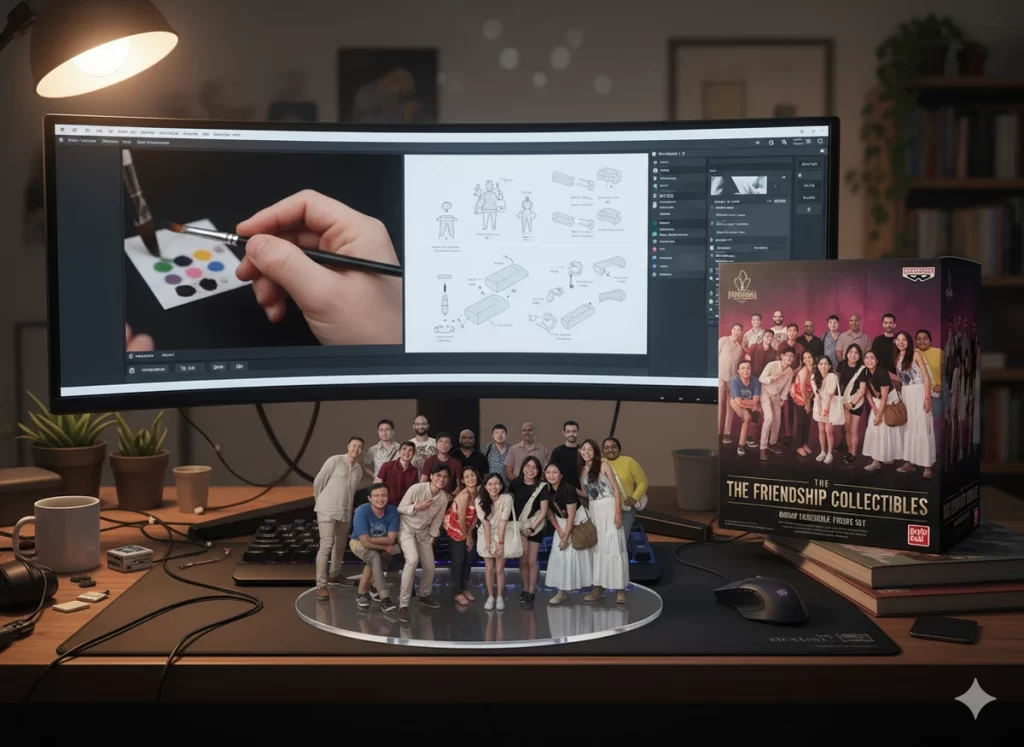
Prompt:
Create a 1/7 scale commercialized figure of this group in the illustration, in a realistic style and environment.
Place the figures on a computer desk, using a circular transparent acrylic base without any text.
On the computer screen, display the Brush making process of the figure. Next to the computer screen, place a BANDAI-style toy packaging box printed with the original artwork.
One of the coolest prompts I’ve seen was turning images of people into collectible figures with the above prompt. The reference picture was from Piktochart’s recent retreat. Other examples I’ve seen indicate that the prompt works better with fewer people or individuals.
Use case 2: Visualizing sketches


Prompt:
Finish this interior design restoration. Color it and furnish the rooms and buildings.
I wanted to see how well it could turn an idea into fleshed out version based on a blueprint or sketch. I thought it did a decent job turning the concept into a mockup. However, some of the finer details didn’t quite translate. For example, the chairs and sofas didn’t make it in the final cut, and Gemini 2.5 Flash turned the offices on the right with cut out door frames into a full glass office.
Minor things, but keep in mind if you’re using the output for client-facing proposals!
Use case 3: Generating ideas for interior design styles
Prompt:
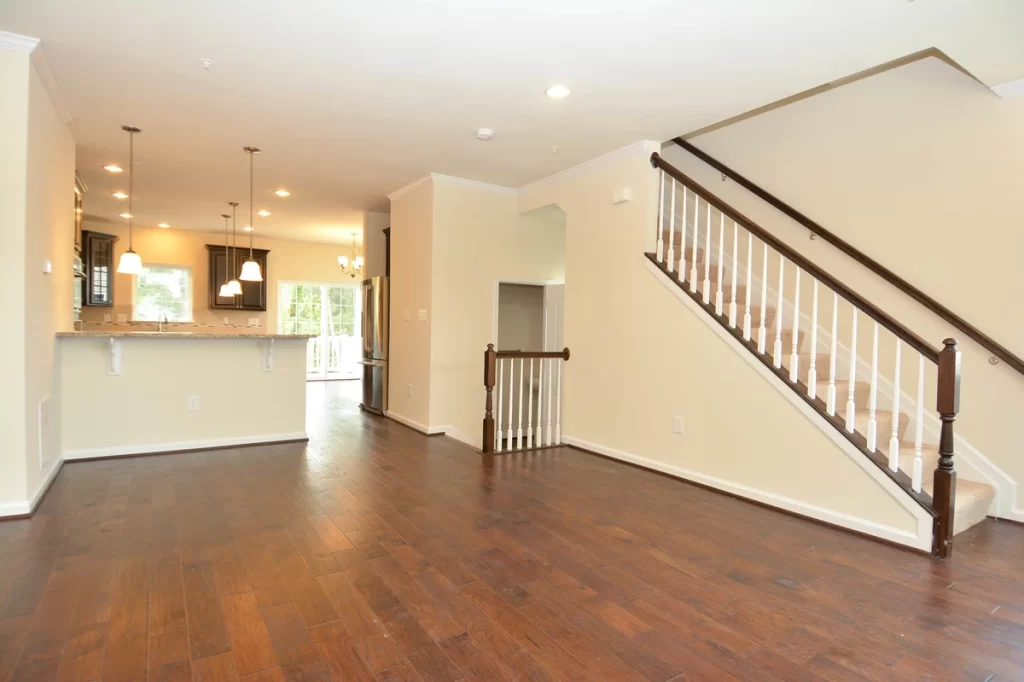
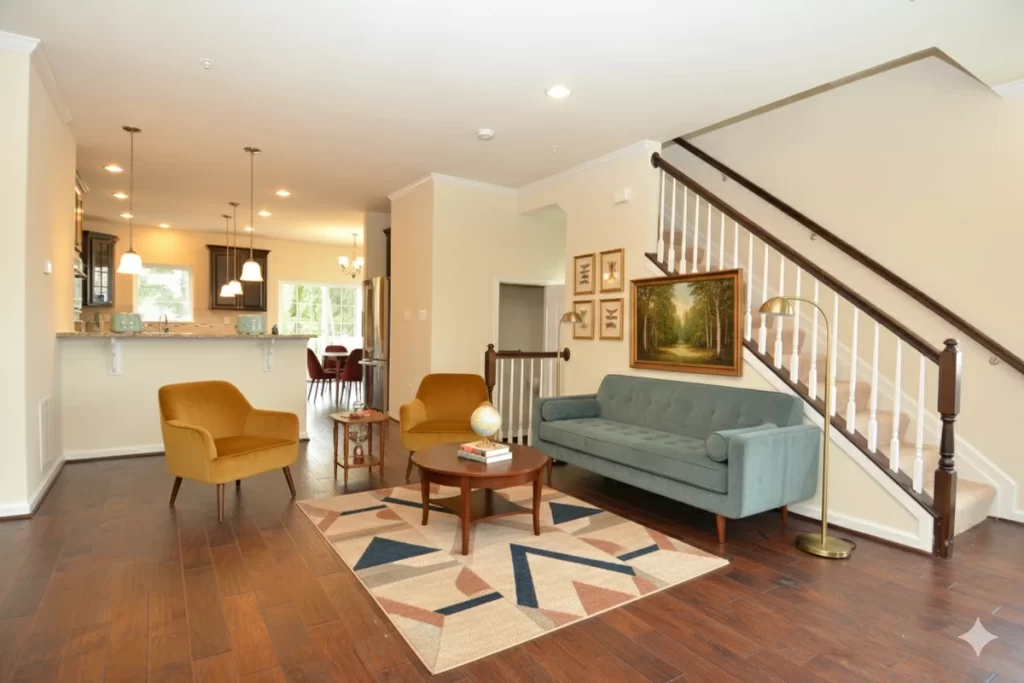
Stage this empty house with furniture, Wes Anderson style. Keep the walls, floor, and ceiling intact.
This isn’t my house, but I did move recently and I would have really appreciated this tool to help me brainstorm ideas on how to fill up my house with better taste than I have!
The suggested design is a bit cramped for my liking. Looks a bit hard to get to the basement stairs. Also, I’m not a fan of painting’s positioning on the stairs (accident waiting to happen and a sore head for whoever’s sat on the couch).
Use case 4: Modelling clothes
Prompt:
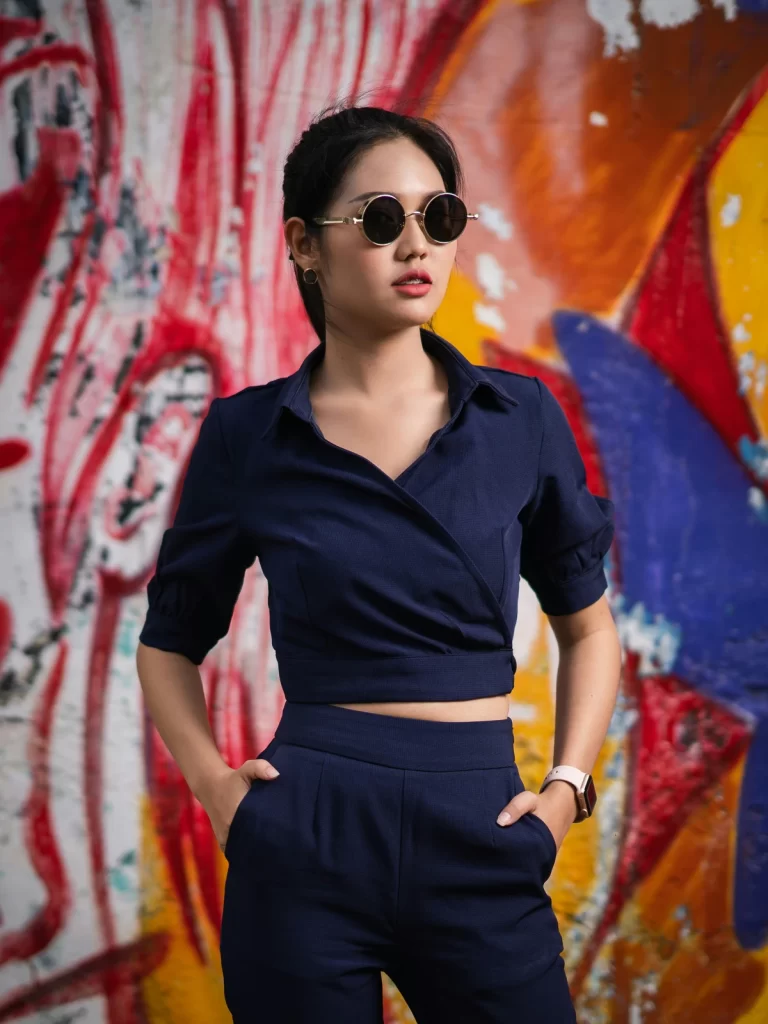
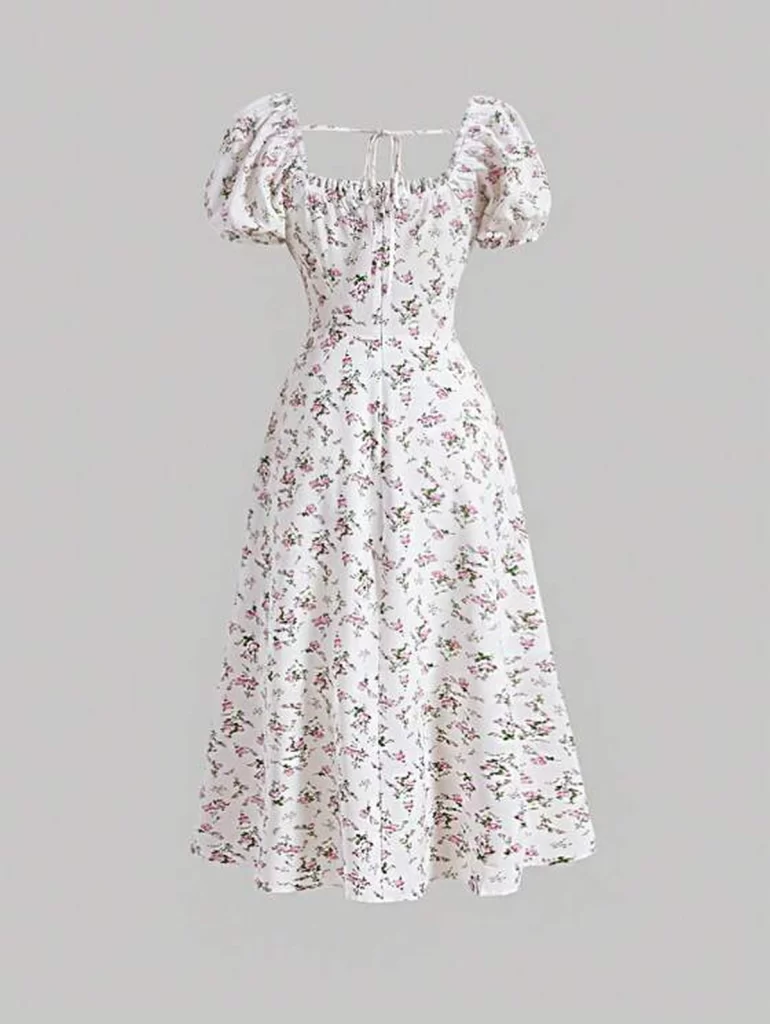
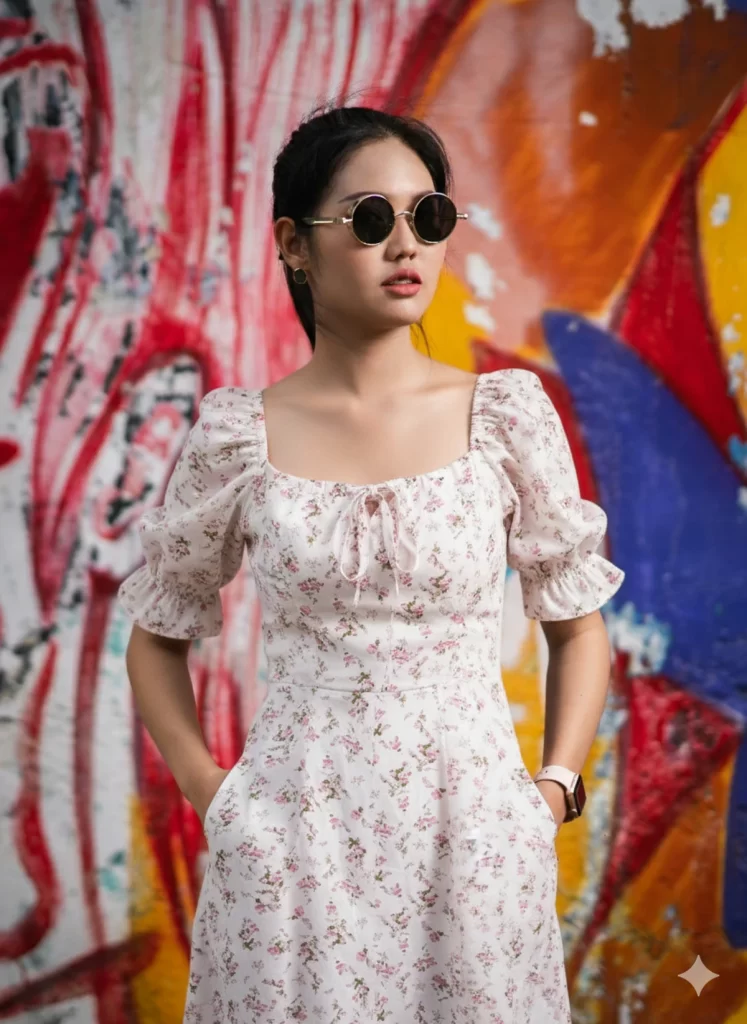
Change the woman’s outfit to the summer dress. Keep the sunglasses on.
My wife often laments not being able to try on clothes she sees online, but really liking the style. While putting them on is the best way to find out whether it’s a good fit, a decent alternative is to have Nano Banana imagine what you’d look like with certain clothes.
For eCommerce brands, this could be an easy way to attract new customers by quickly creating mockups using the same model.
Use case 5:

Prompt:
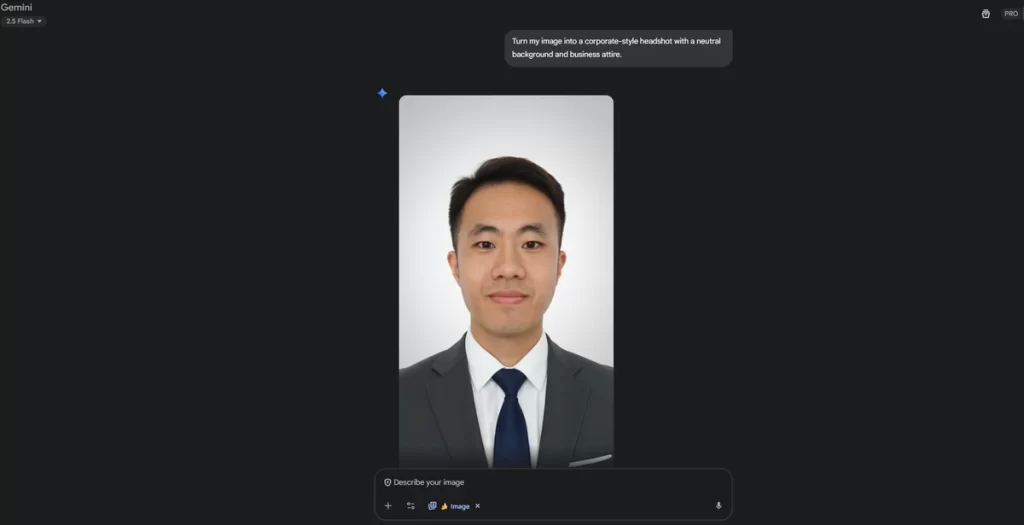
Turn my image into a corporate-style headshot with a neutral background and business attire.
Speaking of creating mockups, I’ve seen people create new profile pictures. I’m definitely in need of this service, since I’ve been using the same Slack PFP for five years (in my defense, why fix what’s not broken?)
If you’re in need of a glow up, Nano Banana can recreate your images into different styles. I briefly tested it in other visual styles, and it was a bit hit and miss. Depth and specificity of prompting makes a big difference.
Use case 6: Grouping people together


Prompt:
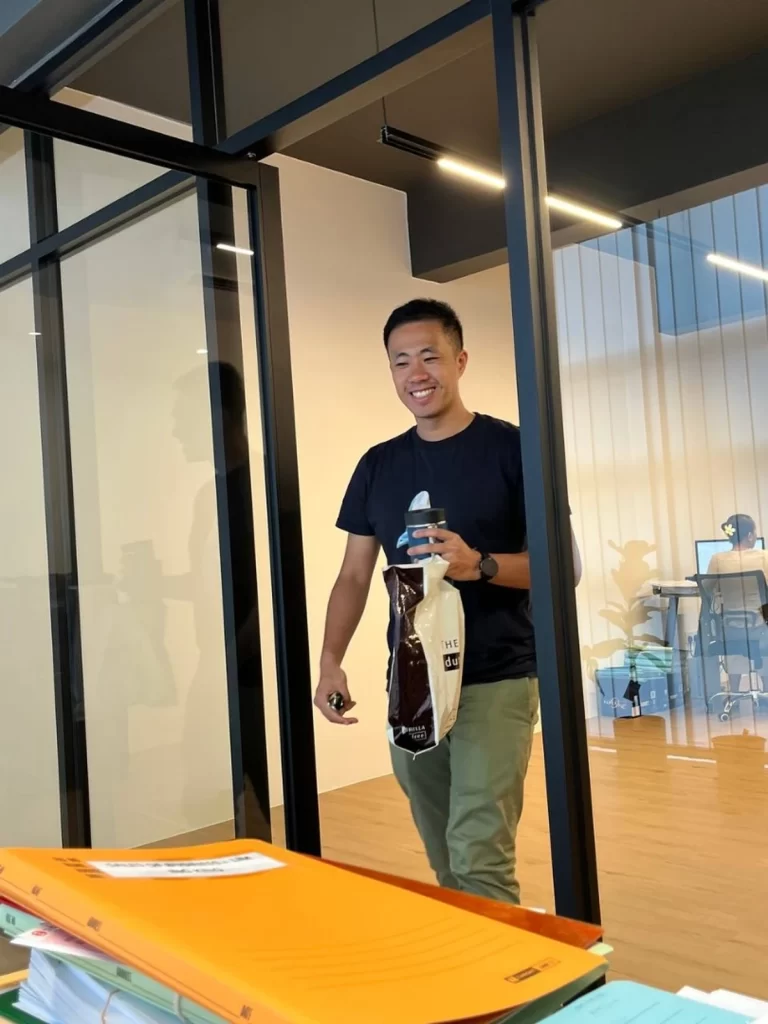
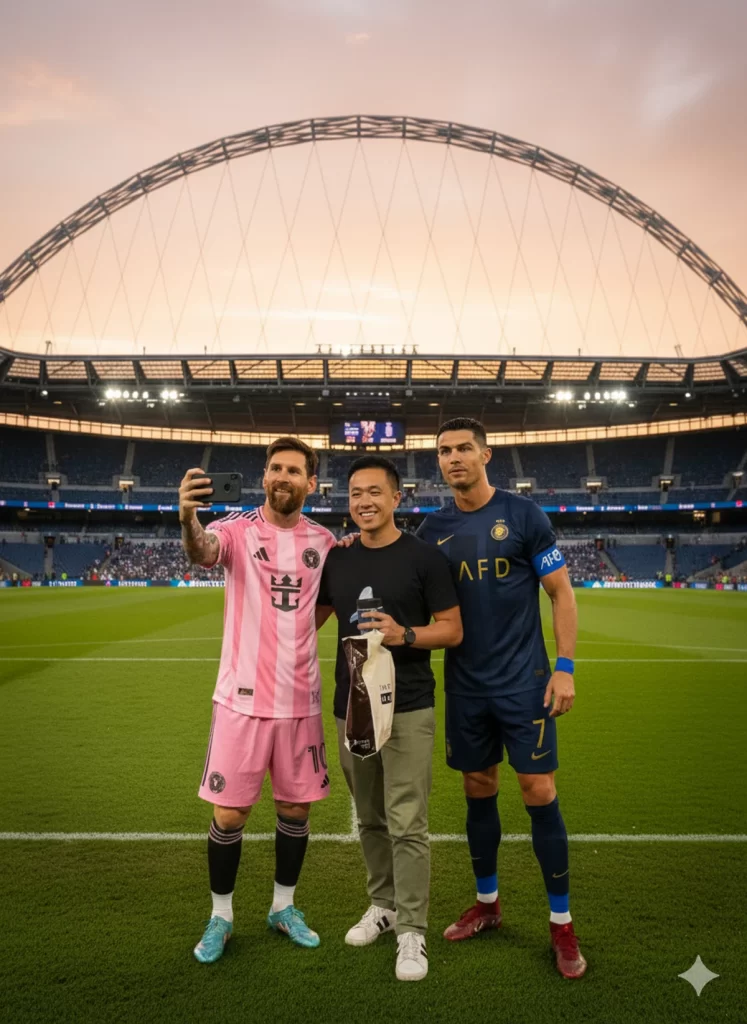
Have the man holding the coffee cup and bag take a selfie with Messi and Ronaldo on Wembley pitch
Camp Messi or camp Ronaldo? Who’s the GOAT?
Rather than steep myself in the trenches of this divisive debate, I thought “why not take a selfie with both?”
The final output was pretty good. It captured Ronaldo’s and Messi’s features well and we are lined up to take a pretty sick selfie (coffee tumbler and shopping bag in hand, clearly I was just passing by).
If I had to nitpick, my face didn’t quite make it clean through (the AI image is probably an improvement to reality, to be fair). I also noticed a line cutting through the 18 yard box, which doesn’t exist in soccer pitches. Otherwise, I’m happy enough to play with this and see if I can pull off some cheeky pranks.
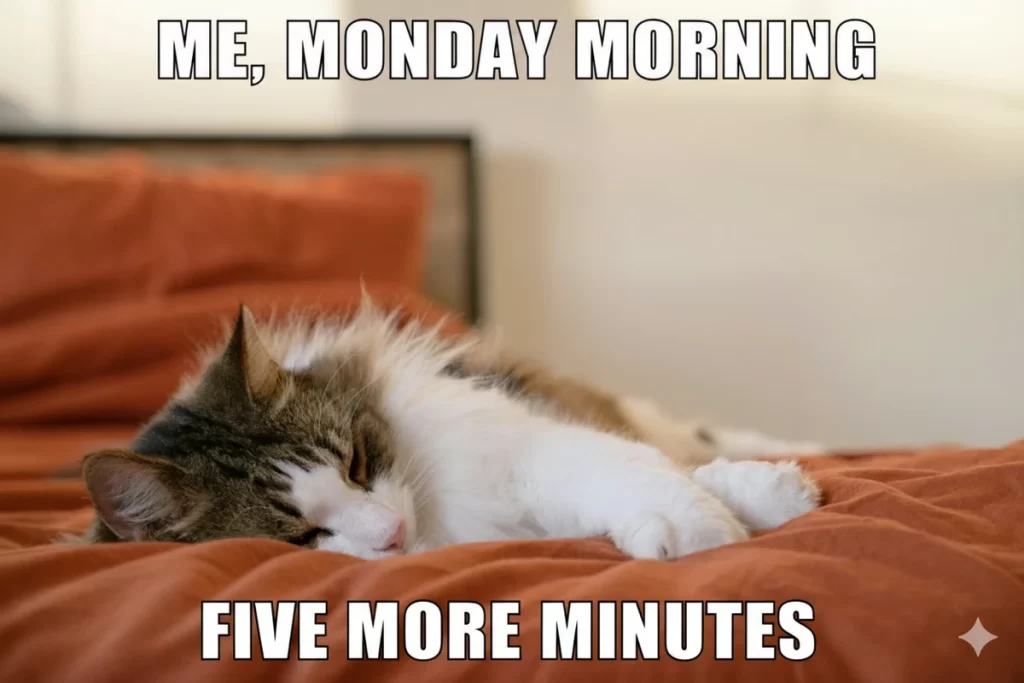
Use case 7: Make your own memes

Prompt:
Turn this into a viral meme with bold white caption text
I’m an expert at consuming content and memes, but green behind the ears when it comes to making my own. Always wanted to dabble in it though, which Nano Banana lets me do with aplomb (if it comes out bad, I can blame the tool).
The beauty of memes is how versatile they can be. You can put any meme into your slide deck, a blog article, or reserve in your meme bank to roast friends when they have a terrible take.
It was pretty simple to make this one in less than 30 seconds. With more tinkering, you can merge popular memes together for layered humor.
Google released a list of text-to-image prompts if you want to learn more about using Nano Banana.
How to use Nano Banana in Pikto AI
If you have a Pikto AI subscription, the great news is that you can use it for free! Here’s how:
- Open Pikto AI Editor
- Click on “Images” tab, then click on “Image Modifier”
- Drag and drop or upload your reference image (the main image you want to edit)
- In the Pikto AI editor, add further reference images that you want to include
- Type in your prompt and click “Generate visual”
Et voilà! You can download your visual to use for your other workflows, like creating an Instagram reel or add it as part of your LinkedIn carousel.
We recorded a brief video as a demo on how to start using it in 60 seconds!
As you can see, Pikto AI lets you use the powerful AI image editor in your subscription. Once you’ve created your visuals, you can integrate them into your other formats like presentations, infographics, or social media assets – all from the same workspace.
This means that instead of changing tabs and swapping between different tools, you can create all your visual content in the same browser.
You don’t even need to open multiple tabs! You can access powerful AI image tools in Pikto AI Studio and all the different formats within the same workspace, such as:
- Infographics
- Presentations
- Posters
- Reports
- Brochures
- LinkedIn carousels
- Instagram stories
- YouTube banners
- YouTube thumbnails
- And 70+ more formats
Join 14 million other users who’ve already simplified their workflow and sign up to Pikto AI to make design fun without the steep learning curve.