Free AI Image Modifier:
Modify Images with AI Using Text Prompts
Remove, replace, or add elements in seconds. Perfect for marketers, creators, and teams who need fast visual updates without complex tools.
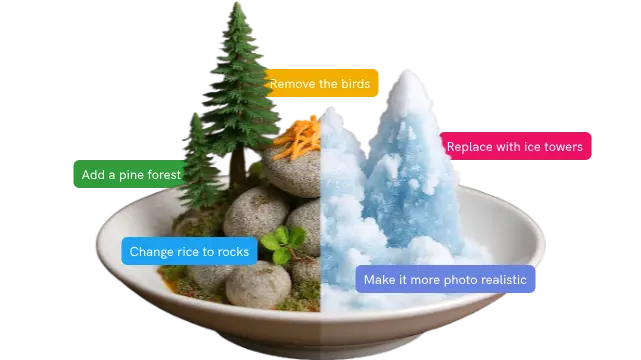
Designed to Boost Creativity and Save Time
Why Choose Pikto AI Image Modifier?
From erasing distracting elements to completely reimagining image styles, transform visuals with simple, intuitive prompts.

Intelligent Object Removal
Erase distracting elements, unwanted objects, or background clutter with simple text prompts. Our AI understands context and fills gaps seamlessly.

Complete Style Transformation
Reimagine your images with different artistic styles, color palettes, or visual themes. Transform photography into illustrations, change seasons, or apply creative effects.

Prompt-Based Controls
No complex menus or technical knowledge required. Simply describe what you want to change, and our AI interprets your instructions naturally.
Watch Your Ideas Come To Life
Your Entire Creative Workflow, Powered by Pikto AI
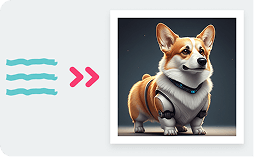
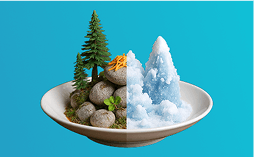
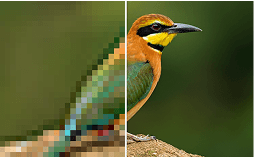

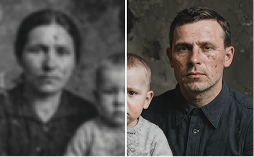
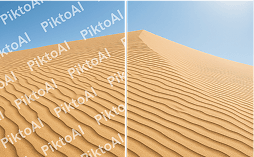


Instantly generate on-brand visuals for your campaigns, so you never have to hunt for stock photos again.
Try It NowYou type the prompt. Our generative AI builds the visual. See how our AI design generator transforms simple words into stunning visual content in under 10 seconds.
How to use AI Image Modifier
Drag and drop your image it into the upload area or click ‘Browse Files’ to select it from your device.
Use natural language to describe what you want to change: “Remove the person in the background” or “Change this car to a bicycle.”
Select your preferred AI model (Imagen or OpenAI) and select the size/ratio of your image. Click ‘Generate Image’ and your edited image is instantly ready to use in your design.
24 image-editing prompts that work
Copy any of these straight into the AI Image Modifier. They mirror the kind of prompts you’d type into ChatGPT or Nano Banana — except they run inside your Piktochart workspace, on the image you’re already designing with.
Prompts for object removal
- Remove the person in the background, keep the rest of the photo natural.
- Erase the watermark in the bottom right corner without distorting the logo.
- Take out the trash bins on the sidewalk and fill the gap with matching pavement.
- Remove the photobomber on the left and reconstruct the wall behind them.
- Delete the wires running across the sky, keep the cloud detail.
- Clean up the background — keep only the subject and the chair.
Prompts for background and scene swap
- Replace the background with a clean white studio.
- Swap the cluttered office for a sunlit cafe with soft natural light.
- Change the beach background to a snowy mountain at sunset.
- Replace the sky with a moody overcast one, keep the rest unchanged.
- Place this product on a marble countertop with shallow depth of field.
- Move this headshot from indoor to an outdoor garden, matching the daylight.
Prompts for style and colour
- Convert this photo to a watercolour illustration in muted earth tones.
- Restyle this image as a flat vector illustration suitable for an infographic.
- Recolour the shirt from red to navy blue, keep skin tone natural.
- Make this image black and white with one accent colour on the brand logo.
- Apply a soft pastel filter, suitable for a wellness brand.
- Render this photo as a pencil sketch with high contrast.
Prompts for adding elements and restoring
- Add a steaming coffee cup in the foreground on the desk.
- Place a Piktochart logo subtly on the bottom right, matching the lighting.
- Add a soft drop shadow under the product.
- Restore this old family photo: sharpen, remove scratches, balance the colour.
- Brighten the subject’s face without overexposing the background.
- Add motion blur to the background as if the subject is running.
Ready to transform your images?
Join more than 14 million people who already design information with Pikto AI.