AI Background Remover:
Remove Backgrounds from Photos in Seconds
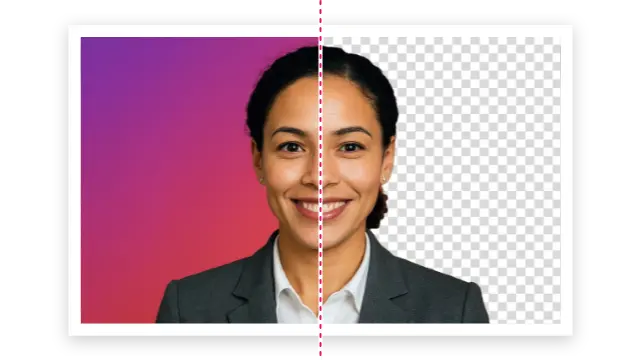
Automatically erase backgrounds and download transparent PNGs in seconds. Perfect for product photos and social media visuals.
Designed to Boost Creativity and Save Time
Why Choose Pikto AI Background Remover?
Achieve results that match professional photo studios with pixel-perfect precision. No Photoshop skills or design experience needed.
One-Click Perfection
Get professional-quality cutouts instantly. Simply upload your image and watch our AI automatically detect subjects and remove backgrounds with precision that rivals manual editing.

Pixel-Perfect Edge Quality
Maintain crisp, clean edges without halos or rough cuts. Our AI preserves fine details like hair strands, fur, and intricate product features.

Seamless Integration
Use background-removed images directly in your Pikto AI Studio projects – infographics, presentations, social media graphics, and more.
Watch Your Ideas Come To Life
Your Entire Creative Workflow, Powered by Pikto AI
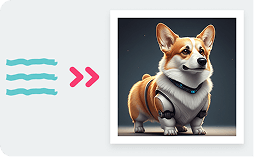


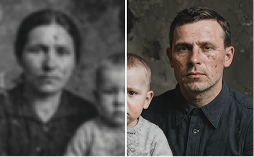


Instantly generate on-brand visuals for your campaigns, so you never have to hunt for stock photos again.
Try It NowYou type the prompt. Our generative AI builds the visual. See how our AI design generator transforms simple words into stunning visual content in under 10 seconds.
How to use AI Background Remover
Upload the image you want to modify by either dragging and dropping it into the upload area or clicking ‘Browse Files’ to select it from your device. Once your image is selected or uploaded, click the ‘Remove Background’ button.
After processing, you’ll see a side-by-side comparison of the original image and the new version without a background on the left-hand panel. This lets you visually assess the changes before using the image in your design.
The new image with the background removed is automatically saved to My Uploads > AI Images, making it easy to reuse across your visuals without uploading it again.
Ready to transform your images instantly?
Join thousands of professionals who’ve eliminated tedious background editing from their workflow.