Online Comparison Chart Maker
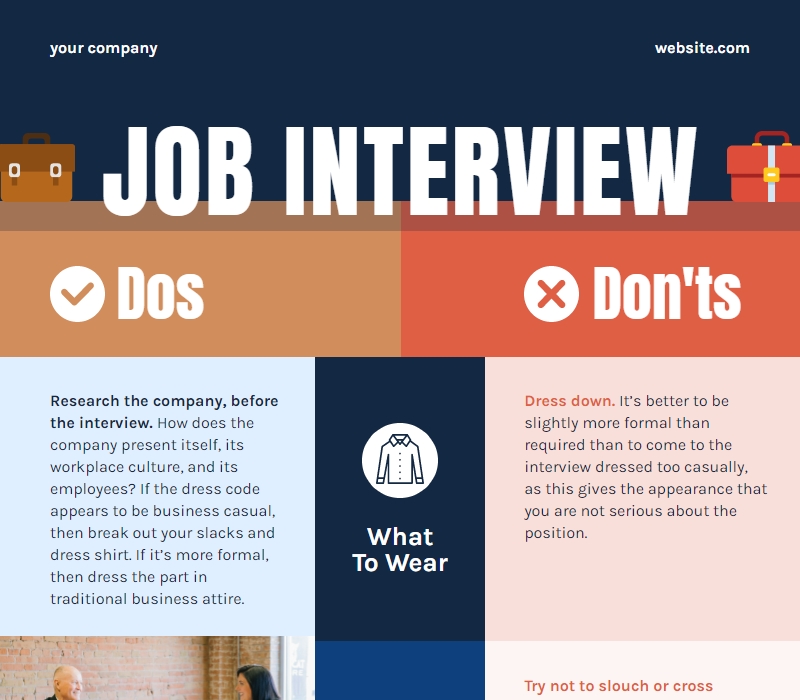
With Piktochart’s free comparison chart maker and library of comparison chart templates, you can compare two products, highlight the pros and cons of concepts, or create a simple infographic explaining dos and don’ts.
Our comparison chart maker is chosen by professionals and educators worldwide
Comparison chart maker with collaboration features
Work together on eye-catching comparison charts
Invite your team members to work on a comparison chart online with you, identify similarities and differences, share different ideas, and compare design elements.
Share your chart and your brand assets, and review your peers’ graphics in an easily readable format on the fly simply by pressing the share button. With Piktochart’s unique team features and tools, everyone’s on the same page. Customize design elements and create charts in just a few clicks with no complicated tools.
Customize templates to match company branding
Keep your comparison charts on brand
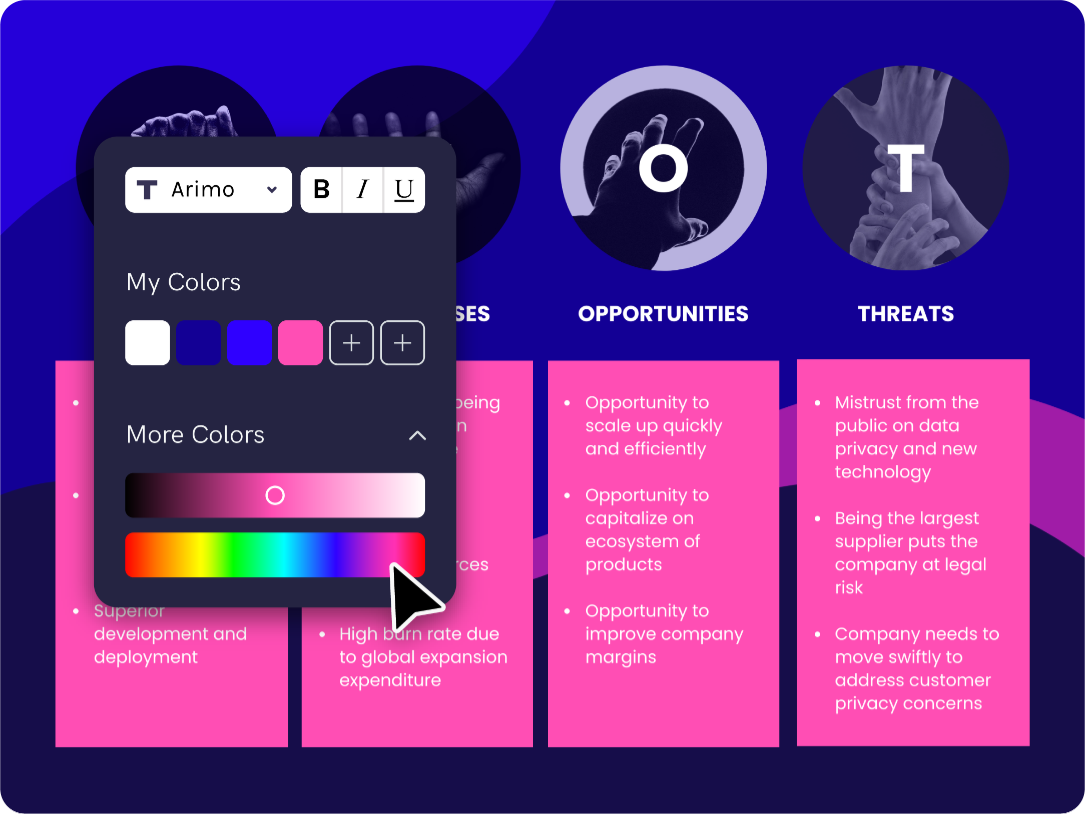
Need to make sure all of your comparison charts match your style? No problem. Drag and drop your logo or a screenshot of your website to extract your brand color; use Piktochart’s tools to customize your chart template for your business needs.
Do you want to use your fonts? Your custom color palette and uploaded brand fonts will always be accessible in the chart template editor. Each comparison chart can be adjusted to fit your brand.
Comparison chart online assets
Dale vida a tu plantilla de gráfico comparativo con imágenes e iconos
The days of searching for the perfect image, illustration, or icon eye-catching comparison charts are over. With Piktochart’s free library of graphics, design components, and templates, the visual inspiration you are looking for is where you need it. Making your comparison infographic beautiful has never been so easy (even for a non-designer!)
Repurposing your chart template
Create a comparison graph or chart template once & reuse it for different presentations
With a team account, there’s no need to spend hours re-creating the same report every week or month. Organize your templates and past projects in folders. Make it easy for anyone on your team to repurpose content on the fly, ultimately saving their time.
Business Use Cases & Testimonials
“Piktochart is my go-to tool when I’m looking for a way to summarize data that is easy for our upper management to review. Piktochart provides me with the tools to display data in a creative, visually appealing way.”
“Piktochart has allowed me to change the style of my company’s communications. The campaigns are more visual, modern and attractive thanks to the templates that always serve as inspiration. Now even my colleagues use it! Piktochart helped me to engage, increase participation in events, add value to internal campaigns and to reinforce the culture and communication flow of my business.”
“As an HR Assistant, I have to find new and creative ways to engage our employees and effectively communicate across a large organization. Piktochart has tremendously helped me in achieving this.”
“Piktochart helps me translate often dry financial policies and accounting standards to easy-to-understand and concise one-pager visuals for management.”
How to create & download a comparison chart with Piktochart’s tools
1. Gather data for comparison graphs
A good comparison chart starts with a good idea and good data. The best way to start is to sit down, grab a piece of paper, and write down all the different points for each element you’re trying to create a comparison for. Include similarities and differences, comparing different concepts and ideas.
2. Pick a comparison chart template
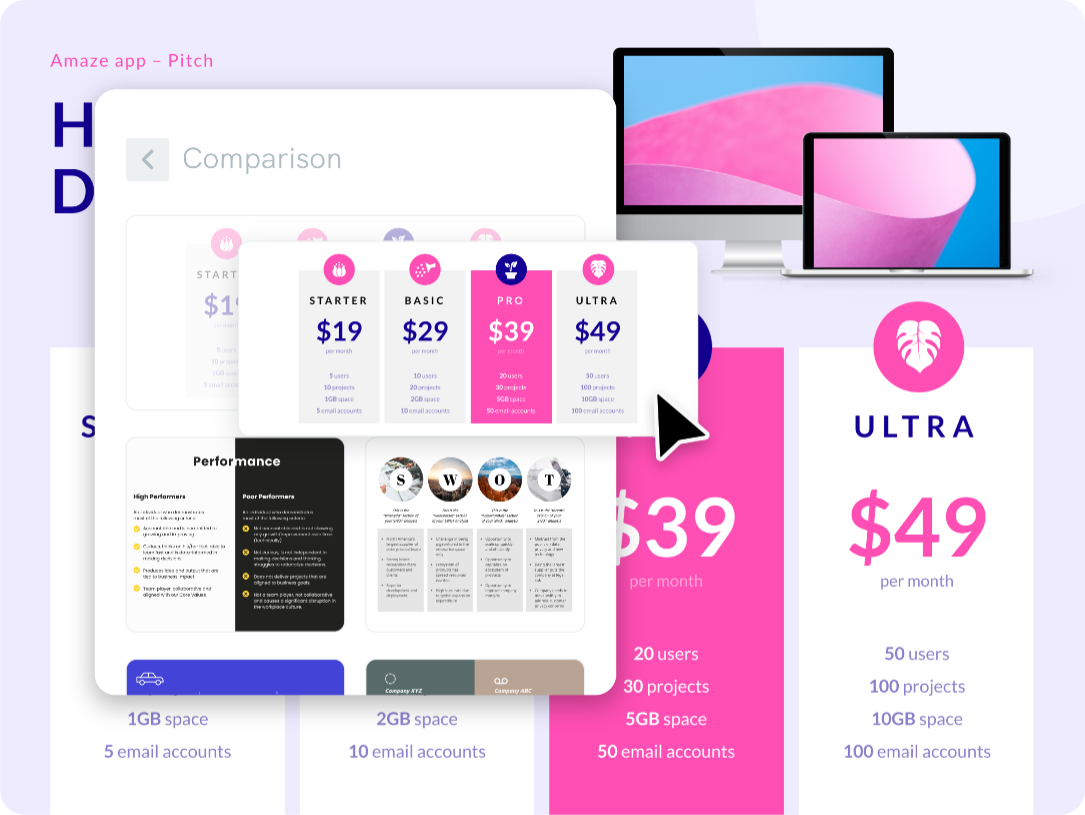
It might seem like all of your peers suddenly became Photoshop experts, but the truth is most of them are starting from templates and not a blank canvas. Starting from scratch when creating a comparison infographic isn’t the best option if you’re not a designer. Instead, use one of our free online comparison chart templates created by professional designers. You can pick from different types, such as infographic templates, presentations, reports, posters, and more.
3. Add a comparison chart to your visual template to showcase similarities and differences
Go to our design components and pick a comparison graph to create. Each chart element has its own design and flavor. You can add as many as you want.
4. Adjust the chart template to your liking
Once you have added a chart template, adjust it to fit your needs. Add your chart text, comparison tables, customize the chart colors and the fonts, and add more graphs to support your comparing arguments.
5. Descarga y comparte tu gráfico comparativo
Once you’re finished editing, download your high-resolution graphs as a JPG, PNG, PDF file, or share your comparison charts with team members. Need to have your boss give their approval? With a Piktochart paid plan, stakeholders can access and comment on your visual.
¿Listo para crear gráficos comparativos?
Join more than 14 million people who already visualize data with Piktochart.
FAQs
Additionally, a visual chart can highlight patterns, ideas, and trends that may be difficult to discern from plain text alone.
Using Piktochart, users can display relevant data visually, attractively, and in a manner than will stand out to the readers.
{
«@context»: «https://schema.org»,
«@type»: «FAQPage»,
«mainEntity»: [
{
«@type»: «Question»,
«name»: «How do you create a comparison chart?»,
«acceptedAnswer»: {
«@type»: «Answer»,
«text»: «First, you have to gather your data. Next, log into your Piktochart account and pick your chart template. Once you find a nice template, you can go to our design components and choose a comparison chart. Once it’s added to the visual, you can start creating and adjusting it however you like to suit your data visualization needs.»
}
}, {
«@type»: «Question»,
«name»: «Why is a comparison chart visual better than written text? «,
«acceptedAnswer»: {
«@type»: «Answer»,
«text»: «A comparison chart visual is better than direct text because it allows for easy and quick comparison of points, making it more digestible and understandable for the reader. Additionally, a visual chart can highlight patterns, ideas, and trends that may be difficult to discern from plain text alone.»
}
}, {
«@type»: «Question»,
«name»: «What should a comparison chart highlight? «,
«acceptedAnswer»: {
«@type»: «Answer»,
«text»: «A comparison chart should highlight the differences and similarities between two or more data points, making it easy for the intended audience to compare and contrast the presented details. Using Piktochart, users can display relevant data visually, attractively, and in a manner than will stand out to the readers.»
}
}, {
«@type»: «Question»,
«name»: «What do Piktochart’s tools offer?»,
«acceptedAnswer»: {
«@type»: «Answer»,
«text»: «Piktochart’s online visual design tools are optimized for creating long-form infographics and supporting assets (such as high-resolution comparison graphs, Venn diagrams, charts, and much more) that communicate data. Piktochart’s tools allow for visualizing processes, reporting on data, and keeping your company current.»
}
}, {
«@type»: «Question»,
«name»: «Can you collaborate with Piktochart features?»,
«acceptedAnswer»: {
«@type»: «Answer»,
«text»: «With Piktochart Team features (compared to desktop-based design software), you can create, collaborate, and start customizing with colleagues once you’ve created an account. Keep your branding consistent by adding a bespoke logo image as well as unique colors and fonts. With our features, set access permissions and ask managers to review your visual.»
}
} ]
}