You’ve got an event to promote. You need a flyer. And you need it to look good enough to make people stop, read it, and actually come. Event flyer templates are the fastest way to get there: a professionally designed starting point you customise with your own event details, colors, and branding.
Piktochart has 20+ free event flyer templates ready to edit right now. Browse the gallery below, open any template in the editor, and have a finished flyer in under five minutes. Prefer to design your own? Scroll past the templates for a full walkthrough.
For a related read, see our guide on business flyer examples.
What to Include on an Event Flyer
Before you open a design tool, get clear on what your flyer needs to communicate. A flyer with stunning visuals and missing details is a missed opportunity. Readers need to answer three questions in under five seconds: What is this? When and where? How do I join? Every element below is in service of those three questions.
Event Name and Headline
Your event name is the largest, most prominent text on the flyer. It should be immediately readable and give the viewer a clear sense of what the event is. Avoid clever-but-vague titles on their own: if your event is called “Ignite 2026,” pair it with a short descriptor like “Annual Tech Leadership Summit” to give it context. Visitors need to recognise the event type without reading the full flyer first.
Date and Time
State the date and time clearly, and format them for fast scanning. “Saturday, 14 June 2026 | 7:00 PM” is easier to absorb than “June 14th at 7 in the evening.” If your event spans multiple days, list the full date range. Include the timezone if your audience is not local (e.g., “7:00 PM BST / 2:00 PM EST”).
Venue and Location
Give the full venue name and address. If space is limited, include at minimum the venue name and city. For events where the location is a selling point (a rooftop, a heritage building, a popular venue), lead with the venue name before the address. For virtual or hybrid events, include the platform name (“Live on Zoom” or “In-person + streamed via YouTube”) so attendees know what to expect.
Call to Action
Every event flyer needs one clear call to action. One. Not two or three competing instructions. Decide what you want the reader to do: Register online, buy a ticket, RSVP, or follow a link for more information. State it plainly: “Register at piktochart.com/events,” “Scan the QR code to grab your spot,” or “Tickets from £15 at the door.” Make your CTA visually distinct so it doesn’t get lost in the rest of the layout.
Contact Information and Website
Include a way for interested attendees to get more information or ask questions. A website URL is the most common and versatile option. An email address works for smaller or community events. If you’re using a dedicated event page or registration link, that URL can serve double duty as both your CTA destination and your contact point.
QR Code
A QR code on a printed flyer closes the gap between offline and online. Link it to your event registration page, ticket purchase page, or event website. Keep a short text URL beneath the QR code for people who prefer to type it in. Position the QR code at the bottom of the flyer where it doesn’t compete with the headline and key details. Free QR code generators like QR Code Generator or Uniqode let you create and download one in seconds.
Once you have these six elements confirmed, the design work gets much easier. You know what you’re working with. Head to Piktochart’s free flyer maker to lay them out using any of the 20+ templates below, or read on for our event flyer design tips before you start.
If you prefer learning through a video format, you can watch the video tutorial above. Or, we’ve also created a step-by-step guide for you to follow as well. You can follow along by creating a free account on Piktochart to access our free flyer maker.
Let’s Make An Event Flyer!
Today, we’ll be designing together the below event flyer that is eye-catching and has quite the artistic flair. 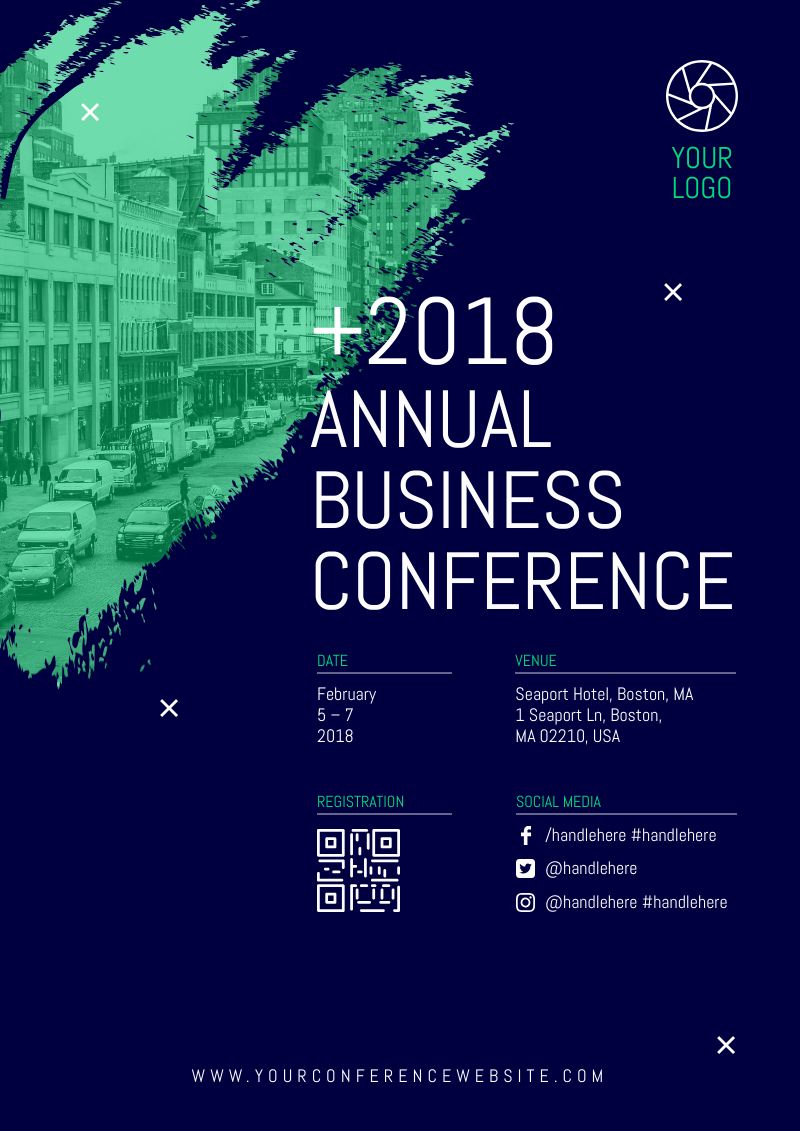
Want to create this event flyer right away? Click here to do it in Piktochart.
1. Background
Start off by setting a background color that corresponds to your branding or event color palette. If you aren’t working with any particular brand colors, think about the theme of your event and select your colors accordingly.
You can set this up by selecting ‘Background’ in the panel and then type a HEX color code in.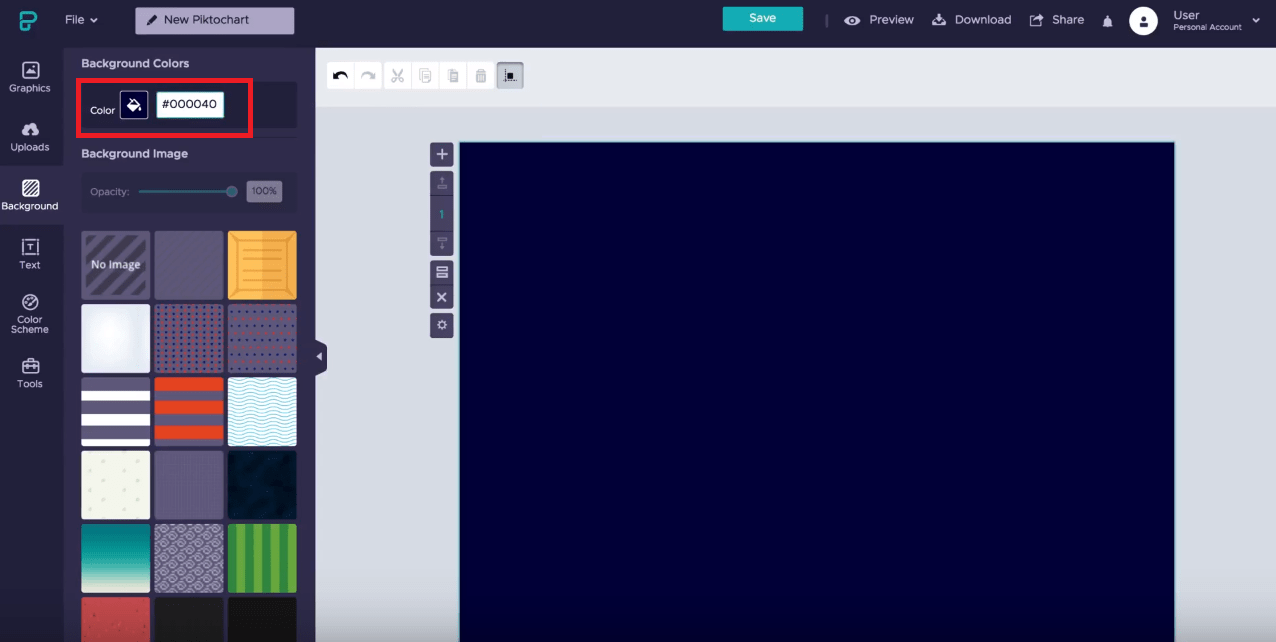
2. Text
Next, you can add some text to your event flyer. You can do this by clicking on the text tool panel. In this case, we’ll be adding a title for your flyer which is “2018.” 
You can change the color of your font easily through the color drop down menu as seen below. Don’t feel limited by the colors we’ve displayed here, you can always add your own colors by entering in HEX codes.

Remember, you can change your font by choosing from a list of Google fonts in the font drop down menu, as seen below. In this case, we are going to change it to ‘Abel.’
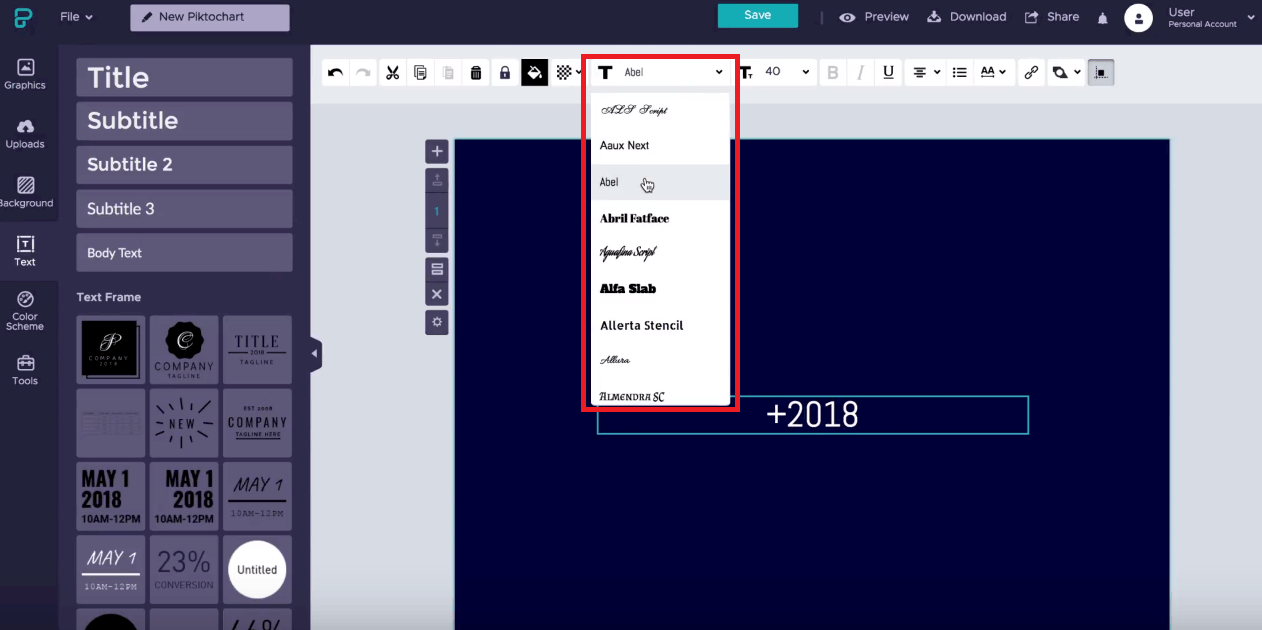
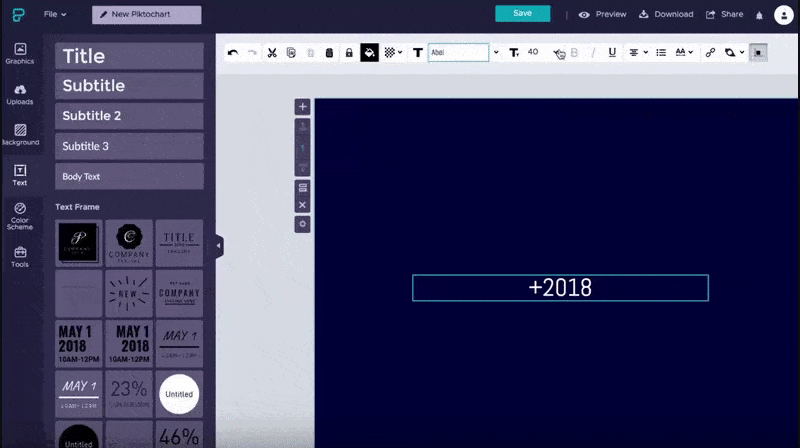
As for scaling your text, you can either use the font size menu next to fonts. The quickest way to do this is to hold down the ‘Shift’ key, while dragging the little dots on the side of the text box.
3. Structure
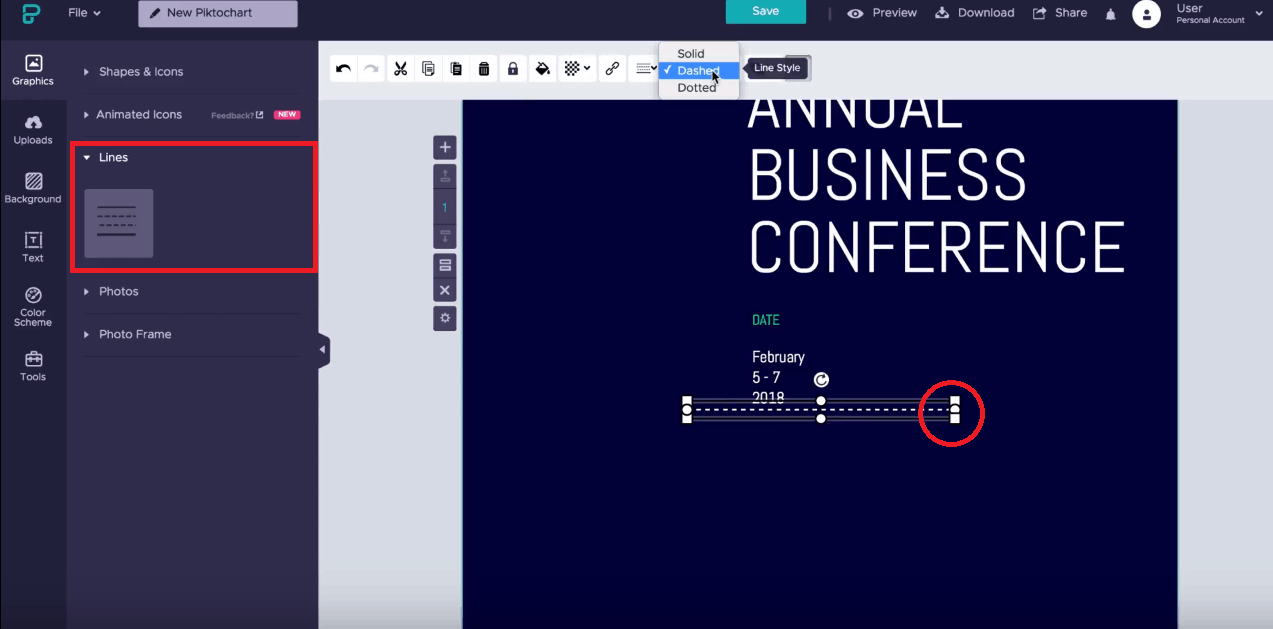
Now it’s time to add some structure, and we can do this by adding some dividing lines. This is a great way to break up your visuals while giving structure to your compositions and layout.
To do this, click on the ‘Graphics’ panel on the left and click on lines. From there on, you’ll be able to drag it onto the canvas. By default, lines are in black, so you can change it to white by using the color tool. You can also adjust it whether you’d like your lines to be solid, dashed, or dotted – and also do some dragging on the corners of the boxes to modify the width of your lines.
4. Icons
Now we can add extra elements such as QR codes, social handles, and other icons which will make it easy for people to learn more about your event or contact you. You can do this by browsing through the icon library, which is housed under the ‘Graphics” panel, and search for what you need.
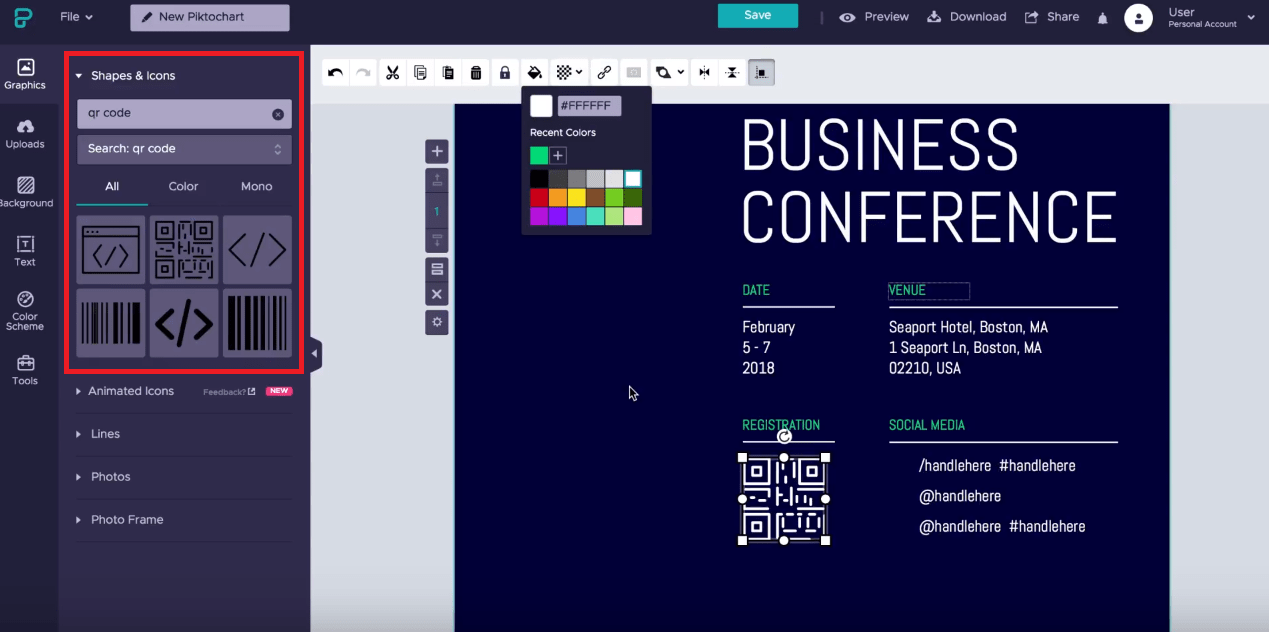
You’ll also want to consider adding your website URL at the bottom of the flyer to make it even easier for your audience to reach you. You can also put the URL in all capital letters, and play around with letter spacing for a cool visual effect.

5. Photo Frame
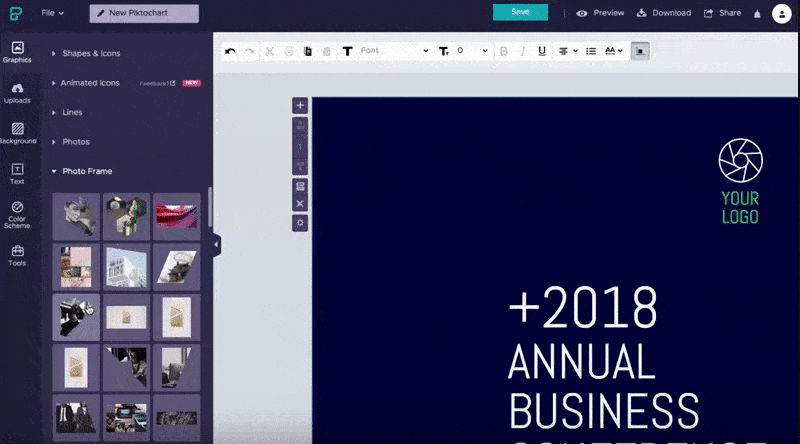
In this particular event flyer design, we’re going to add a brush shape which will double as a photo frame. It’ll add a fun, artsy flourish to your flyer, and also act as a focal point for your audience. To do this, head again over to the ‘Graphics’ panel, click on ‘Photo Frame,’ and then select the brush stroke image and drag it onto the canvas.
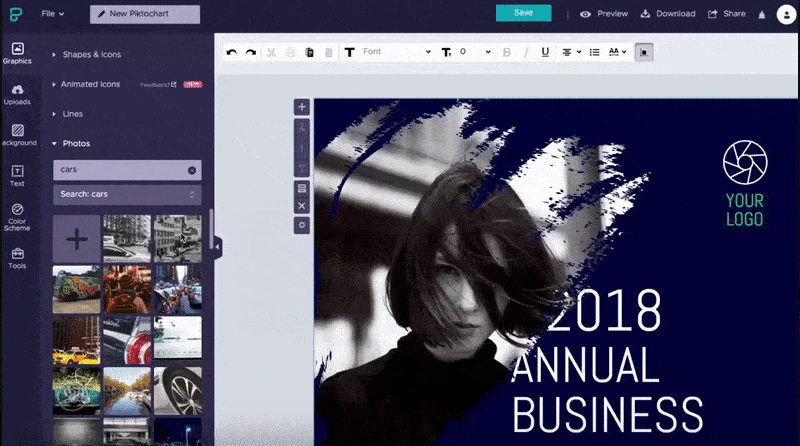
To add an image to the brush shape, head over to ‘Photos’ where you can select from Piktochart’s gallery of built-in gallery of images, which are all royalty free. Simply use the search bar to find a photo you’re looking for. In this case, we are going to select something car related.
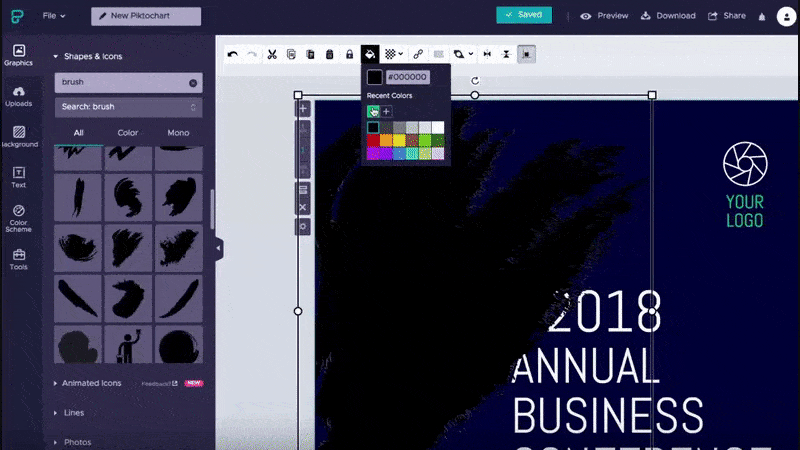
Next, change the overlay to green and lower the opacity to 50% for our car photo that’s hidden underneath to become visible.
6. Color Schemes
A way to quickly change the look of your flyer is to use a feature called ‘Color Schemes.’ You can either choose from our predefined color schemes for this particular poster, or you can create a brand new one made up of your brand colors. The sky’s the limit with this one.
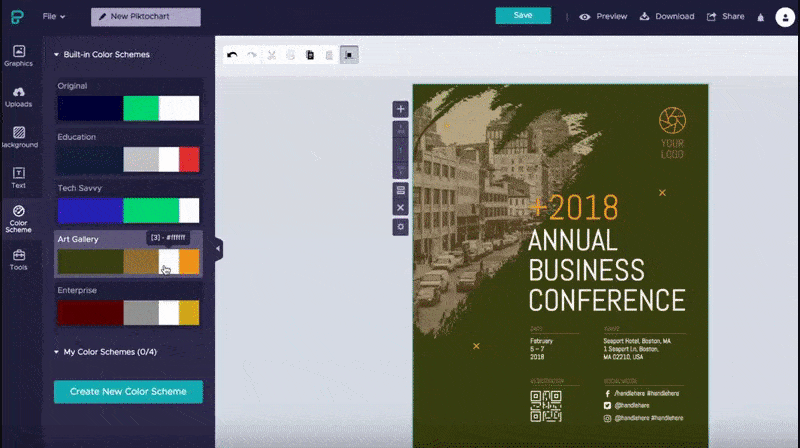
Get unlimited access to Piktochart’s template gallery by simply signing up for free and create effective flyers from professional visuals.
Time To Make Your Own!
So there we have it! A beautiful and actionable event flyer created in just under 5 minutes. Now it’s time to try these new skills on for size by making your own.
Luckily in Piktochart, we have a bunch of professionally designed flyer templates for a variety of event themes and moods. So whatever great event you’re trying to pull off, we have you covered. Get started for free.
01. Innovation Event Flyer

Make this innovation design event flyer now!
02. Sales Conference Event Flyer
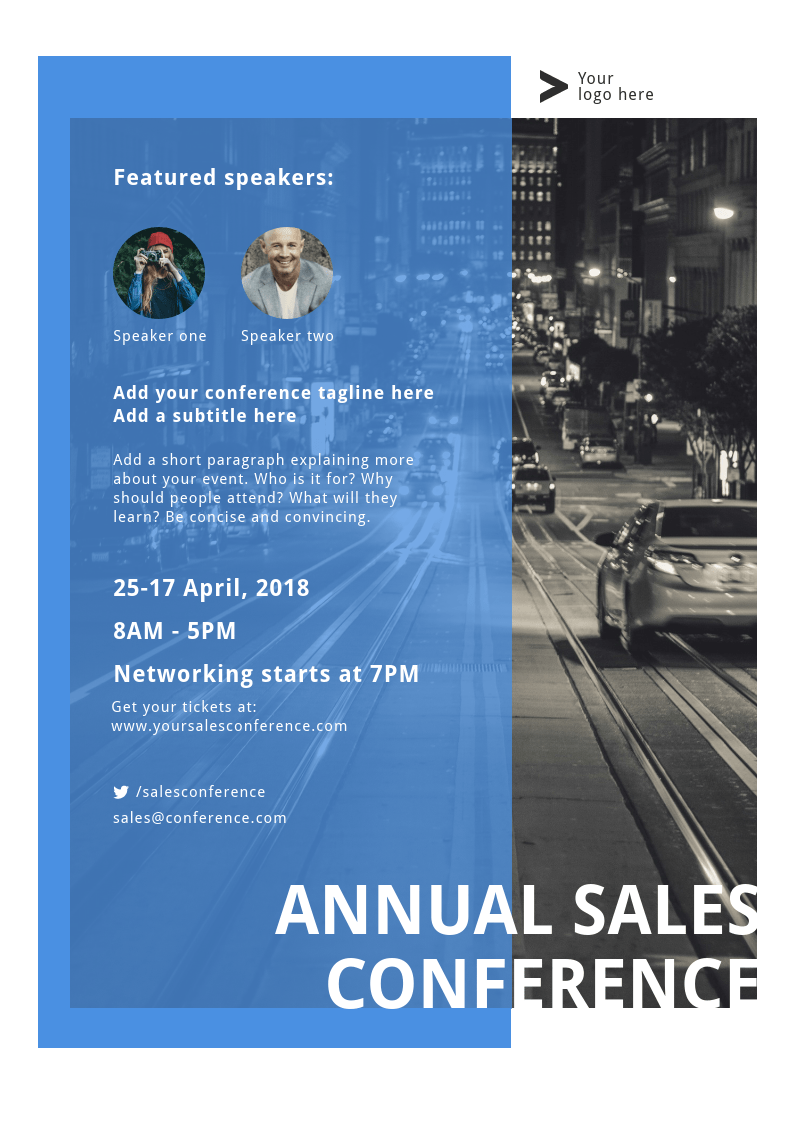
Create the sales conference event flyer in Piktochart!
03. Digital Conference Event Flyer

Edit the digital conference event flyer in Piktochart now!
04. Marketing Workshop Event Flyer
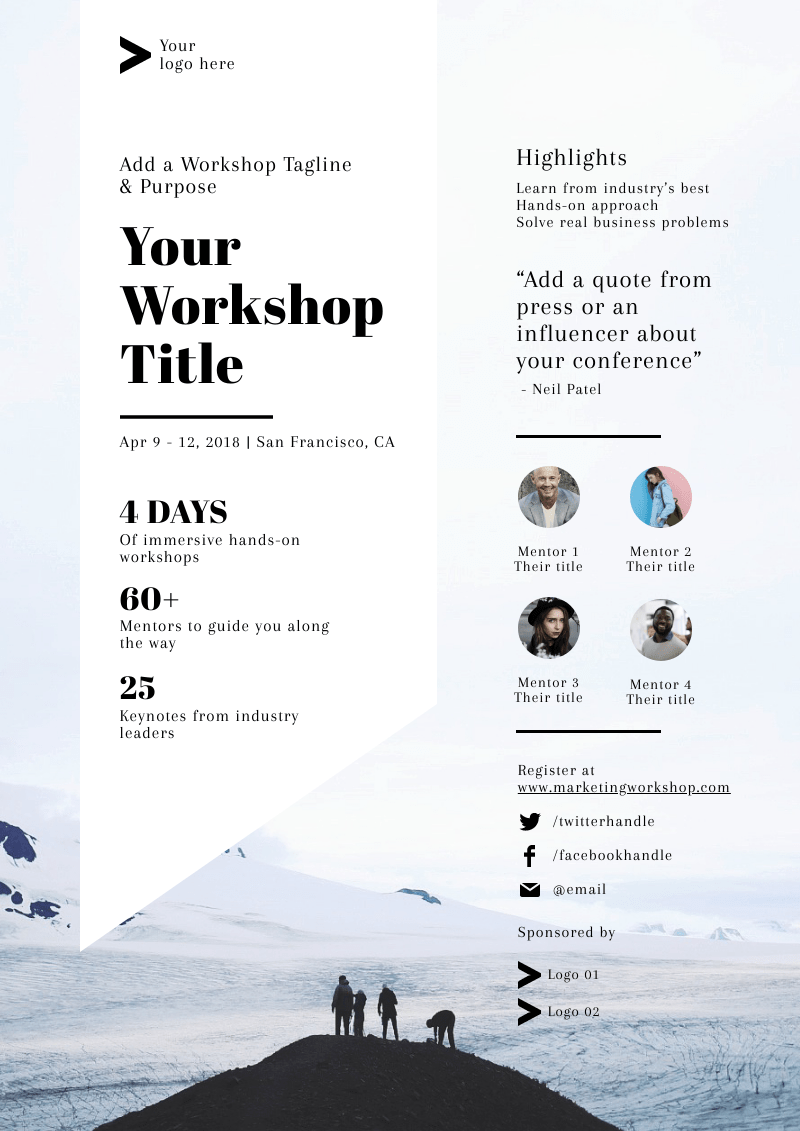
Create this marketing workshop event flyer!
05. Marketing Talks Event Flyer
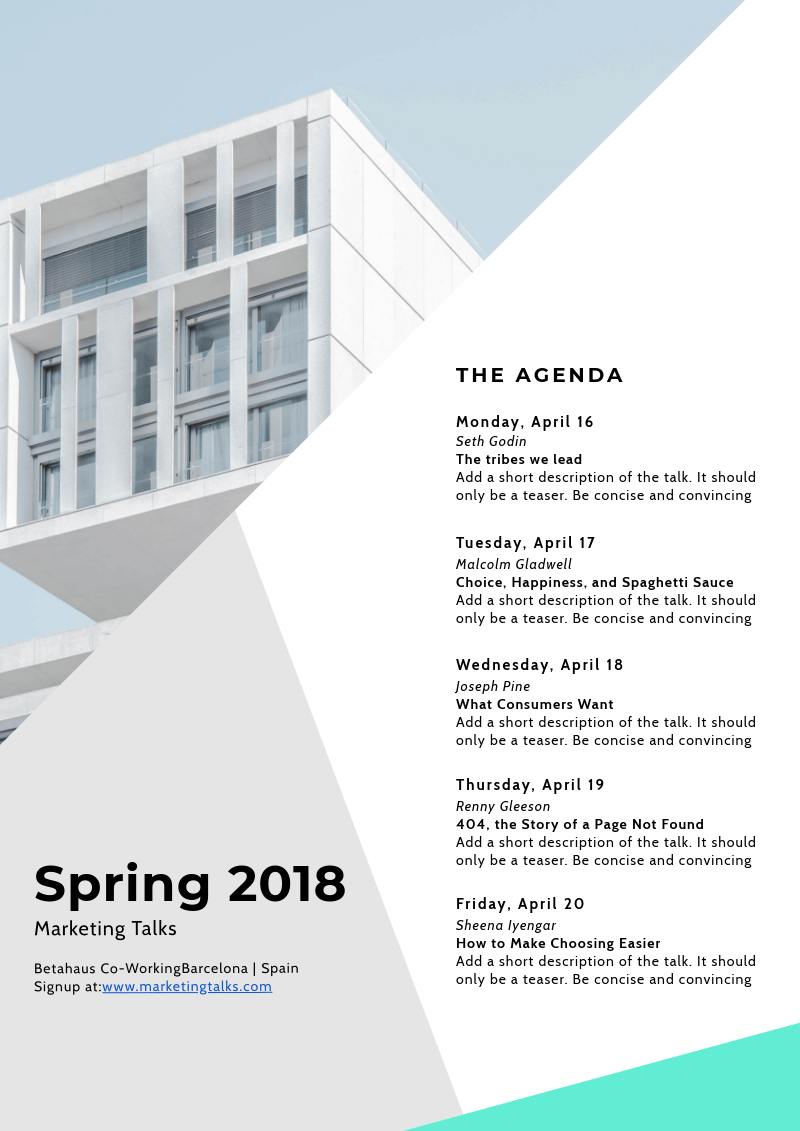
Make this marketing talks event flyer right away!
06. Entrepreneur Conference Event Flyer
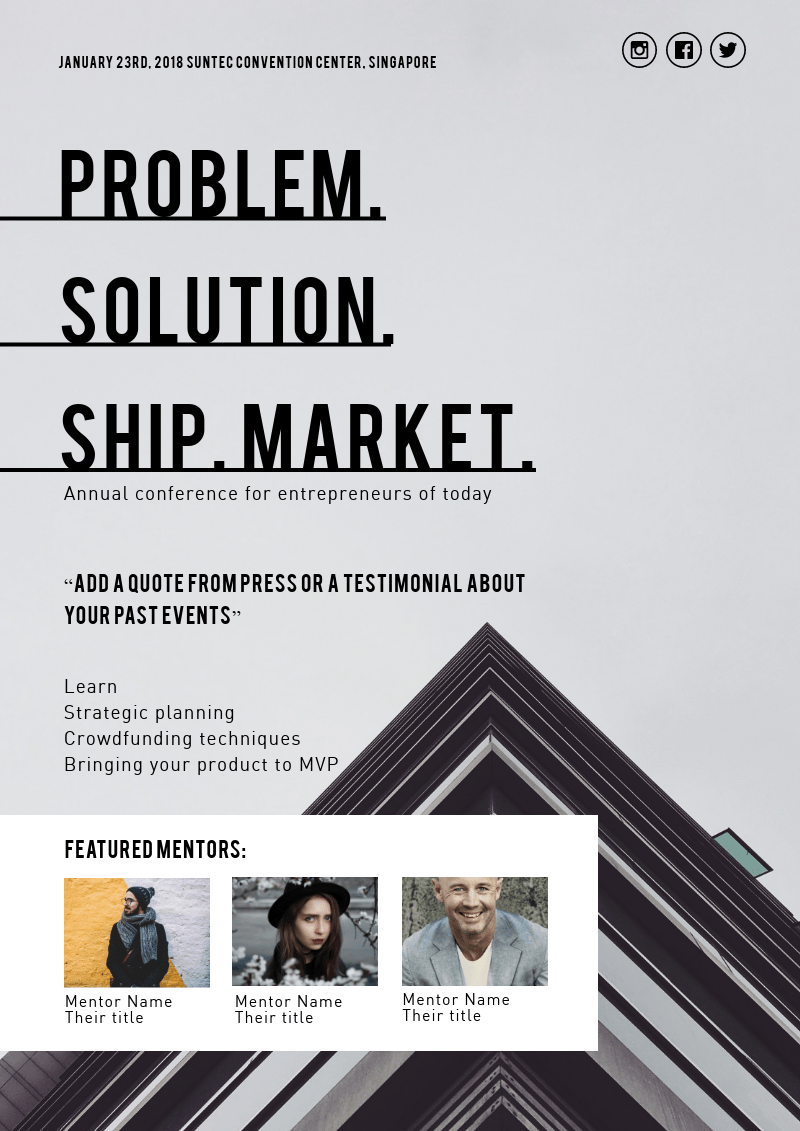
Make this entrepreneur conference event flyer now!
07. Hackathon Event Flyer

Create this hackathon event flyer in Piktochart now!
08. Save The Date Event Flyer
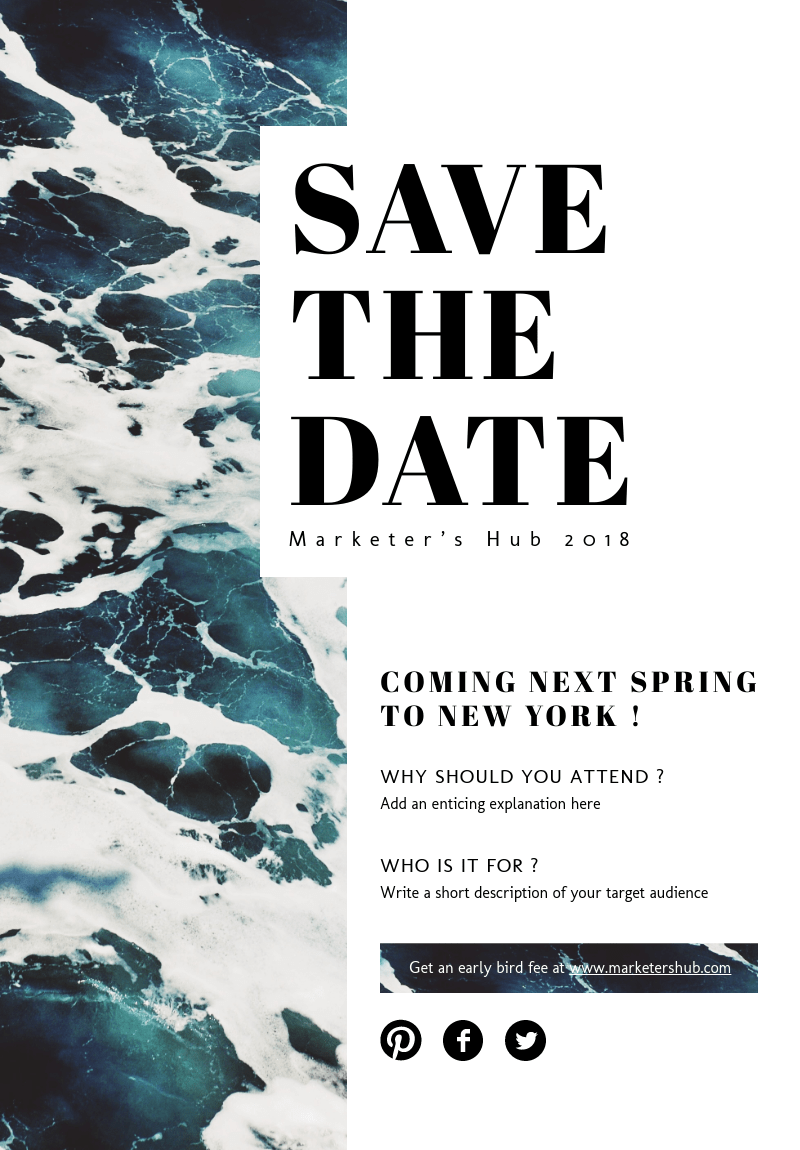
Create this save the date event flyer straight away!
09. Career Fair Event Flyer

Make this career fair event flyer now!
10. Medical Workshop Event Flyer
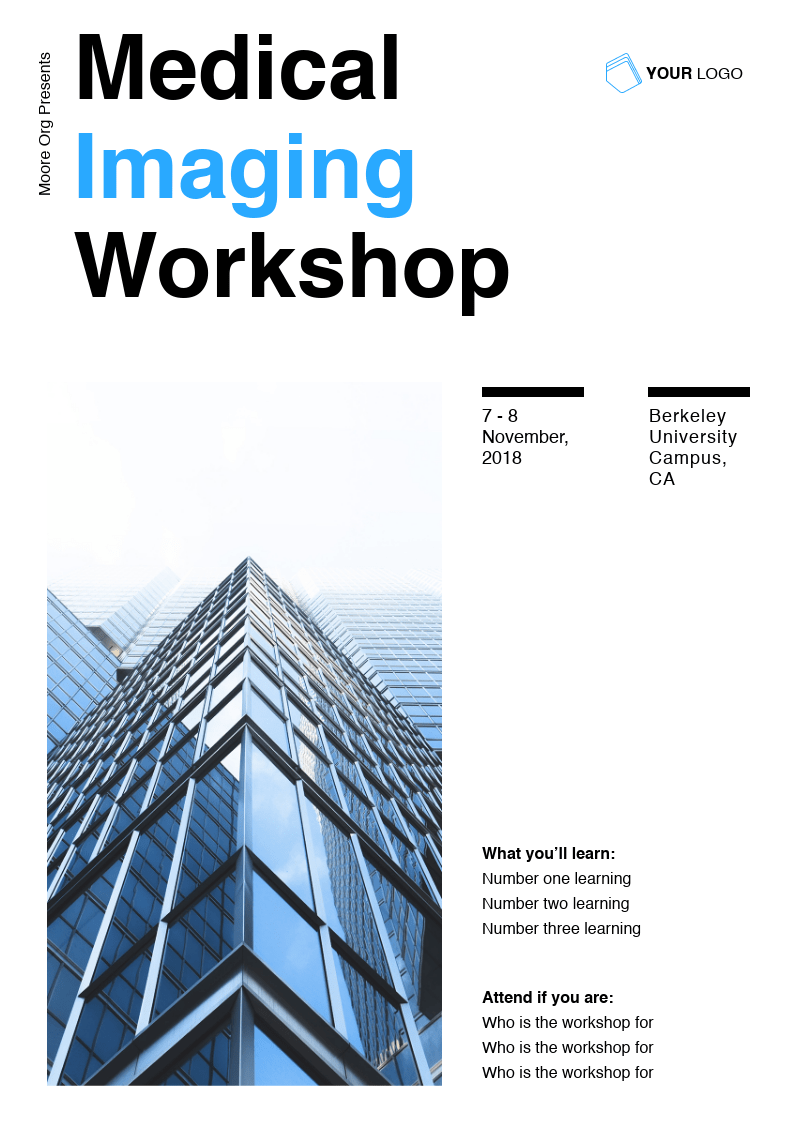
Edit this workshop event flyer in Piktochart!
11. Healthcare Summit Event Flyer
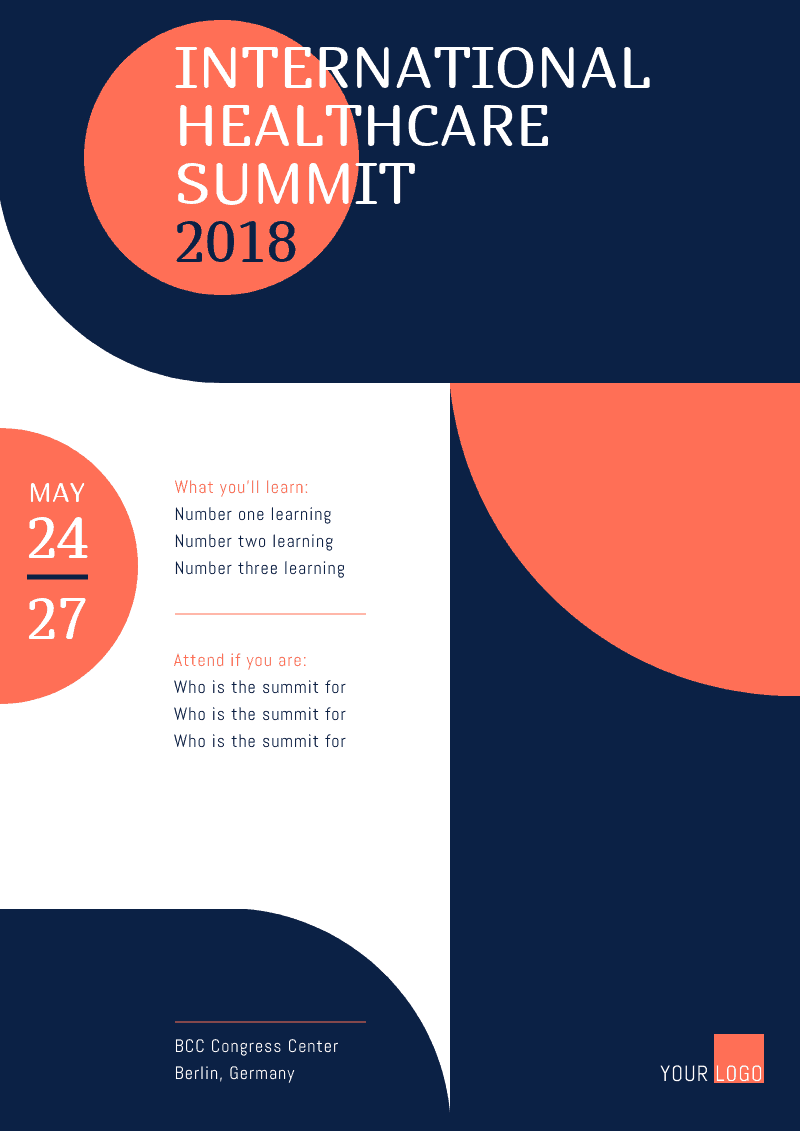
Edit this event flyer template in Piktochart now!
12. Design Conference Event Flyer

Create this design conference event flyer!
13. Design Event Flyer
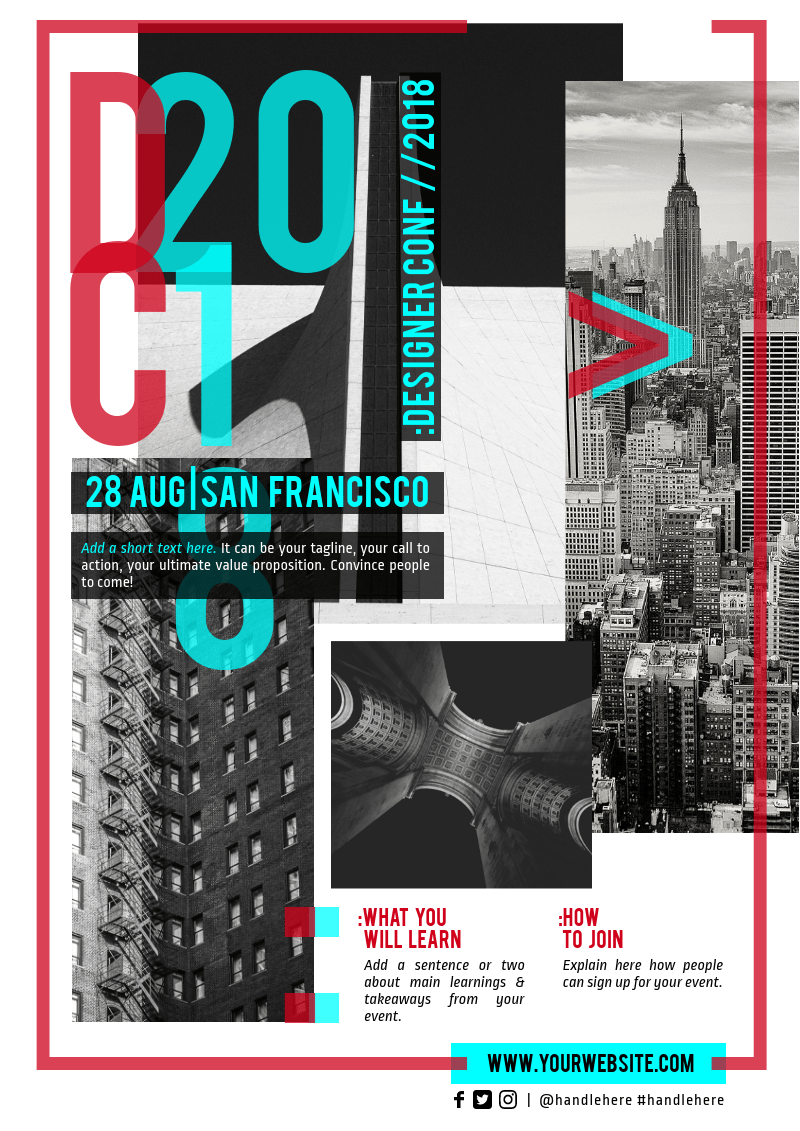
Create this design event flyer in Piktochart!
14. Business Conference Event Flyer
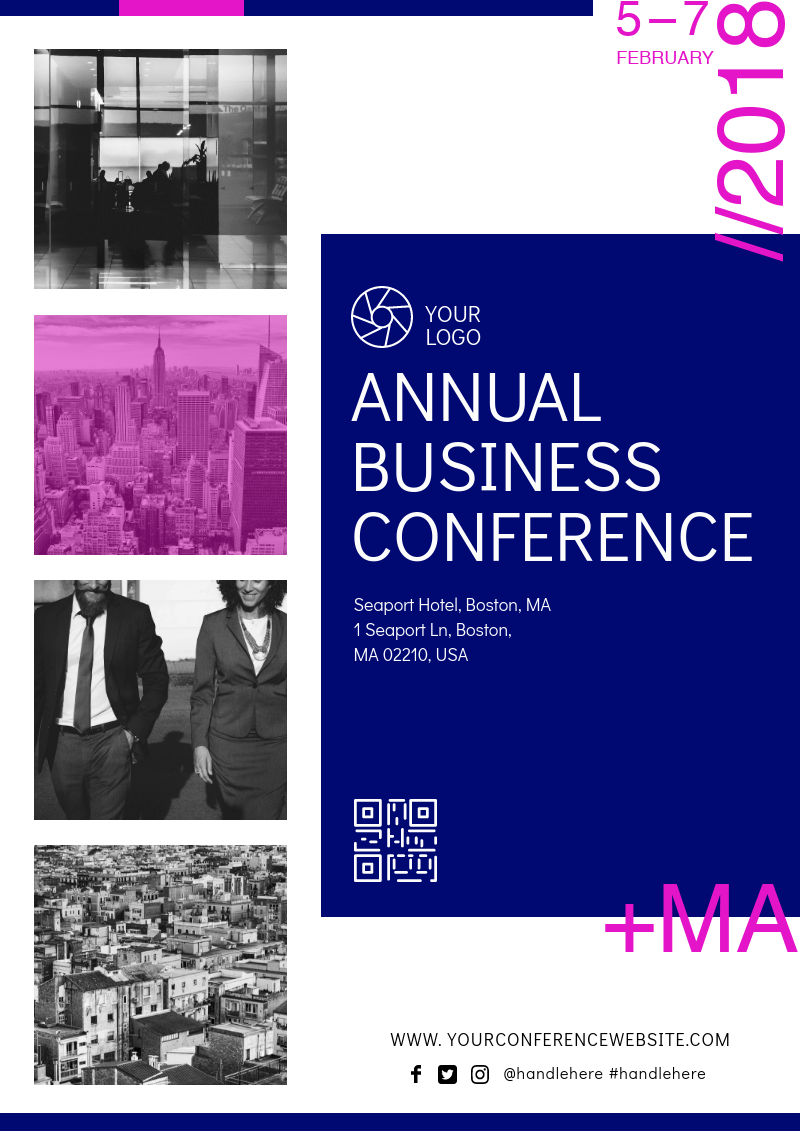
Make this business conference event flyer right away!
16. Enterprise Event Flyer

Create this enterprise event flyer in Piktochart now!
17. Business Event Flyer
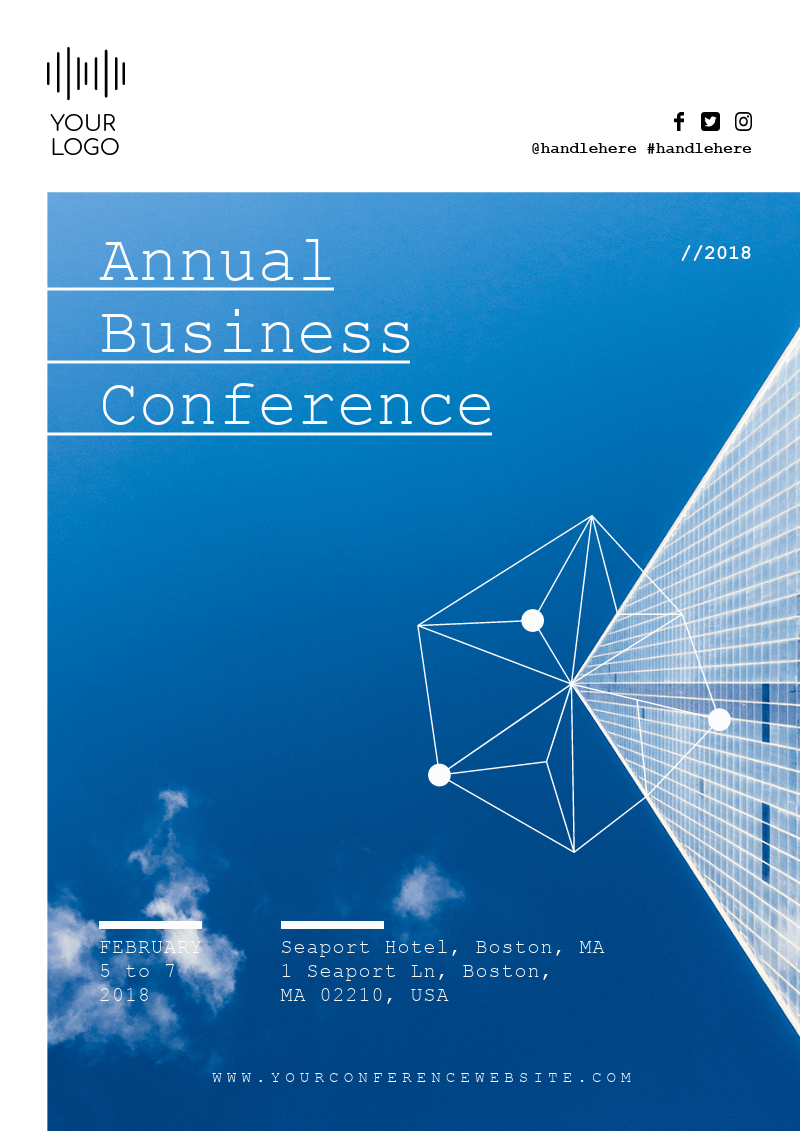
Make this business event flyer straight away!
18. Business Conference Event Flyer
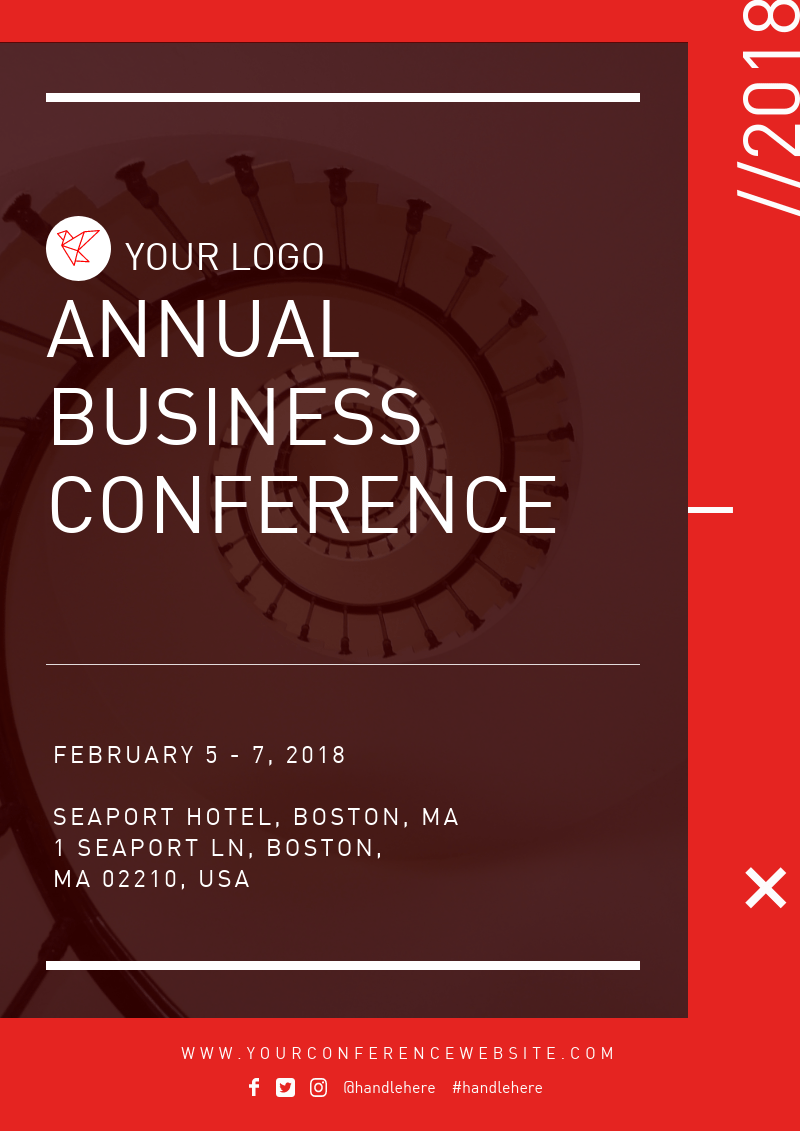
Create this business event flyer in Piktochart now!
19. Inspirational Event Flyer
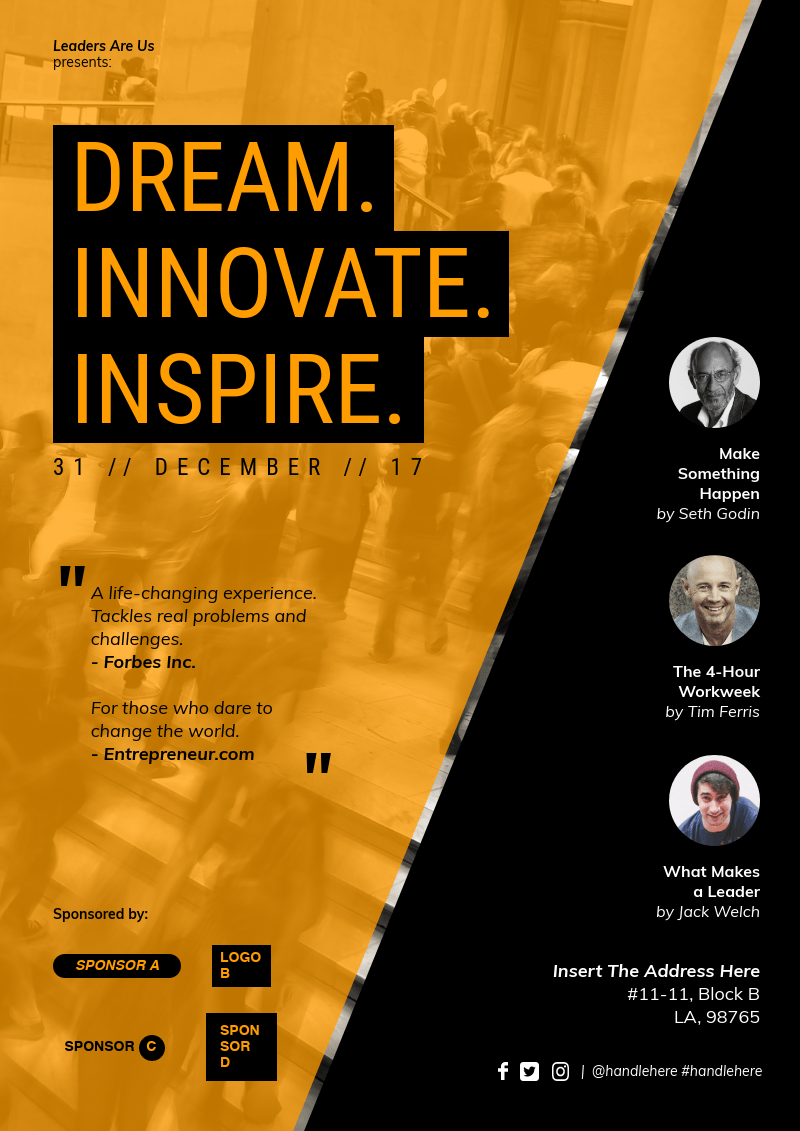
Create this inspirational event flyer in Piktochart!
20. Innovation Event Flyer
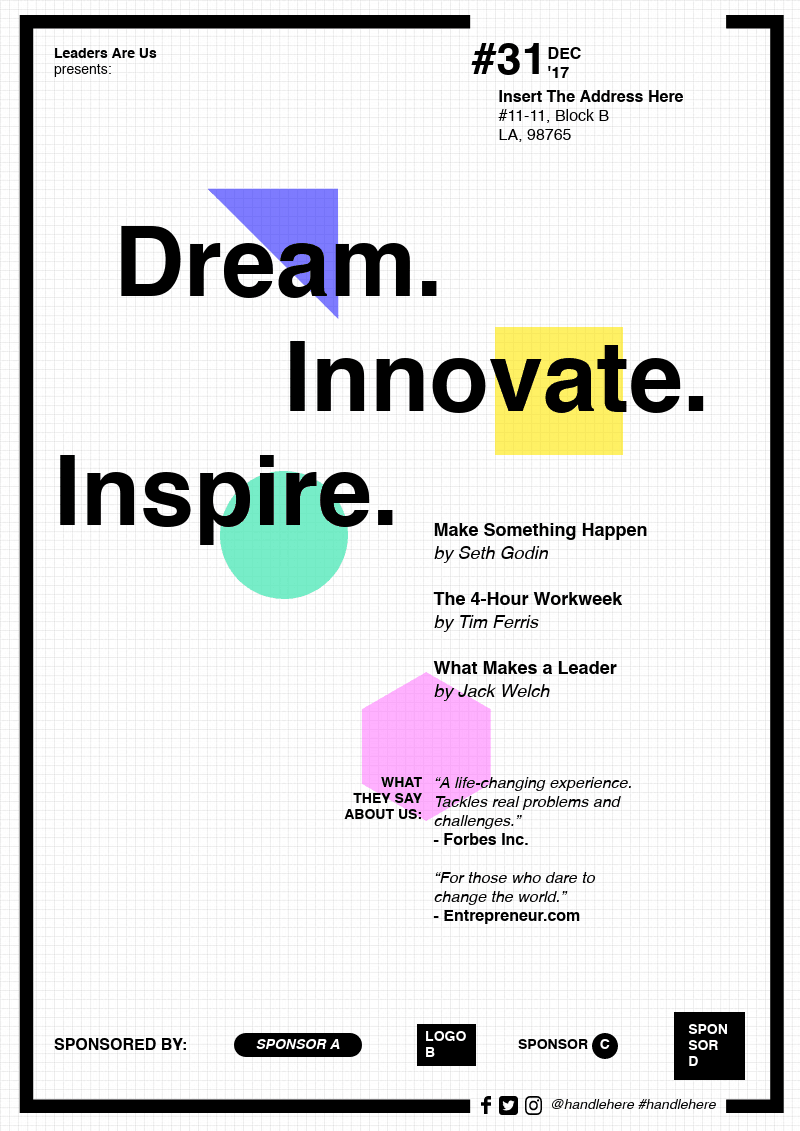
Make this innovation event flyer now!
Whether you’re looking to create an event flyer or poster, we’ve got you covered. Happy Piktochart-ing!